Administer API Key
| This feature is available only in the Open Source Edition. |
To connect to a data source that uses OAuth, you must first create an API Key. See OAuth Data Sources below for the data sources that require the API key.
| If an API Key has not been created (as described below), the user will be shown an error message when they attempt to create the new data source. |
Add API Key
To add an API Key in Enterprise Manager, follow the steps below:
-
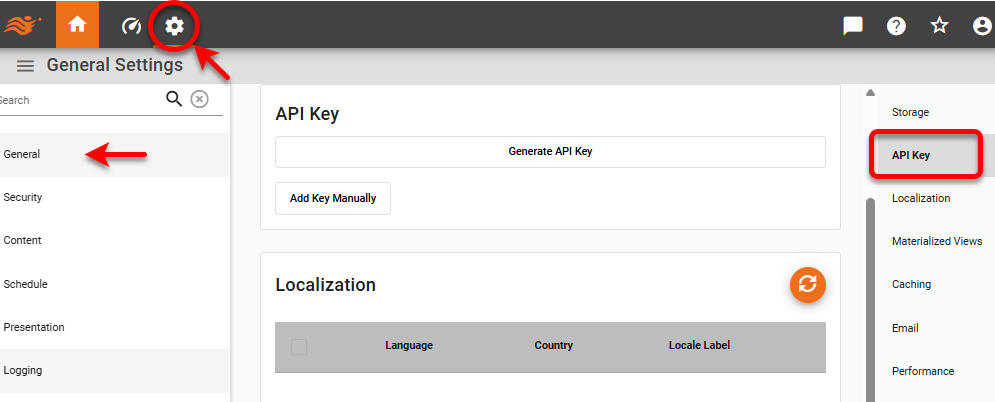
Press the ‘Settings’ button
 at the top of Enterprise Manager.
 -
Select the General page in the left panel.
-
Select the API Key page in the right panel.
-
In the ‘API Key’ panel, press Generate API Key.
-
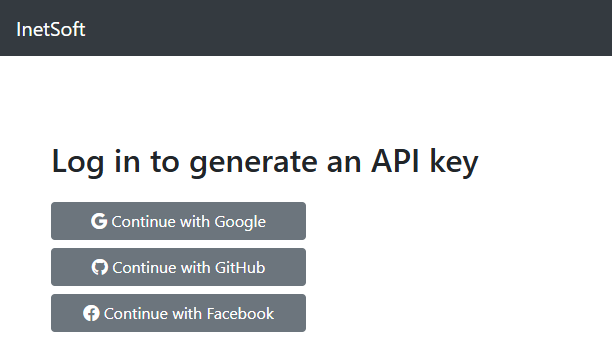
Select the desired service: Google, GitHub, or Facebook.
-
Follow the prompts to log into the service. The API Key will then be displayed on the screen.

-
Copy the API Key.
-
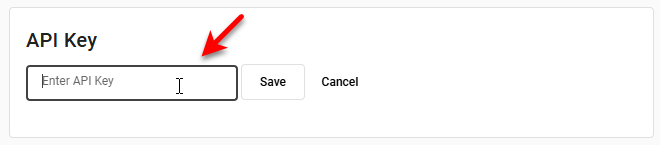
Return to Enterprise Manager, and press Add Key Manually. Enter the key into the provided field.
-
Press the Save button next to the API Key field.
Edit API Key
To edit an existing API Key, follow the steps below:
-
Locate the ‘API Key’ panel as described above in Add API Key.
-
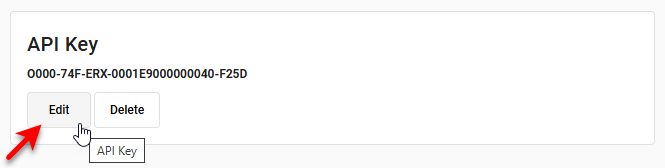
Press the Edit button below the API Key.
-
Enter a new API Key and press Save.
Delete API Key
To delete the API Key, follow the steps below:
-
Locate the ‘API Key’ panel as described above in Add API Key.
-
Press the Delete button below the API Key.