Manage the Repository
The following sections explain how to manage you assets under the ‘Repository’ button  of the Portal.
Create a New Folder
To create a new folder in the Repository, follow the steps below:
-
Press the ‘Repository’ button
at the top of the Portal. -
Right-click on the folder that you want to contain the new folder, and select ‘New Folder’.
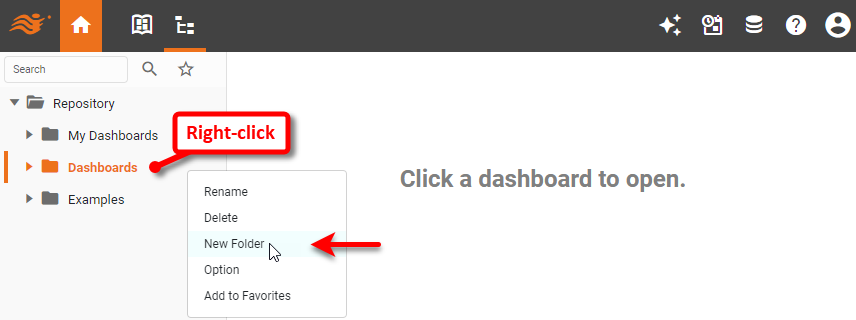
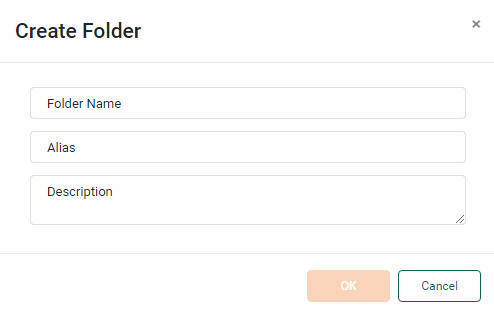
This opens the ‘Create Folder’ page.
-
Enter the desired ‘Folder Name’, and (optionally) supply an ‘Alias’ and ‘Description’. Then press OK.
The ‘Alias’ is the name displayed in the Repository.
This creates a new folder in the specified location.
Move an Asset
To move Dashboards, or folders from one Repository folder to another, follow the steps below:
-
Press the ‘Repository’ button
at the top of the Portal. -
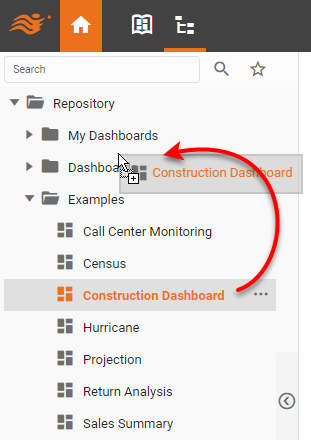
Drag the asset to the desired folder.
Delete an Asset
To delete a Dashboard, or folder from the Repository, follow the steps below:
-
Press the ‘Repository’ button
at the top of the Portal. -
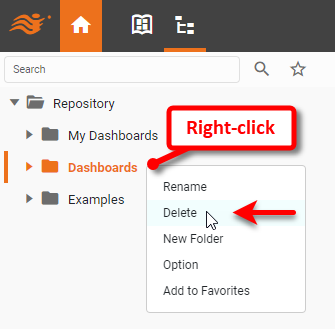
Right-click on the asset and select ‘Delete’.
| The system administrator may be able to recover deleted assets. |
Rename an Asset
To rename a Dashboard, or folder, follow the steps below:
-
Press the ‘Repository’ button
at the top of the Portal. -
Right-click on the asset and select ‘Rename’.
-
Type the new name, and press Enter on the keyboard or simply click somewhere else.
Make an Asset ‘Favorite’
To mark an asset as a ‘favorite’, follow the steps below:
-
Press the ‘Repository’ button
at the top of the Portal. -
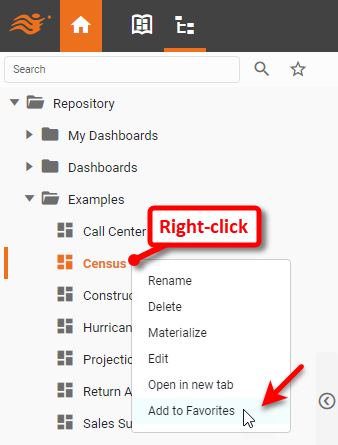
Right-click on the asset in the Repository listing and select ‘Add to Favorites’.
-
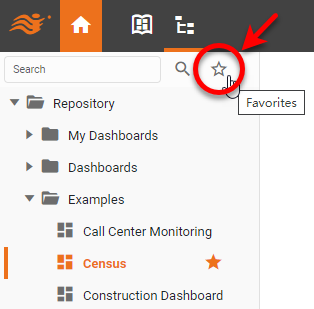
To view your list of favorite assets, press the ‘Favorites’ button
 .
.
To remove an asset from the ‘Favorites’ list, right-click the asset (in either the full list or the ‘Favorites’ list), and select ‘Remove from Favorites’.
Materialize a Dashboard
To create a materialized view for a Dashboard (to improve performance), see Improve Performance.