Create a New VPM
| This feature is available only in Enterprise Edition. |
| VPMs can only be created for relation database data sources. (See JDBC or Connect to a Specific Data Source for information on how to configure a relational database data source.) |
To create a new VPM, follow the steps below:
-
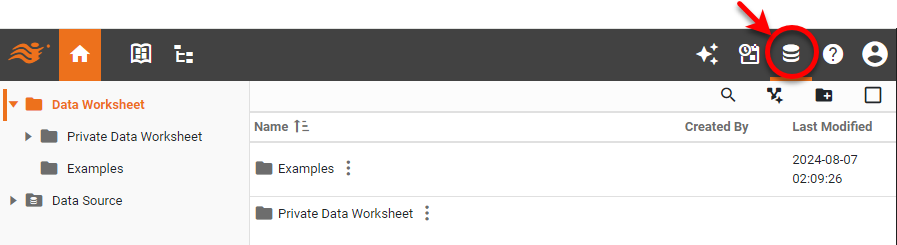
Press the top ‘Data’ button
 .
.
-
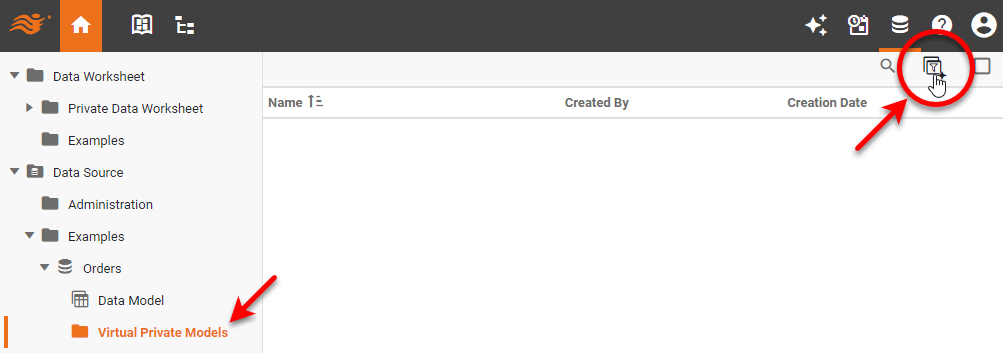
In the left panel, expand the ‘Data Source’ folder, expand the desired data source connection, select ‘Virtual Private Models’, and press the ‘New Virtual Private Model’ button
 .
.
-
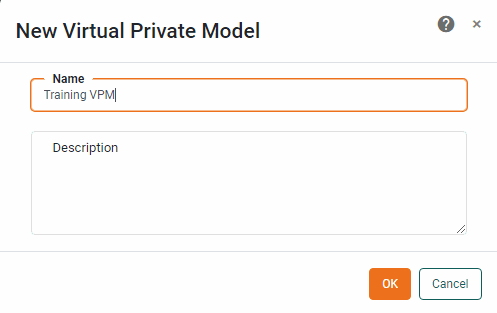
Provide a name for the model and press OK.
-
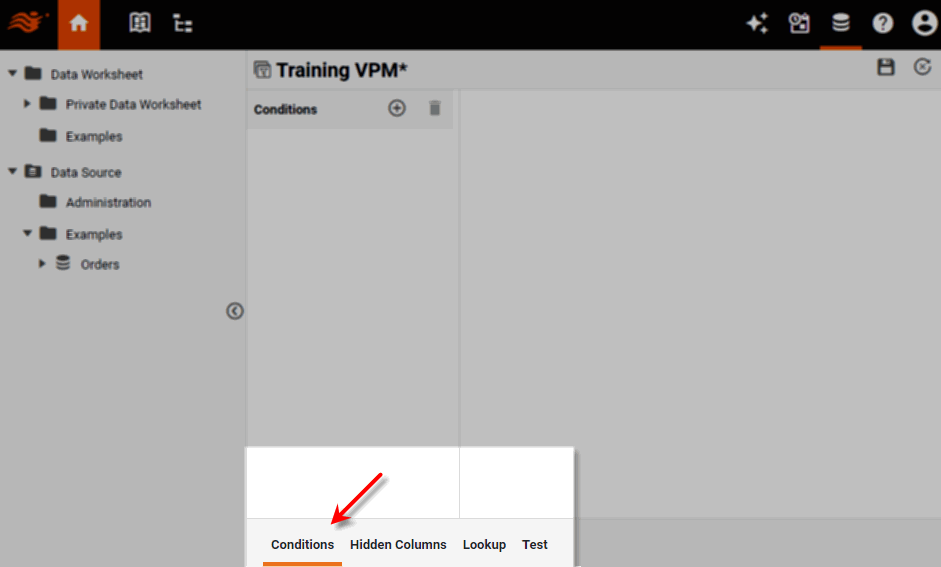
To add new conditions to filter rows based on specified criteria, select the Conditions tab at the bottom of the screen. See Create a Condition for more information.
-
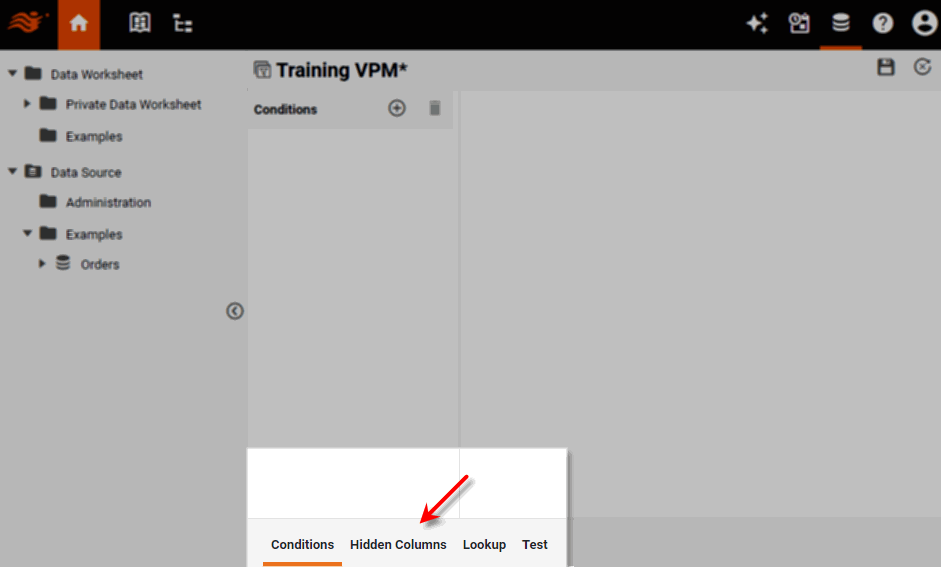
To filter columns based on specified criteria, select the Hidden Columns tab at the bottom of the screen. See Create a Hidden Column for more information.
-
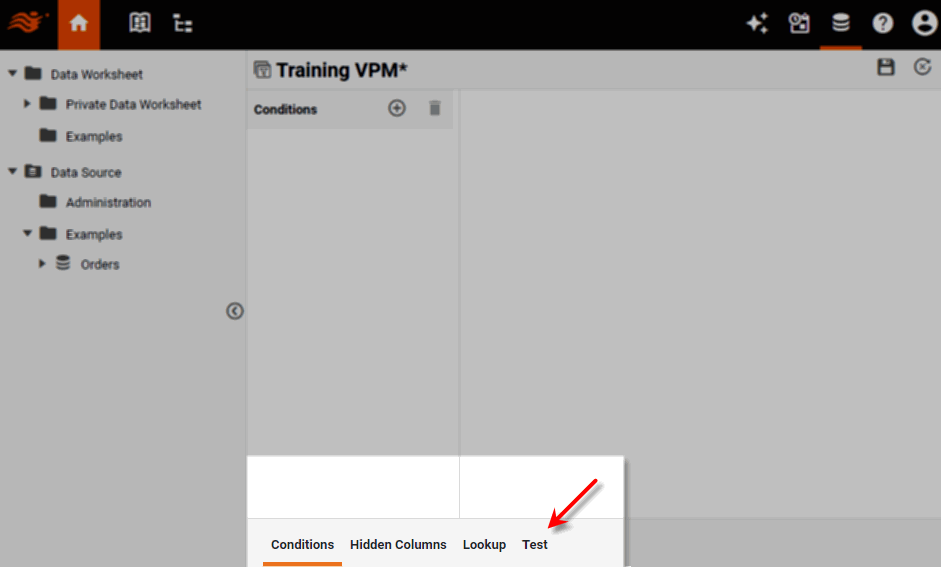
To test the VPM, select the Test tab at the bottom of the screen. See Test a VPM for more information.
-
Press the ‘Save’ button
 to save the VPM.