Configure LDAP Security
The LDAP security provider is useful when your users, groups, and roles are already defined in an LDAP environment such as Active Directory or any generic LDAP implementation.
| You can use the LDAP server only for authentication (i.e., verifying user credentials), not for authorization (setting permissions). LDAP is not available when multi-tenancy is enabled. (See Enable Multi-Tenancy.) |
Passwords for external services such as databases and LDAP servers are securely encrypted using a password-derived key. To change the password, run the :security change-master-password command from the Administration Console. (See Automate Admin Tasks.) Use the system Environment Variable INETSOFT_MASTER_PASSWORD to provide the password (default: success123) to the InetSoft application. If you set INETSOFT_MASTER_PASSWORD before you run the application the first time, the INETSOFT_MASTER_PASSWORD password is used instead of the default.
|
To use an LDAP provider, select the ‘LDAP’ option from the ‘Authentication’ menu on the ‘Security Provider’ page. (See Specify Security Provider.) All user, group, and role information is then retrieved from the LDAP server and cannot be created or configured in Enterprise Manager. The following sections explain how to specify an LDAP security provider.
Prepare the LDAP Server
Before you configure the LDAP security provider in StyleBI, read the recommendations below:
-
Active Directory schemas can contain a large number of objects, so it is important to specify the portions of the schema that will be accessed by StyleBI. Browse your LDAP schema with a tool such as Apache Directory Studio to familiarize yourself with the objects in your LDAP schema.
-
It is recommended that you add new security groups into your LDAP schema to be used when defining security for StyleBI (e.g.,
InetSoftAdmin,InetSoftUser,InetSoftDeveloper, etc.). Add the appropriate users to each of these groups. -
Since directory servers do not currently support roles fully, groups in the LDAP schema are mapped to roles in InetSoft.
-
If the administrator password on the LDAP server is changed, you will not be able to log into Enterprise Manager in the usual way. Instead, log into Enterprise Manager by using the administrator’s Distinguished Name (DN) together with the new LDAP administrator password. This allows Enterprise Manager to connect to the LDAP server and update the security configuration. You can then log into Enterprise Manager using the usual administrator credentials.
-
When you enable an LDAP security provider authentication you can no longer log into the EM using the default ‘admin/admin’ credentials. Instead, you must log in as a user with an ‘Administrator’ role (group).
-
The performance of any
AbstractSecurityProvidersecurity implementation (including LDAP security) can be enhanced by settingsecurity.cache=true. (See All Properties for more information about setting properties.) -
Security data is cached. To refresh the cache when security data changes, press the ‘Clear Security Cache’ button
 on the Security page. See Specify Security Provider for more information.
 -
If you are using a “Named Viewer Session” or “Named Session” license key, you should filter the list of users so that the number of users is not greater than that permitted by the license.
Define LDAP Schema
The structure of the LDAP schema must be defined in the Enterprise Manager. To add schema information, follow the steps below:
-
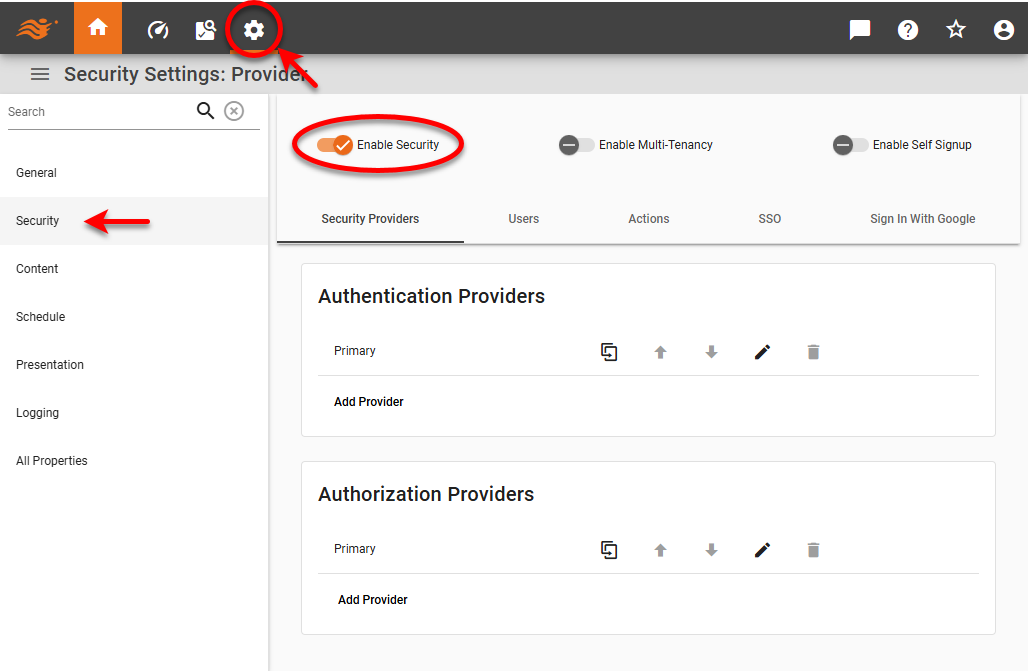
Press the ‘Settings’ button
 at the top of Enterprise Manager.
 -
Select the Security page in the left panel.
-
Select ‘Enable Security’ to activate security settings.
-
In the ‘Authentication’ menu, press the ‘Edit’ button
 next to ‘Primary Provider’ or press Add Provider and enter a provider name. Select the ‘LDAP’ provider type.
 -
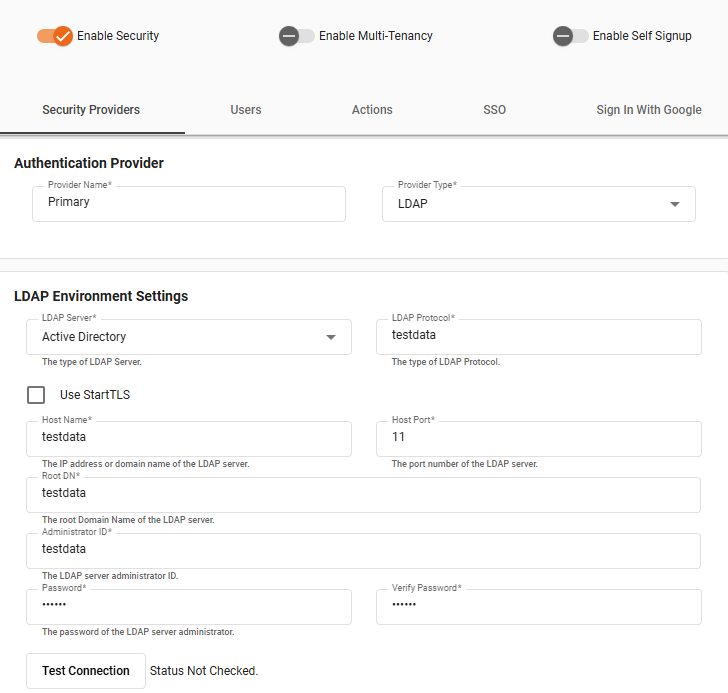
Choose the appropriate LDAP server implementation from the ‘LDAP Server’ menu. Make sure the main LDAP server is correctly installed and configured, and supply the necessary connection information. See Active Directory and Generic LDAP for more details.
-
Enable ‘Search User Subtree’ to perform a recursive search on the specified user base.
-
Press the Test Connection button to test the connection to the LDAP database.
-
In the ‘System Administrator Roles’ field, press the ‘Edit’ button
and enter the role that a user must possess in order to log into Enterprise Manager. This must be the primary role of the Active Directory user. -
Press Apply to save the settings.
Once the directory server environment is configured, you can assign permissions to users/groups/roles for different components and functions. (See Set Repository Permissions and Set Security Actions for more information.)
Active Directory
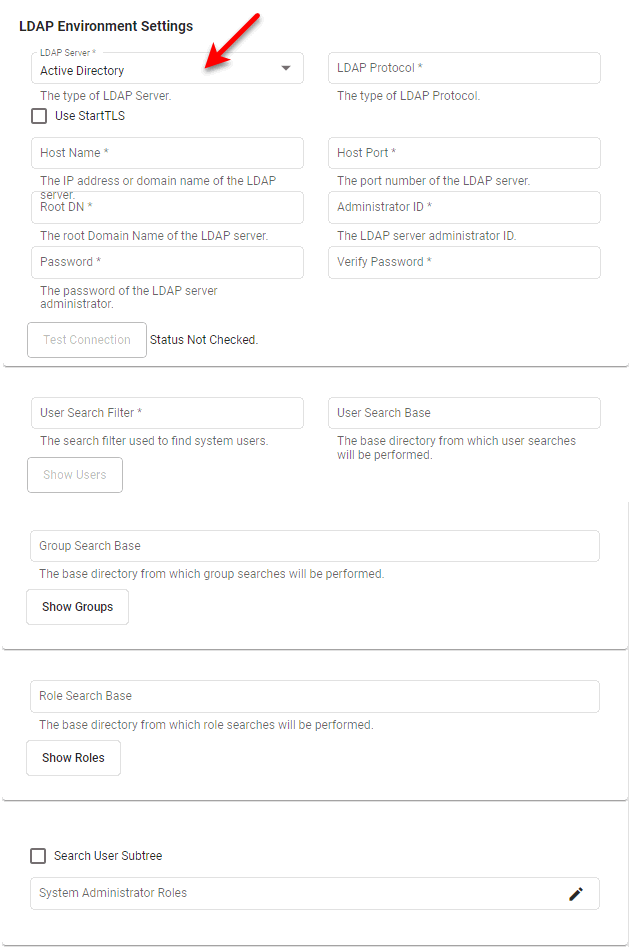
To use an Active Directory server for authentication, select ‘LDAP’ from the ‘Authentication’ menu on the ‘Security Provider’ page, and select ‘Active Directory’ from the ‘LDAP Server’ menu. (See Specify Security Provider for more information about the ‘Security Provider’ page.)
When configuring an Active Directory server to perform authentication for StyleBI, take note of the following points:
-
An Active Directory schema can contain a large number of objects (users, security groups, etc). Before setting up the security provider in Enterprise Manager, use a tool like Apache Directory Studio to browse your schema and become familiar with its structure.
-
It is highly recommended that you add new security groups to the Active Directory schema to support StyleBI users. For example, add security groups such as
InetSoftAdmin,InetSoftUser,InetSoftDeveloper, etc., to the Active Directory schema, and then add the appropriate users to these groups. -
A security group in Active Directory is equivalent to a role in StyleBI. An organizational unit in Active Directory is equivalent to a group in StyleBI.
-
A search base is the location within Active Directory from which StyleBI will search for and load users, security groups, etc. It is typically mapped to an organizational unit, for example,
ou=Departments. A search base can also be a composite of multiple search bases separated by semicolons, e.g.,ou=IT,ou=Departments;ou=Sales,ou=Departments. Press the Show Users, Show Groups, or Show Roles button to verify that the entities are being read correctly. -
After you configure LDAP security, you can no longer log into Enterprise Manager using the default admin/admin credentials. You must log in as a user who has the administrator role security group.
-
After you configure LDAP security, you can no longer add users/groups/roles from within the Users tab in Enterprise Manager. You must do this from within Active Directory. However, the Users tab allows you to view the users defined in Active Directory.
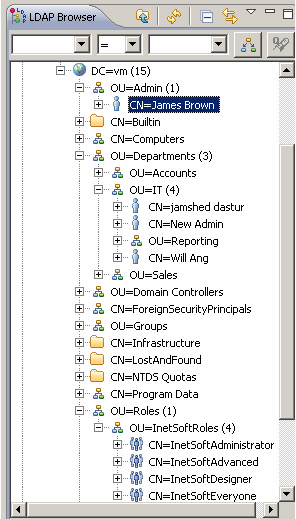
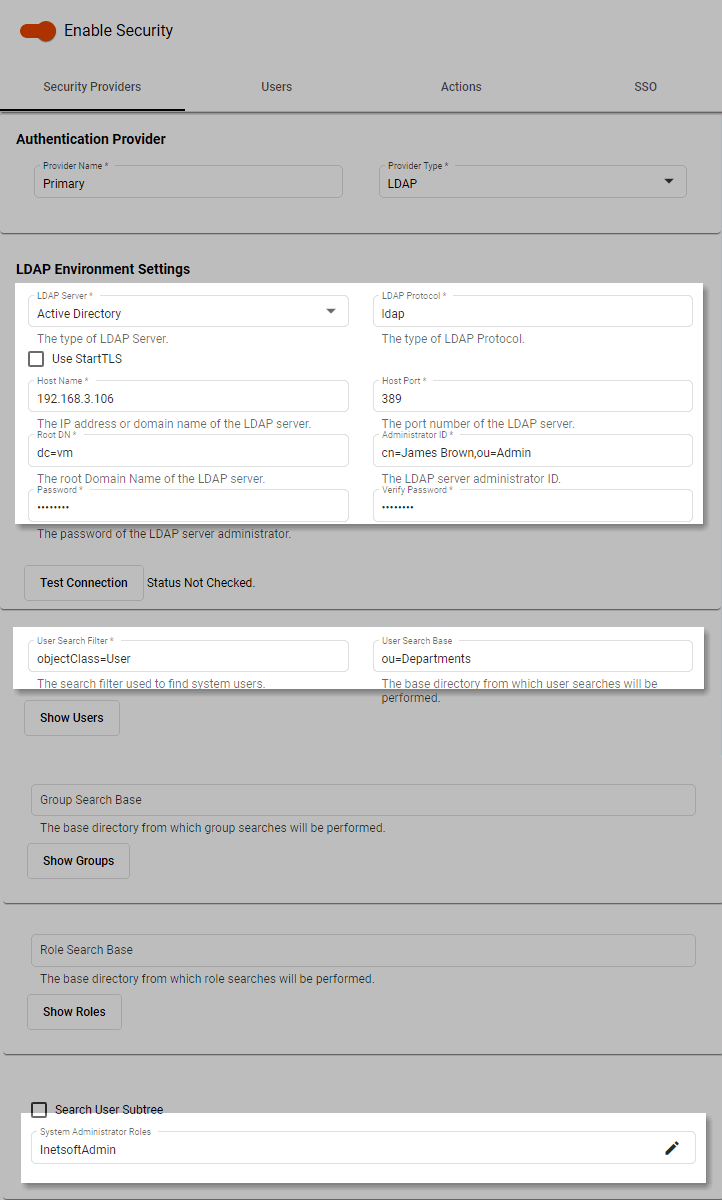
In the following example, consider the following Active Directory schema. The property list below indicate how to fill out the ‘Security Provider’ page for this schema.
- Root DN
-
The ‘Root DN’ (here,
dc=vm) is automatically appended to all units within InetSoft and need not be included in any other entry.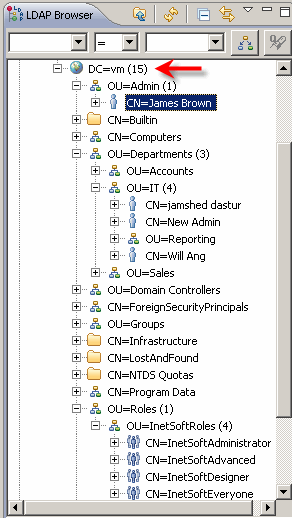
- User Search Base/Group Search Base
-
To search all units below the ‘Departments’ unit, set ‘User Search Base’ and ‘Group Search Base’ to
ou=Departments. (If you want to include only the ‘Accounts’ and ‘Sales’ units, setou=Accounts,ou=Departments;ou=Sales,ou=Departments.)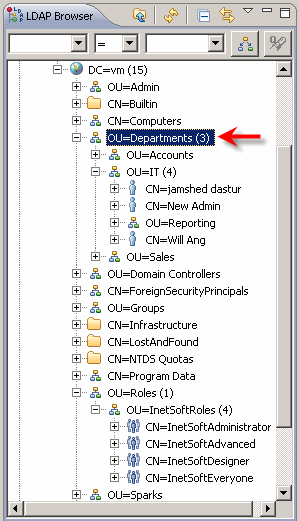
- Role Search Base
-
To search the ‘InetSoftRoles’ unit, set ‘Role Search Base’ to
ou=InetSoftRoles,ou=Roles.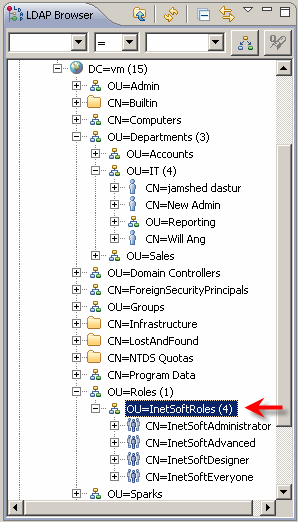
- Administrator ID
-
The ‘Administrator ID’ in this case is
cn=James Brown,ou=Admin. Any account with sufficient read permissions can be used (preferably a service account). It does not need to be an Active Directory domain administrator, and does not need to be in the user search base.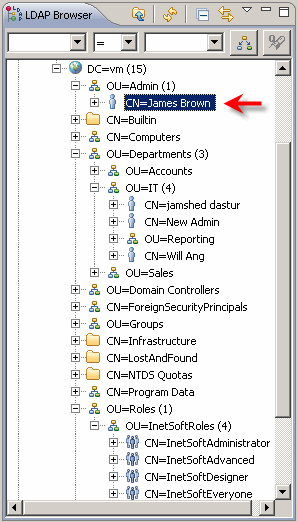
The ‘Security Provider’ page for these setting appears as follows:
To use an Active Directory server for authorization, you should enable writing to the schema. To do this, follow the steps below:
-
.
-
Type
mmcand press OK. -
Select and press Add.
-
Select ‘Active Directory Schema’ and press Add.
-
Select ‘Active Directory Users and Groups’ and press Add.
-
Press Close and then OK.
-
Right-click ‘Active Directory Schema’ in the tree on the left.
-
Select ‘Change Domain Controller’.
-
If the Current DC is not correct, select ‘Specify Name’, enter the DC, and press OK.
-
Right-click ‘Active Directory Schema’ and select ‘Operations Master’.
-
If the Current Operations Master is not the same as the DC you just entered, press the Change button.
-
Check the “The Schema may be modified…” box.
-
Press OK and exit the MMC.
Note that the administrator account needs to be a member of the Schema Admins group.
Generic LDAP
To use any LDAP server other than Active Directory, select ‘Generic’ from the ‘LDAP Server’ menu under the ‘Security Provider’ page. (See Specify Security Provider for information about the ‘Security Provider’ page.)
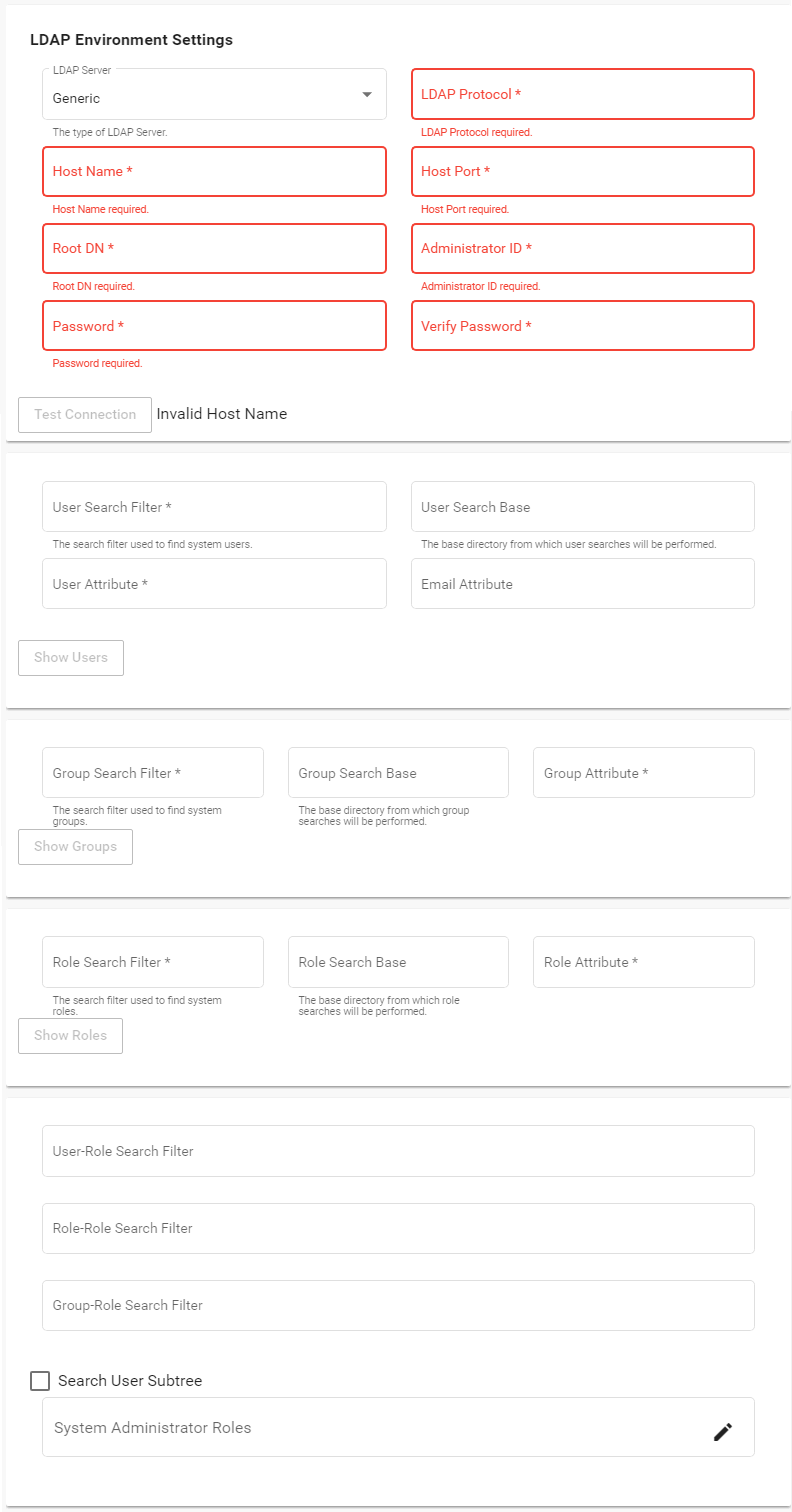
Note that a fully qualified name must be entered for the Administrator ID. The following properties are available:
- Host Name
-
The host name of the server that is running the directory server. Example:
inetsoft.com. - Port
-
The port number on which the directory server is listening. Example:
389. - Use StartTLS
-
Enable STARTTLS for encryption.
- Root DN
-
The distinguished name [DN] of the root of the directory server. Example:
dc=inetsoft,dc=com. - Administrator ID
-
The distinguished name [DN] of the directory server administrator. Example:
cn=manager,dc=inetsoft,dc=com. - Administrator Password
-
Directory server administrator’s password. Example:
secret. - User Search Filter
-
The search filter used to find system users. Example:
(objectclass=person). - User Search Base
-
The base directory from which user searches will be performed. Example:
ou=People. - User Attribute
-
The name of the attribute in the user entry that will be used as the user ID. Example:
uid. - Email Attribute
-
The name of the attribute in the user entry that should be used to designate the user email address.Group Search FilterThe group search filter used to find system groups. Example:
(objectclass=organizationalunit). - Group Search Base
-
The base directory from which group searches will be performed. Example:
ou=People. - Group Attribute
-
The name of the attribute in the group entry that will be used as the group ID. Example:
ou. - Role Search Filter
-
The role search filter used to find system roles. Example:
(objectclass=groupofuniquenames). - Role Search Base
-
The base directory from which role searches will be performed. Example:
ou=Groups. - Role Attribute
-
The name of the attribute in the role entry that will be used as the role ID. Example:
cn. - User-Role Search Filter
-
The user-role search filter used to find the roles assigned to a specific user. This property is a standard LDAP search filter in which the string
{0}will be replaced with the user ID. Example:(&(objectclass=groupofuniquenames) (uniquemember=uid={0},*)) - Role-Role Search Filter
-
The role-role search filter used to find the roles assigned to a specific role. This property is a standard LDAP search filter in which the string
{0}will be replaced with the role ID. Example:(&(objectclass=groupofuniquenames) (uniquemember=uid={0},*)) - Group-Role Search Filter
-
The group-role search filter used to find the roles assigned to a specific group. This property is a standard LDAP search filter in which the string
{0}will be replaced with the group ID. Example:(&(objectclass=groupofuniquenames) (uniquemember=uid={0},*)) - Search User Subtree
-
Recursively search the tree for uid entries.
- System Administrator Roles
-
Press the ‘Edit’ button
and enter the role that a user must possess in order to log into Enterprise Manager.