Sort Data
To sort data in a Data Worksheet, see the sections below. You can sort data on a single column or multiple columns. Sorting in a Data Worksheet may be most efficient when you want to use the sorted data across many Dashboards. Otherwise, you can simply allow the user to sort at the presentation level (Dashboard).
|
Sort on Single Column
Watch Video: Sort On a Single Column
This video might show an earlier version of the feature or operation that differs in minor ways from the current version.
To sort a data block on a single column, follow the steps below:
-
Create the data block that you want to sort. See Create a Data Worksheet for information on how to create a data block.
-
Click the data block to select it.
-
In the bottom panel, press the ‘Sort’ button
 in the column header of the column on which you want to sort the data. Press once to sort the column in ascending order. Press again to sort the column in descending order. Press a third time to return the column to its original order.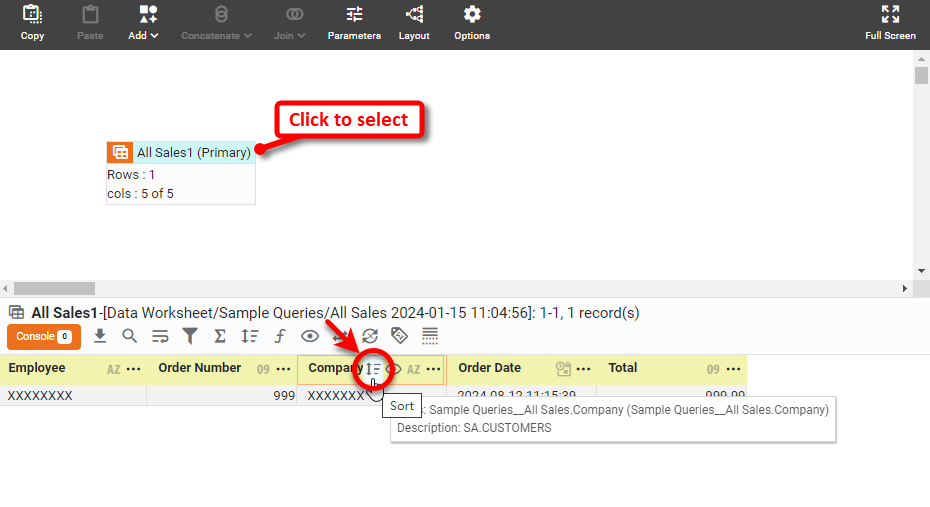
When a column is sorted, its sort order is indicated by a ascending-sort arrow
 or descending-sort arrow
  next to the column header in the bottom panel.
 -
Save the Data Worksheet by pressing the ‘Save’ button
 in the toolbar or press Ctrl+S on the keyboard.
You can now use this Data Worksheet to supply the dataset for a Dashboard. See Visualize Your Data to create a Dashboard.
Sort on Multiple Columns
To sort a data block on multiple columns, follow the steps below:
Watch Video: Sort on Multiple Columns
This video might show an earlier version of the feature or operation that differs in minor ways from the current version.
-
Create the data block that you want to sort. See Create a Data Worksheet for information on how to create a data block.
-
Click the data block to select it.
-
Press the ‘Sort’ button
in the bottom panel. This opens the ‘Sort Column’ panel.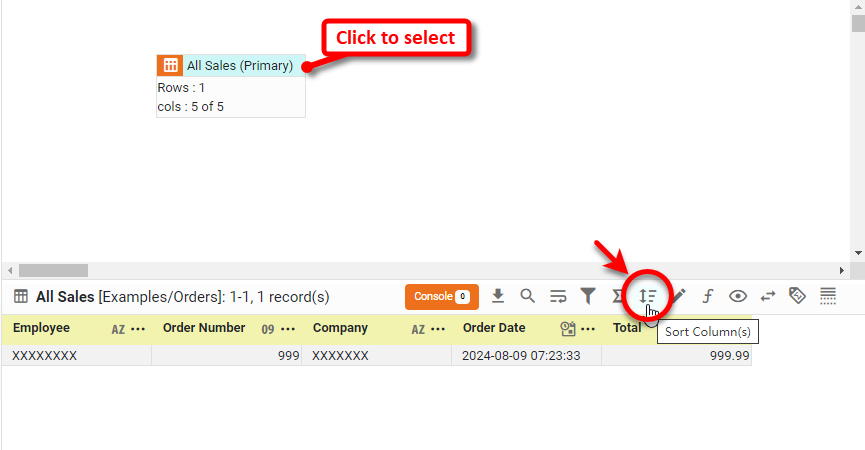
-
From the menus, select the data block columns by which you want to sort the results.
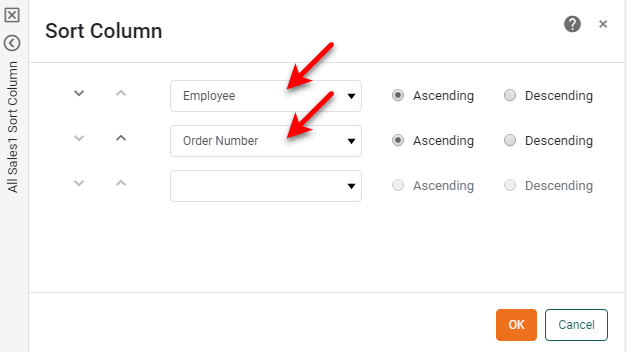
The hierarchical sort order of a column is determined by the vertical position of the menu. The column specified in the top menu is sorted first, the column specified in the second-to-top menu is sorted second, and so on.
-
For each column, select ‘Ascending’ or ‘Descending’ to determine the sorting direction.
-
Press OK to close the panel and apply the sorting. When a column is sorted, its sort order is indicated by a ascending-sort arrow
or descending-sort arrow next to the column header in the bottom panel. -
Save the Data Worksheet by pressing the ‘Save’ button
in the toolbar or press Ctrl+S on the keyboard.
You can now use this Data Worksheet to supply the dataset for a Dashboard. See Visualize Your Data to create a Dashboard.