Create a Custom Function
In addition to using predefined JavaScript functions (see User Functions), you also can create your own functions. A custom function is a reusable component that can be applied in multiple Dashboards. By saving common script tasks to the script library, you can keep your main scrips short, simple, and easy to maintain. The following sections explain how to create and use a custom script function.
The Script Library is independent of any particular Dashboard. You do not need to open a Dashboard in order to access the Script Library.
Add a Function to the Script Library
The Script Library is a collection of functions, which can be called from any Dashboard with access to the Library. To add a new function to the library, follow the steps below.
-
Log into the User Portal. (See Use the Portal.)
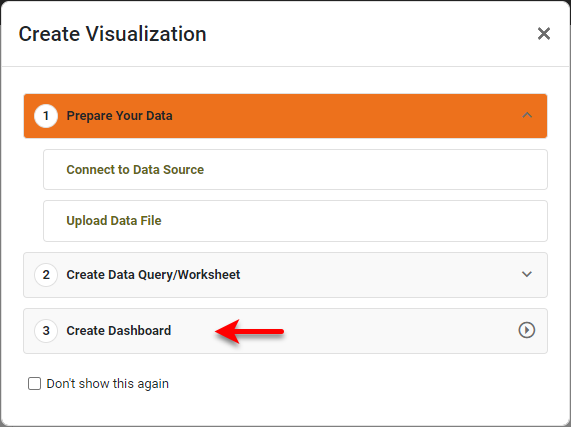
If you see the ‘Create Visualization’ dialog box instead of the User Portal, press Create Dashboard to proceed to the ‘New Dashboard’ dialog box shown in the following steps.
-
In the User Portal, press the ‘Create’ button
 and select the ‘Dashboard’
  or ‘Data Worksheet’
  option.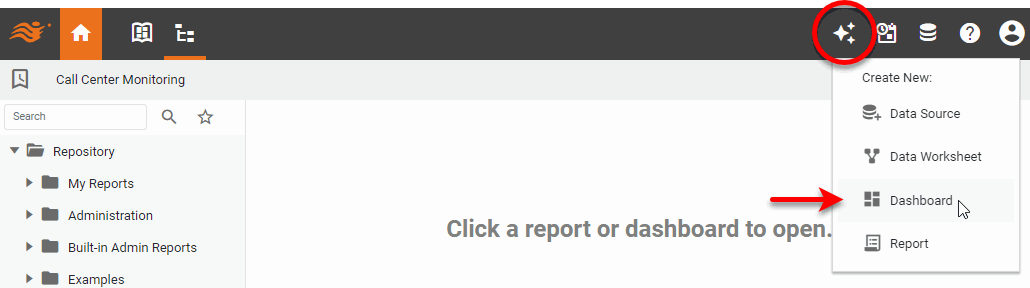
-
Select the Assets tab in the left panel (if not already selected).
-
Expand the ‘Library’ folder, and right-click the ‘Script’ folder. Note: You can also access menu options from the ‘More’ button (
 ) in the mini-toolbar. Select ‘New Script Function’.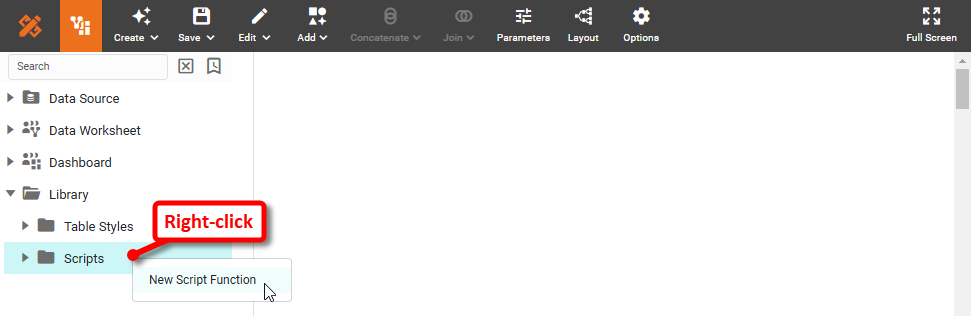
-
Enter the desired function script, beginning with
functionkeyword. You can use the built-in functions provided in the ‘JavaScript Functions’ and ‘Excel Functions’ folders on the left side.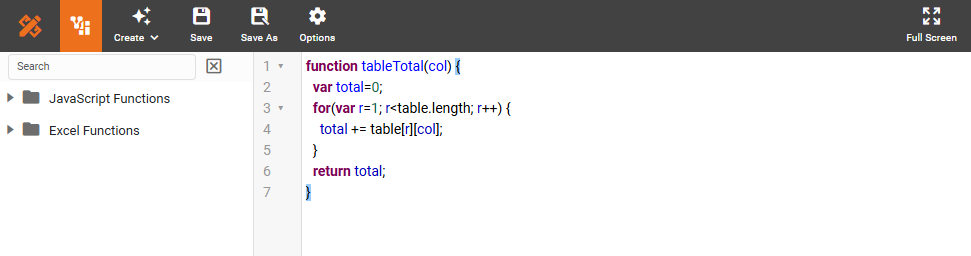
Any parameters (e.g., col) should be placed in a comma-separated list inside the parentheses that follow the function name. These parameters can then be used inside the function body. Since JavaScript does not support type declaration, parameters are not qualified with types.
Note in the above function that the property tableis not qualified by a component ID (e.g.,Table1.table). Functions are scoped dynamically; therefore, the propertytablerefers to whichever Table component called thetableTotal()function. You can therefore call thistableTotal()function from within any Table component script to operate on that particular Table component. See Function Scope below for more information. -
Optional: Press the ‘Options’ button
 in the toolbar to set the following propeties:
- Font Size
-
Font size for all scripts in the Editor.
- Content
-
A description for the script currently being edited.
-
Press the ‘Save’ button
 in the toolbar. Enter a valid name for the function. A function name should begin with an uppercase or lowercase letter, followed by letters, digits, or ‘_’. No spaces or other special characters should be used.
 -
Press OK. This saves the function into the Script Library.
Edit a Function in the Script Library
To edit a function in the library, follow the steps below.
-
Log into the User Portal. (See Use the Portal.)
If you see the ‘Create Visualization’ dialog box instead of the User Portal, press Create Dashboard to proceed to the ‘New Dashboard’ dialog box shown in the following steps.
-
In the User Portal, press the ‘Create’ button
and select the ‘Dashboard’ or ‘Data Worksheet’ option. -
Expand the ‘Library’ folder and the ‘Script’ folder. Double-click the function that you want to edit. Note: You can also access menu options from the ‘More’ button (
) in the mini-toolbar.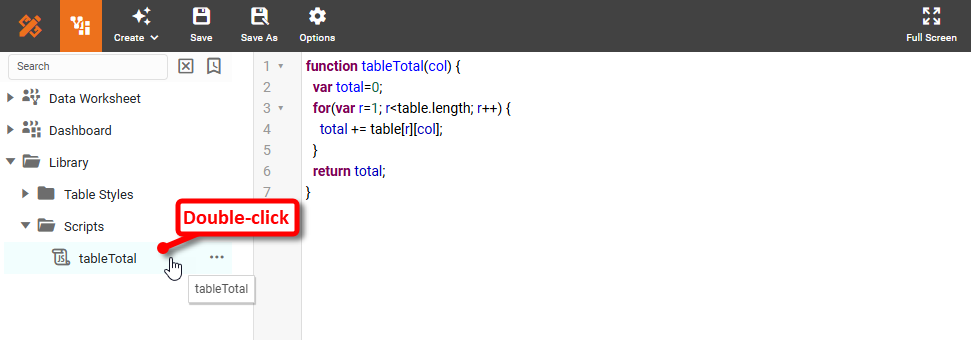
-
Edit and save the function as described in Add a Function to the Script Library.
-
Optional: To delete a function, right-click the function in the ‘Scripts’ folder, and select ‘Remove’. Note: You can also access menu options from the ‘More’ button (
) in the mini-toolbar.
Function Scope
Function scoping is dynamic. This means that the scope in which the function executes is the scope of the function caller. For example, if a function is called from the scope of a component script on the “Table1”, then all the properties of Table1 are available to the function. Properties that are not qualified with an element ID (e.g., table, visible, as opposed to TableX.table, TableX.visible) refer to the caller, Table1.
This scope rule means that if a variable is not declared within a function, the script engine will try to find it in the enclosing scopes. Exactly which object will be located depends on where the function is called. To avoid ambiguity, when you use a variable in a function, you should either declare it inside the function, or pass it in as a parameter.