confirm(message)
| alert(message,level) to display a no-choice message to the user. |
The confirm() function opens a dialog box to provide the user with a choice to continue or cancel an operation. For example, you can use the confirm() function in the onClick script of a ‘Submit’ button to verify the user’s intention to submit. (See Submit Button Properties for more information.)
The confirm() function does not suspend script processing. Rather, a script containing the confirm function is automatically executed either once or twice:
-
On the first execution of the script, the property
confirmEvent.confirmedis set tofalse. -
On the second execution of the script, which occurs only if the user presses btn:[Yes] in the ‘Confirm’ dialog box, the property
confirmEvent.confirmedis set totrue.
This repeated script execution allows you to invoke different operations depending on the user’s response to the confirmation prompt. For example, the script below asks the user to confirm that they want to continue submission even though they have not provided values for both TextInput components.
if(!confirmEvent.confirmed) {
  if((TextInput1.value==null) || (TextInput2.value==null)) {
    confirm('You have not entered all values.  Continue?')
  }
}
else {
  parameter.val1 = TextInput1.value;
  parameter.val2 = TextInput2.value;
  alert('Input has been submitted.')
}
The script executes a first time when a user presses the ‘Submit’ button. During this first execution, confirmEvent.confirmed is false, so the TextInput values are tested and the ‘Confirm’ dialog box is generated.
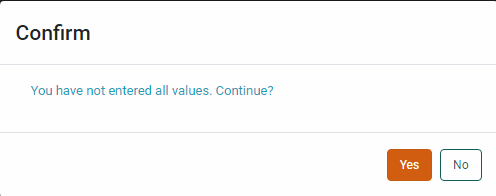
If the user presses btn:[No], the dialog box is closed and no action is taken. If the user presses btn:[Yes], the script executes a second time with confirmEvent.confirmed now set to true, which commences the action in the else block. (In this case, the desired action is simply to assign the TextInput values to corresponding Dashboard parameters.)