Bookmark a Dashboard
| These features are available to both designers and end-users. |
A bookmark allows you save your current Dashboard settings (filter selections, menu choices, annotations, etc.) so that you can return to these settings at a later time. The following sections explain how to work with bookmarks.
| Bookmarks store only settings, not data. See Annotate a Dashboard to save annotations with a bookmark. |
Save a New Bookmark
To save a Dashboard configuration as a new bookmark in the User Portal, follow the steps below:
-
Open the Dashboard for viewing. (See Use a Dashboard.)
-
Adjust the Dashboard settings (filtering selections, menu choices, annotations, etc.) as desired to obtain the configuration that you want to save.
-
Press the ‘Bookmarks’ button
 on the right side of the toolbar. This opens the ‘Bookmark’ menu.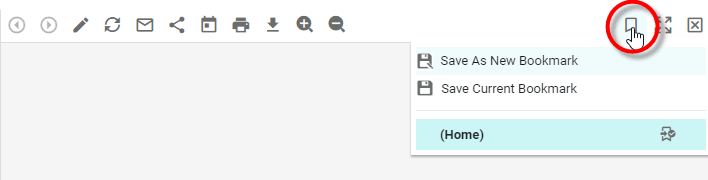
-
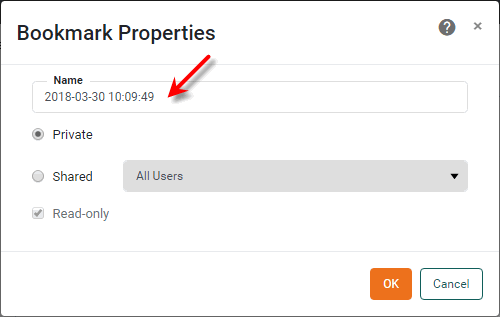
Select the ‘Save as New Bookmark’ option. This opens the ‘Bookmark Properties’ dialog box.
-
Enter a name for the new bookmark in the ‘Name’ field. (The default bookmark name is current time.)
-
Select ‘Private’ if you want the bookmark to be visible only to you. Select ‘Shared’ if you want other users of the Dashboard to be able to use the bookmark that you have created.
If you select ‘Shared’, select ‘All Users’ to share the bookmark with all Dashboard users or select ‘Same Groups’ to share the bookmark only with users that belong to one or more of your current user groups. (User groups are configured by an administrator.)
-
Enable the ‘Read-only’ option if you do not want other users to modify this bookmark. Otherwise, any user who shares this bookmark will be able to change the bookmark settings.
-
Press OK to save the bookmark.
Load a Bookmark
To restore a Dashboard to the settings saved in a bookmark, follow the steps below:
-
Open the Dashboard for viewing. (See Use a Dashboard.)
-
Press the ‘Bookmarks’ button
on the right side of the toolbar. This opens the ‘Bookmark’ menu. -
Press the ‘Filter’ button
 to restrict the displayed bookmarks to either ‘Shared By Others’ or ‘Owned By Me’. The default is ‘All’.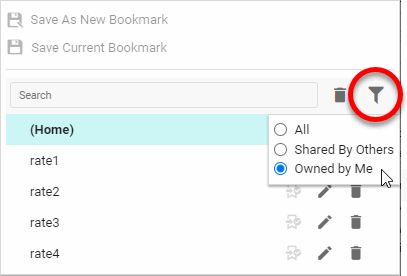
-
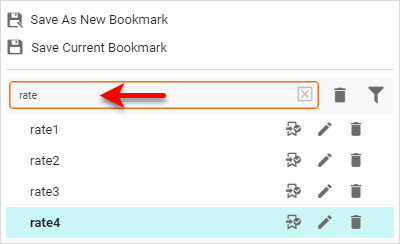
To filter the list of available bookmarks, type all or part of a Bookmark label in the ‘Search’ field.
-
Select the bookmark you want to restore.
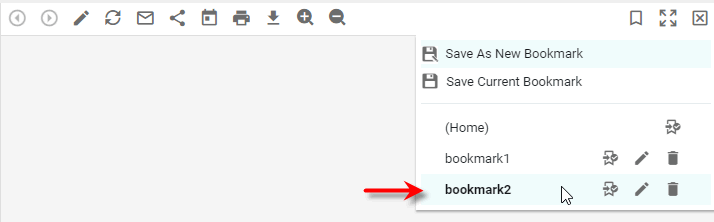
The Dashboard is updated with the settings previously saved in the bookmark.
Update a Bookmark
To update a bookmark with new settings, follow the steps below:
-
Open the Dashboard for viewing. (See Use a Dashboard.)
-
Press the ‘Bookmarks’ button
on the right side of the toolbar. This opens the ‘Bookmark’ menu. -
Select the bookmark you want to update. This bookmark is now the active bookmark.
-
Make any desired changes to the Dashboard settings (selections, input components, etc.).
-
Press the ‘Bookmarks’ button
again and select ‘Save Current Bookmark’ or press Ctrl+S on the keyboard. This updates the active bookmark with the current Dashboard settings.
| You can only update a bookmark for which you have write permission. You can only update the default bookmark (the bookmark shown in italics or the ‘Home’ bookmark) if you have write permission for the Dashboard and you are the first user (among all active users of the Dashboard) to have opened the Dashboard. |
Delete a Bookmark
To delete a bookmark, follow the steps below:
-
Open the Dashboard for viewing. (See Use a Dashboard.)
-
Press the ‘Bookmarks’ button
on the right side of the toolbar. This opens the ‘Bookmark’ menu. -
Press the ‘Remove’ button
 next to the bookmark that you want to delete.
| You can only delete a bookmark for which you are the owner. An administrator can also follow Login as Different User to delete a bookmark. (The ‘Home’ bookmark cannot be deleted.) |
Delete All Bookmarks
To delete all bookmarks based on their age since creation or last access, follow the steps below:
-
Open the Dashboard for viewing. (See Use a Dashboard.)
-
Press the ‘Bookmarks’ button
on the right side of the toolbar. This opens the ‘Bookmark’ menu. -
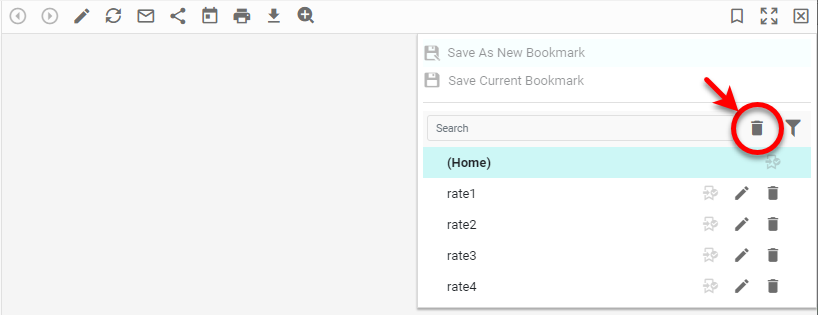
Press the ‘Remove Bookmarks’ button
.
-
To remove bookmarks that were created prior to a certain date, select ‘Older than’ and choose the desired date. To remove bookmarks that have not been accessed since a certain date, select ‘Not accessed since’ and choose the desired date.
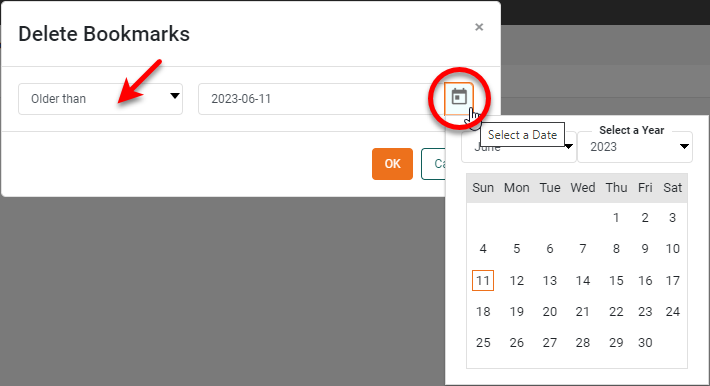
-
Press OK.
| You can only delete a bookmark for which you are the owner. An administrator can also follow Login as Different User to delete a bookmark. (The ‘Home’ bookmark cannot be deleted.) |
Modify Bookmark Name and Sharing
To change the name or sharing settings for a bookmark, follow the steps below:
-
Open the Dashboard for viewing. (See Use a Dashboard.)
-
Press the ‘Bookmarks’ button
on the right side of the toolbar. This opens the ‘Bookmark’ menu. -
Press the ‘Edit’ button
 next to the bookmark that you want to change. This opens the ‘Edit Bookmark’ dialog box.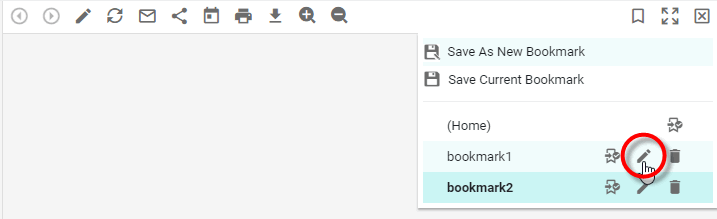
-
Make the desired changes to the bookmark name and sharing. See Save a New Bookmark above for more information about these settings.
-
Press OK to update the bookmark name and sharing.
| You can only modify a bookmark that you have created yourself. (The ‘Home’ bookmark cannot be modified.) |
Set a Default Bookmark
The default bookmark for a Dashboard specifies the settings (filter selections, menu choices, annotations) that will be in effect each time you re-open the Dashboard in the Portal. This is the “starting state” of the Dashboard.
To set an existing bookmark as the default bookmark, follow the steps below:
| If you have not yet bookmarked the desired Dashboard state, see Save a New Bookmark above. |
-
Open the Dashboard for viewing. (See Use a Dashboard.)
-
Press the ‘Bookmarks’ button
on the right side of the toolbar. This opens the ‘Bookmark’ menu. -
Press the ‘Set as Default’ button
 next to the bookmark that you want to set as the Dashboard’s starting state.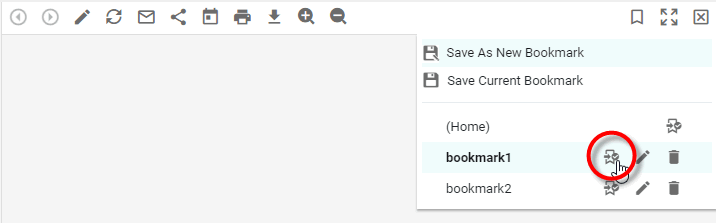
The default bookmark is subsequently shown in italics.
The Dashboard will now open with the settings defined by this default bookmark.
If you do not specify a default bookmark for a Dashboard, the Dashboard will open with the settings defined by the ‘Home’ bookmark. To remove the default designation from a bookmark, simply designate a different user-created bookmark or the ‘Home’ bookmark as the default.