Math.cos(number)

CALC.cos(number) for the preferred version from the CALC library.

Return the cosine (in radians) of a number. This function is an implementation of the standard JavaScript Math.cos() method, and can be used with or without the Math qualifier, cos() or Math.cos().

Example

cos(pi());  // returns -1.0

To reference data when scripting a Data Worksheet Expression Column or Dashboard Calculated Field, use the field syntax. Example:

cos(field['Angle'])

To reference data in Dashboard global script, component script, or property script, use keywords such as value, selectedObjects, data, table, or parameter. Example:

cos(Slider1.selectedObject)
cos(parameter.Angle)

How to access data in Data Worksheet Expression Columns…​

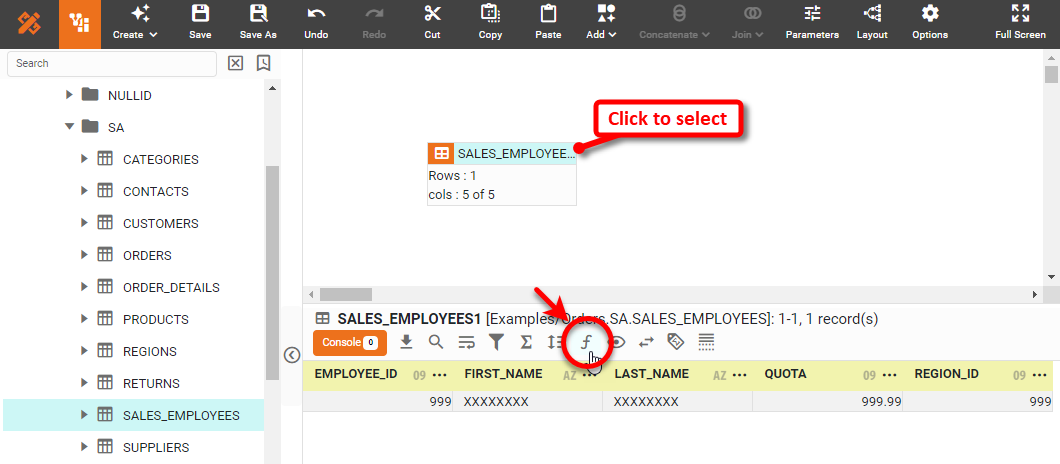
To create an expression column in a Data Worksheet, press the ‘Create Expression’ button formula. (See Create a New Data Field for more details.)

agileTransform3

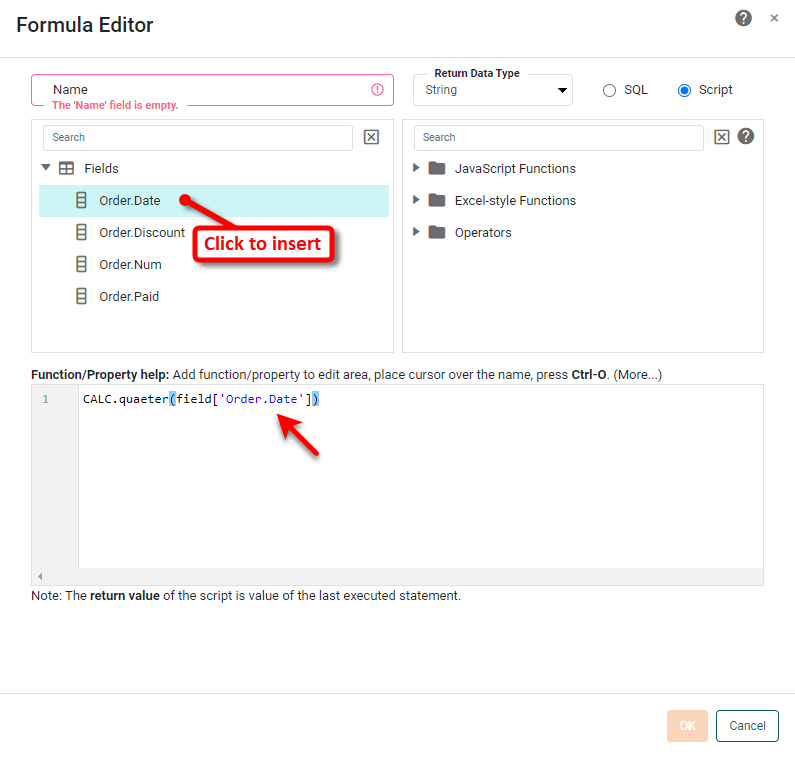
Insert fields (and parameters) into the script by clicking the items in the tree.

Example syntax:
CALC.quarter(field['Order Date'])

Expression1

To reference the data contained in other cells of the data block, see the topics below:

Access data in the current row

Formulas run in the scope of the current row. Each cell value on the current row can be accessed by indexing into the field array using the appropriate column name or column index. The syntax is as follows:

field['column name']
// Example: field['quantity']

field[column_idx]
// Example: field[3]

For example, if ‘quantity’ and ‘price’ are two columns in the data block, a formula column in the same data block can use the expression

field['quantity'] * field['price']

to produce the product quantity*price for every row of the ‘quantity’ and ‘price’ columns.

Access data on a previous row

You can reference the values of preceding rows by their relative offset from the current row. This feature is useful when creating differential formulas. The syntax is as follows:

field[relative_position]['column name']

// Example: field[-1]['Total Sales']  (previous row, in column 'Total Sales')
// Example: field[-3][3] (three rows above, in column 3)
Access a column of any data block

You can reference a column with name ‘columnheader’ in a data block with name ‘Tablename’ as follows:

Tablename['columnheader']
Access arbitrary cell by row index

To reference an arbitrary cell in any data block, you can specify the row location with a numeric index:

worksheet['Table Name']['columnheader'][row_ix]

If the data block has no spaces in its name, you can use the simpler syntax below:

Tablename['columnheader'][row_ix]

For example, the reference Customers['CompanyName'][5] specifies the value in the 5th row (using 0-based indexing) of the ‘CompanyName’ column in the ‘Customers’ data block.

Access arbitrary cell by value lookup

Since most data blocks are dynamic, referencing a cell by row index (see above) should only be used when a data blockcontains a single row, or when rows are ranked. It is generally more useful to reference a cell by lookup using the data block’s primary key, as shown here:

Tablename["columnheader? primary_key == key_value"]

The “?” should be read as “where,” so the above expression can be read as follows: “Look in the data blocknamed ‘Tablename’, and return the value in the column named ‘columnheader’ where the primary key is equal to ‘key_value’.”

For example, if a data blocknamed ‘Customers’ has ‘customer_id’ as its primary key, you can reference the cell in the ‘CompanyName’ column having key ‘customer_id’ by using the following expression:

Customers["CompanyName? customer_id == 123"]

Instead of using a fixed key value such as “123” for comparison, you can also use the field value of the current row in the current data block. (See Access data in the current row above for the basic field syntax.) For example, consider a data block named ‘Customers’, which contains columns named ‘CompanyName’ and ‘customer_id’ (the primary key). You can access values in the ‘CompanyName’ column as follows:

Customers["CompanyName? customer_id == field.local_id"]

This formula says: “Look in the ‘Customers’ data block, and return the value in the column ‘CompanyName’ where the ‘customer_id’ key is equal to the value of the current cell in the ‘local_id’ column.”

Example 1. Cell Referencing

This example illustrates how you can reference the cells of another data block from within an Expression Column. You will use the tables in the TABLE  SA folder of the ‘Orders’ data source to create a data block that has columns for product ID, product name, category ID, and category name.

You may need to download the examples.zip file from GitHub into your environment. (This requires access to Enterprise Manager.) See Import and Export Assets for instructions on how to import.
  1. In the left panel, expand the ‘Data Source’ node, the ‘Orders’ node, and the TABLE node.

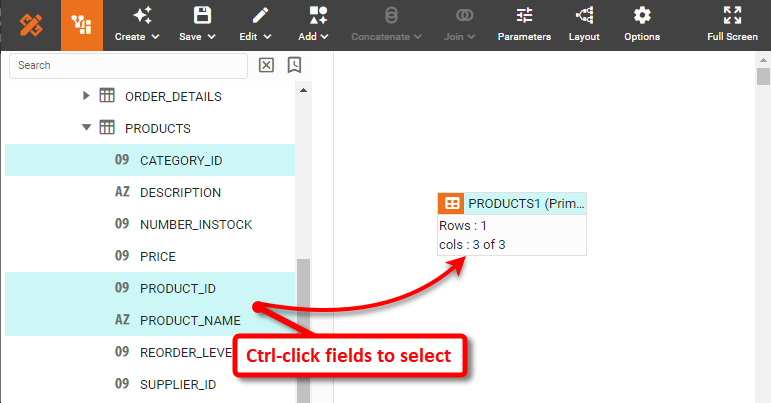
  2. Drag the following fields from the TABLE  SA  PRODUCTS table into an empty area in the right panel. (Ctrl-click the field names to select them all, and then drag them together.)

    PRODUCT_ID
    PRODUCT_NAME
    CATEGORY_ID

    ReferenceCellExampleMakeTable6

    This creates a new data block named ‘PRODUCTS1’.

  3. Rename the ‘CATEGORY_ID’ column as ‘CAT_ID’. This will help to distinguish it from the data block you will add next. (See Edit a Data Worksheet for instructions on how to rename a column.)

  4. Drag the TABLE  SA  CATEGORIES table to the right panel. This creates a new data block named ‘CATEGORIES1’.

Let’s say that you want to add a column to the ‘PRODUCTS1’ data block that will contain the category name corresponding to each entry in the ‘CAT_ID’ column. The best way to do this is to join the data blocks together (see Join Data), but to practice using cell references, in this case you will create this new column as an expression column. Follow the steps below:

  1. Click the ‘PRODUCTS1’ data block to select it.

  2. Press the ‘Formula’ button formula button in bottom panel. This opens the Formula Editor.

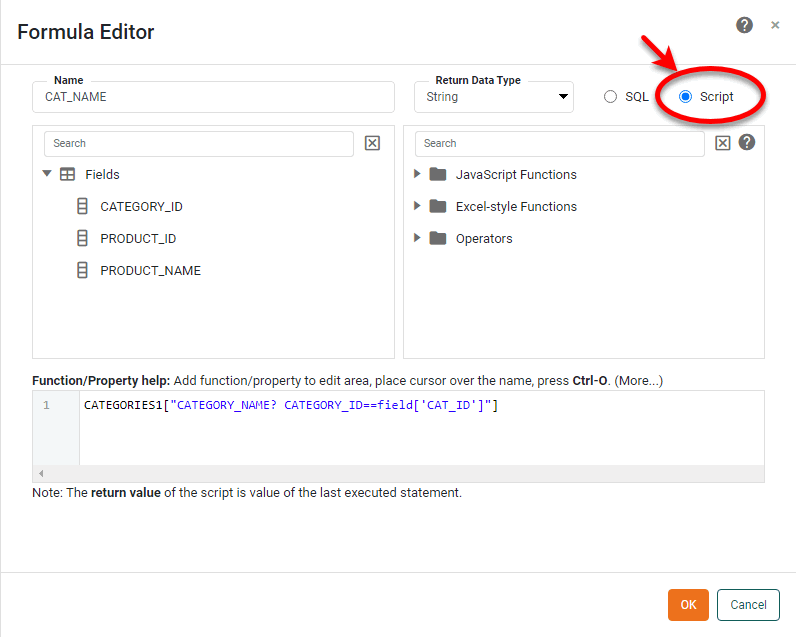
  3. Enter ‘CAT_NAME’ in the ‘Name’ field.

  4. In the Formula Editor, enter the following formula:

    CATEGORIES1["CATEGORY_NAME? CATEGORY_ID==field['CAT_ID']"]

    This formula says: “Look in the ‘CATEGORIES1’ data block, and return the value in the column ‘CATEGORY_NAME’ where the ‘CATEGORY_ID’ key is equal to the value of the current cell in the ‘CAT_ID’ column.”

  5. Select the ‘Script’ button at the top-right of the Formula Editor.

    ReferenceCellExampleMakeTableNoSQL

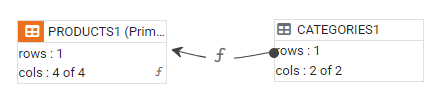
  6. Press OK to close the Formula Editor. The two data blocks are now connected by a graphical link to indicate that the ‘PRODUCTS1’ data block references the ‘CATEGORIES1’ data block.

    ReferenceCellExampleMakeTable7

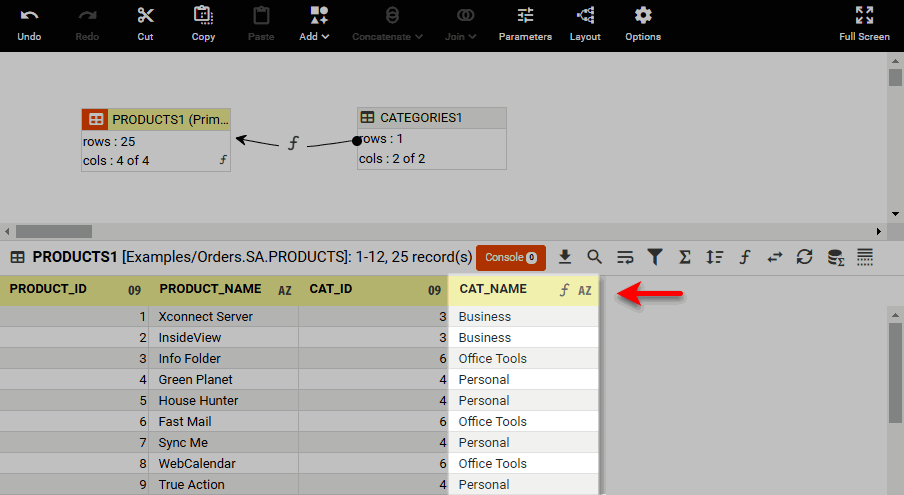
  7. Preview the ‘PRODUCTS1’ data block. (Click the data block to select it. Then press the ‘Change View’ button view summary meta in the bottom panel and select ‘Live Data View’ view summary live.)

    The expression column in the ‘PRODUCTS1’ data bock now displays the category name corresponding to each entry in the ‘CAT_ID’ column.

    ReferenceCellExampleMakeTable5

How to access data in Dashboard Calculated Fields…​

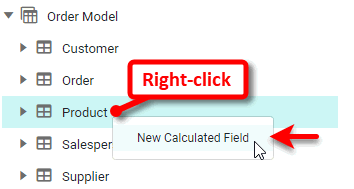
To create a calculated field in a dashboard, right-click on the data block, data model, or query to which you want to add the calculated field, and select ‘New Calculated Field’. (See Create a New Data Field for more details.)

NewCalculatedField1

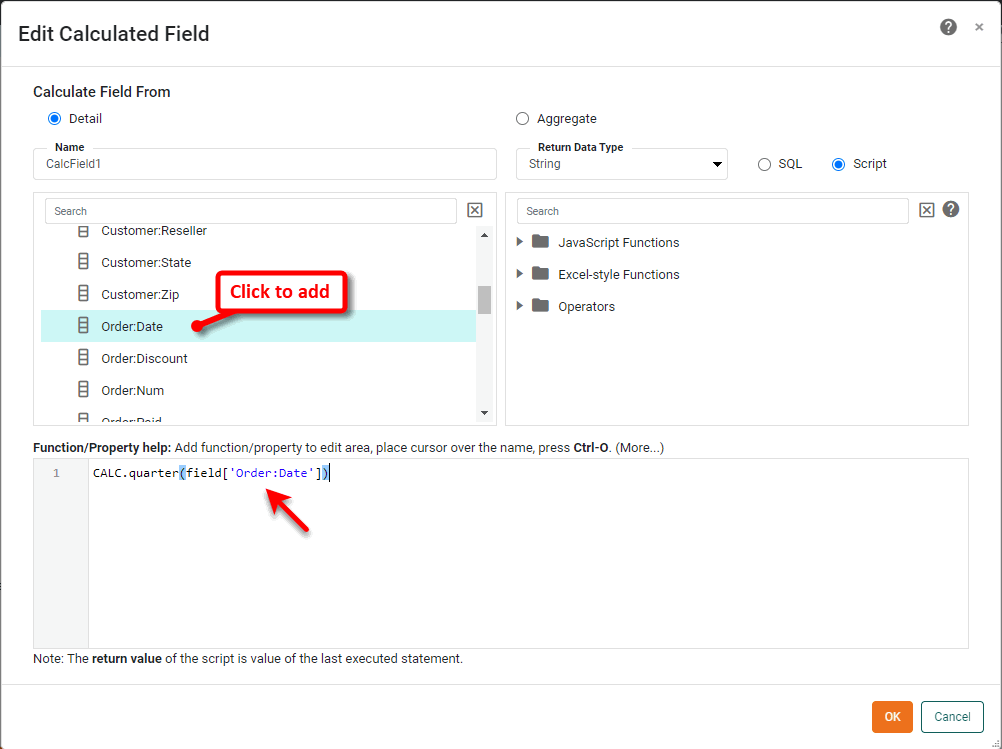
Insert fields (and parameters and component properties) into the script by clicking the items in the tree.

Example syntax:
CALC.quarter(field['Order Date'])

CalcField1

How to access data in Dashboard Property Expressions…​

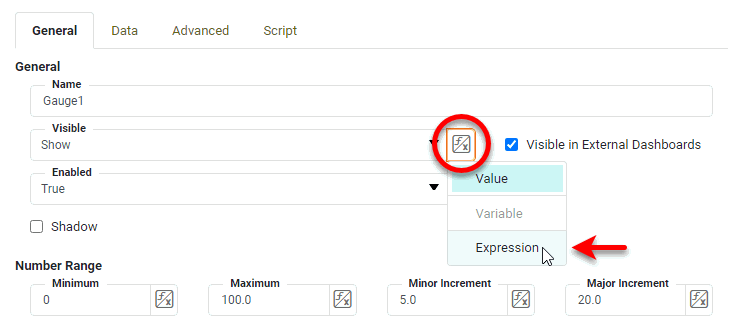
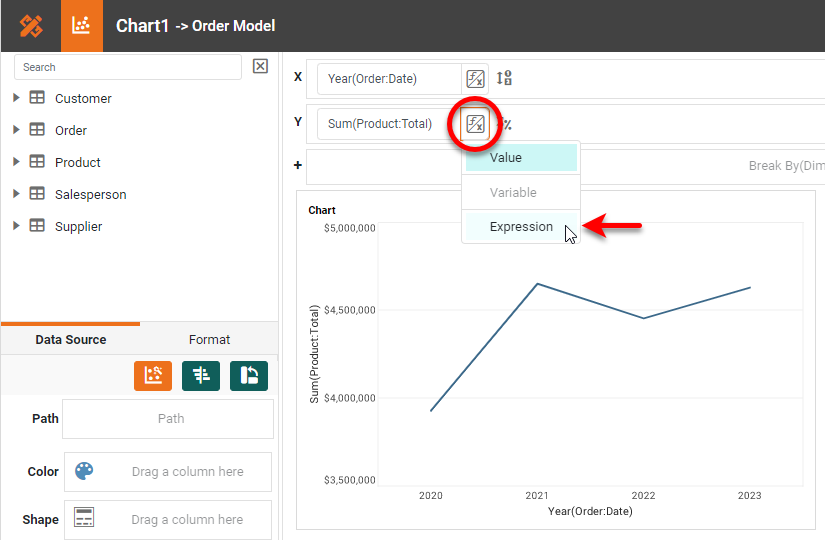
To set a Dashboard property value using an expression, press the ‘Value Type’ button function and variable and select the ‘Expression’ option to open the Formula Editor. (See Dynamically Set Properties for more details.)

Example: Gauge Properties

Expression Option

Example: Chart Editor

ChartPropertyExpression

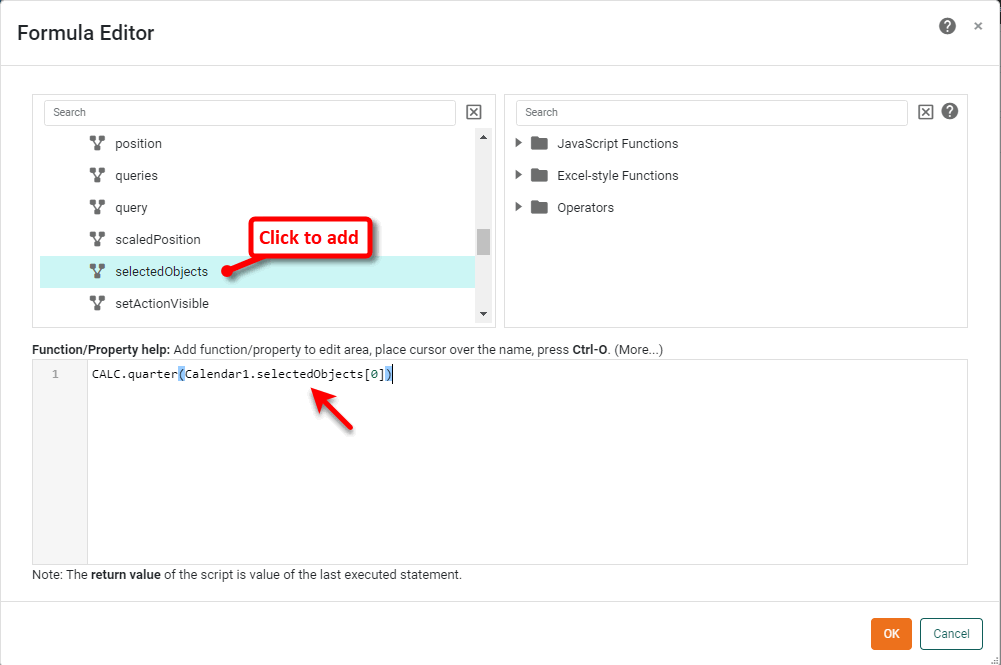
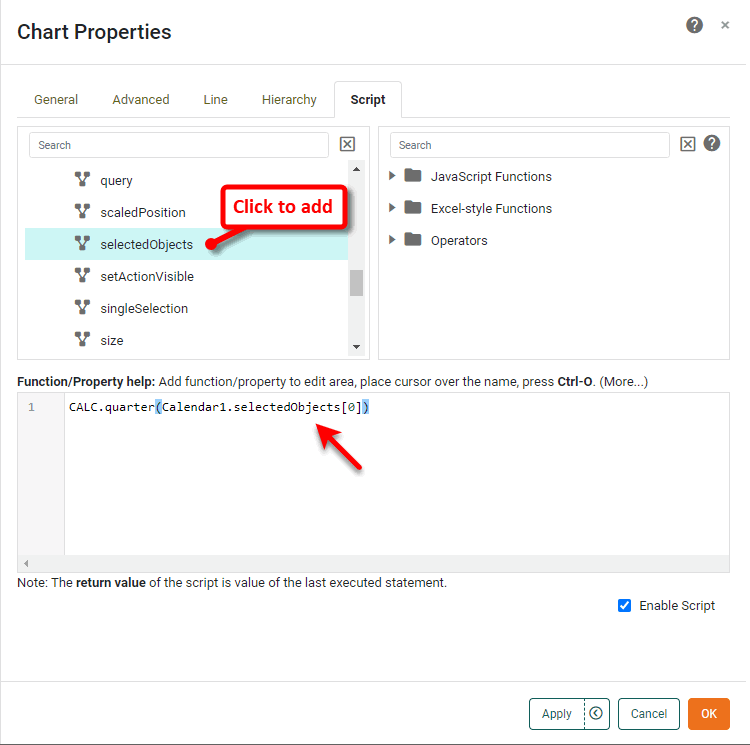
To insert a reference a component’s data, use the value, selectedObjects, data, or table property of the component.

Example syntax:
CALC.quarter(Calendar1.selectedObjects[0])
CALC.quarter(TableView1.table['Order Date'][1])

See Dashboard Object Reference for information about accessing dashboard settings and data in script.

expressionData

How to access data in Dashboard Scripts…​

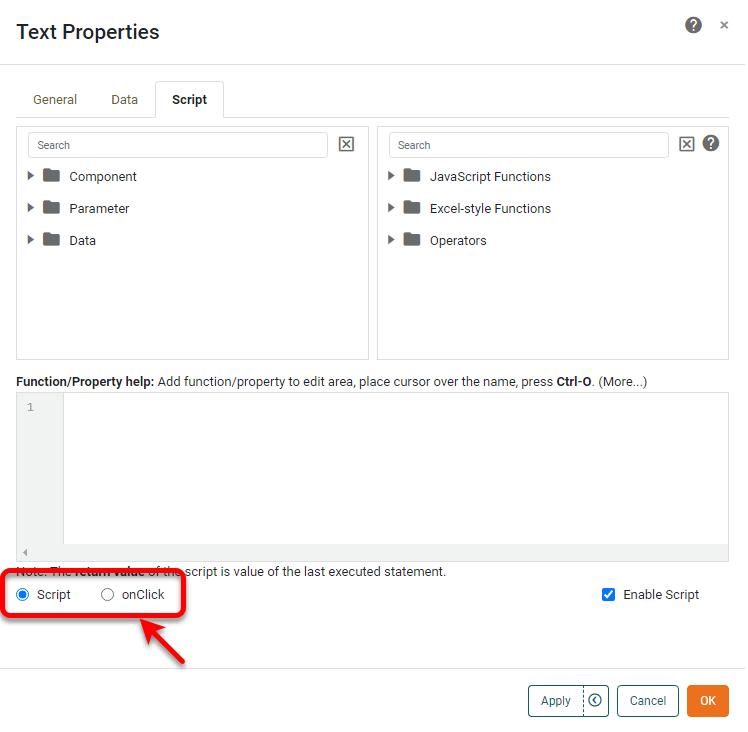
To add script to a Dashboard component, right-click the desired component, and select ‘Properties’ from the context menu to open the ‘Properties’ panel. Note: You can also access menu options from the ‘More’ button (menu horizontal) in the mini-toolbar. Select the Script tab to open the Script Editor, and select either Script or onClick. See Add Component Script for more information about these options.

ScriptEditorText

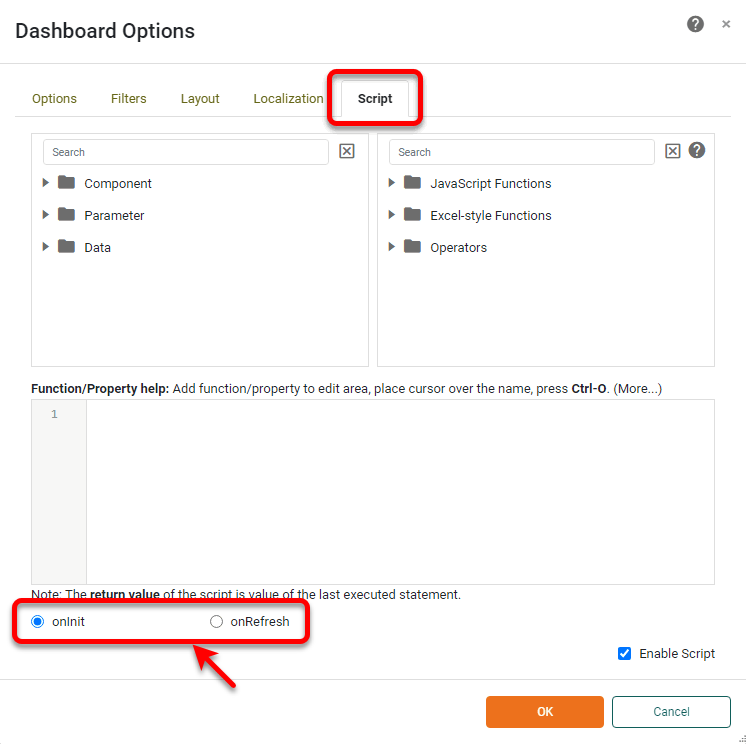
To add global script to a Dashboard, press ‘Options’ button setting in the toolbar to open the ‘Dashboard Options’ panel. Select the Script tab to open the Script Editor, and select either onInit or onRefresh. See Add Dashboard Script for more information about these options.

ViewsheetOptionsDialog

To insert a reference a component’s data, use the value, selectedObjects, data, or table property of the component.

Example syntax:
CALC.quarter(Calendar1.selectedObjects[0])
CALC.quarter(TableView1.table['Order Date'][1])

ScriptComponentData

See Dashboard Object Reference for information about accessing dashboard settings and data in script.