Data Block Properties
You can change various properties of a data block, such the description, maximum number of rows retrieved and displayed, and the handling of duplicate rows.
To change data block properties, follow these steps:
-
Right-click the data block, and select ‘Properties’ from the context menu. Note: You can also access menu options from the ‘More’ button (
 ) in the mini-toolbar. This opens the ‘Table Properties’ panel.
 -
Change the desired properties, and press OK to exit the panel.
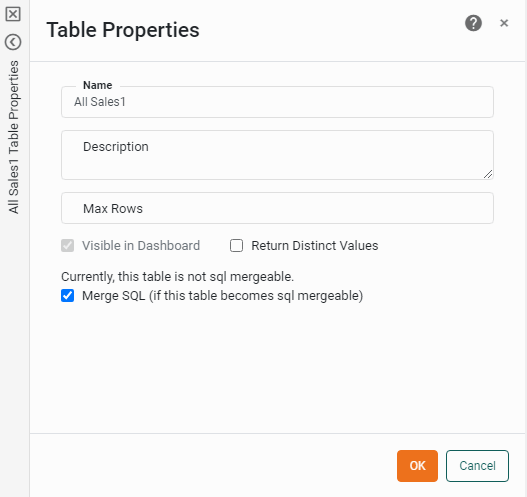
The properties are described below.
- Description
-
The description text is displayed as a tooltip when the mouse hovers over the Table icon in the table’s title row.
- Max Rows
-
The maximum number of rows to retrieve from the database at runtime.
- Visible in Dashboard
-
When selected, allows the fields of the data block to be accessed for Dashboard design. Otherwise, the data block is not accessible to the Dashboard.
The primary data block cannot be hidden. - Return Distinct Values
-
Display only distinct rows in the table. (Remove duplicate rows.)
- Merge SQL
-
When selected, the Data Worksheet attempts to generate the result by forming a single SQL query, thus delegating all of the data manipulations to the database. If this option is not selected, or if the unified SQL statement cannot be formed, the table is generated in post-processing. (See Preview Query for information on viewing a table’s query.) In certain cases, you can improve Dashboard performance by disabling the ‘Merge SQL’ option.