Step Line Chart
A step line chart is a type of Line Chart that connects the measure data points by using only the horizontal and vertical directions.
|
See Also…
Jump Line Chart, for an alternate discrete-level line chart. |
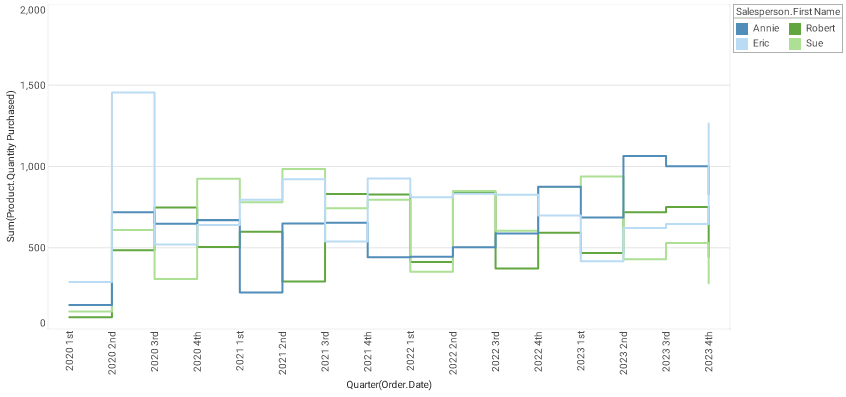
To create a step line chart, follow the basic steps below:
|
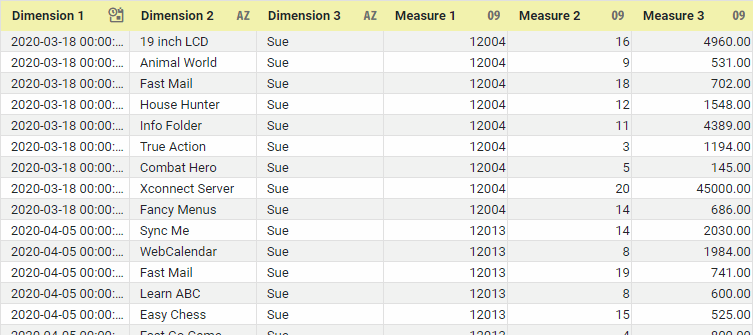
If you are new to charting, see the following sections first: Configure Your Data…The data source for the chart (data block or data model) should represent dimensions and measures as independent columns or fields, as shown below. See Prepare Your Data for information on how to manipulate your data, if it is not currently in this form. (Note: A properly designed data model will already have the correct structure.)
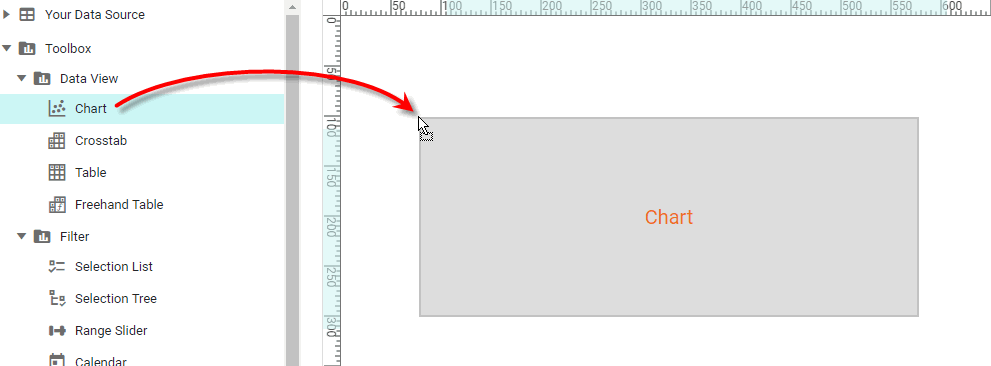
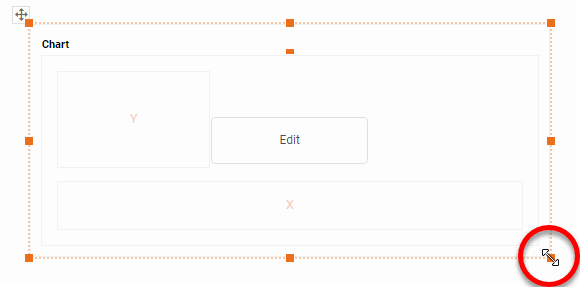
In some cases (e.g., Pie Chart), you may want your data to provide just a single measure. In other cases (e.g., Line Chart), you may want the data to supply multiple measures. If the data does not provide the correct number of measures, you may be able to alter the number of measures to suit the needs of the chart by “pivoting” or “unpivoting” the data. See Pivot Data in Prepare Your Data for more information about this procedure. Open a Chart for Editing…Watch Video: Create a Chart (Open the Chart Editor)This video might show an earlier version of the feature or operation that differs in minor ways from the current version. Follow the steps below to get started with a new Chart. See Basic Charting Steps for more details.
|

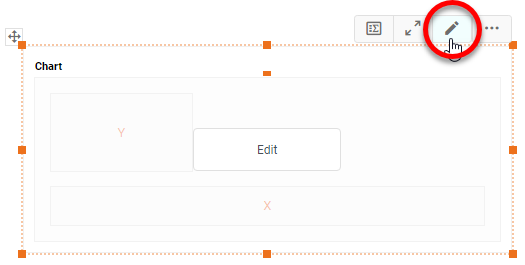
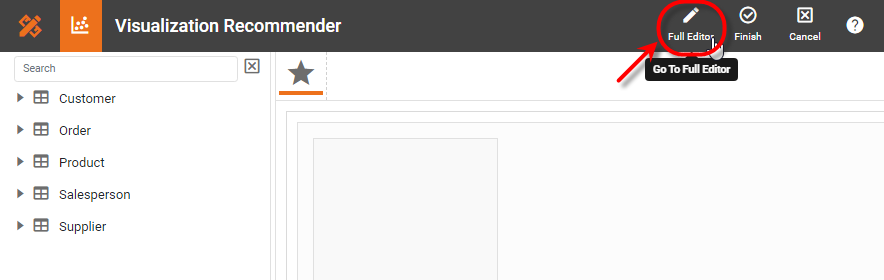
-
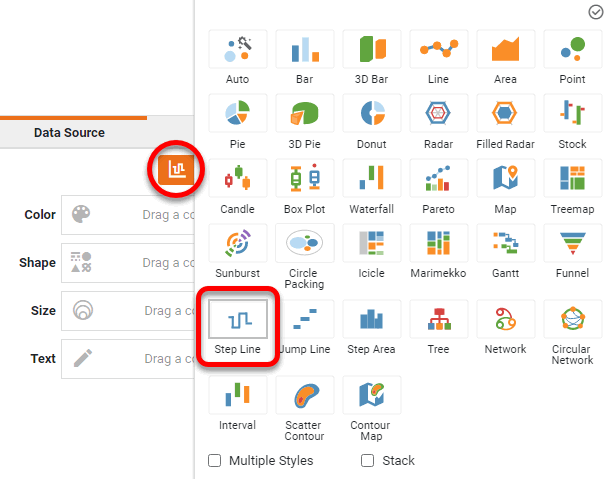
Press the ‘Select Chart Style’ button
 . Choose the ‘Step Line’ style. Press the ‘Apply’ button
  .
.
-
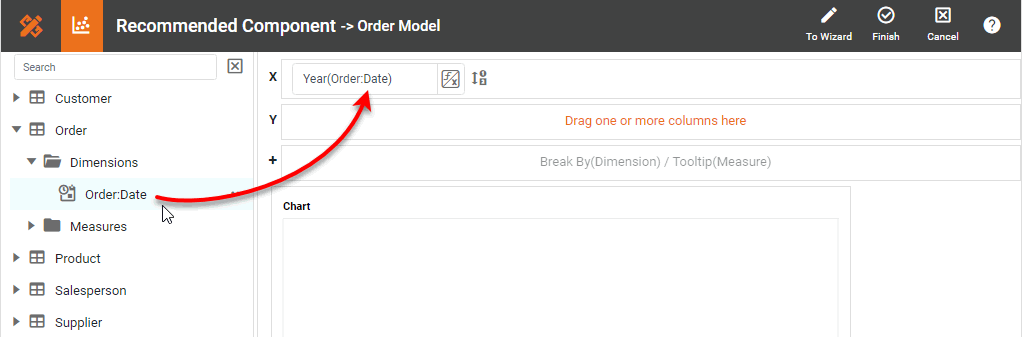
From the ‘Dimensions’ folder of the Data Source panel, drag a desired dimension to the ‘X’ or ‘Y’ region.
What is a dimension?
A dimension is used to break-down the dataset into multiple groups, often within a Crosstab, Chart, or Selection List. Adding a dimension to the ‘X’ region of a Chart distinguishes the different dimension groups by location on the X-axis. Adding a dimension to the ‘Y’ region distinguishes the different dimension groups by location on the Y-axis. You can add multiple dimensions into the ‘X’ or ‘Y’ regions of a Chart, or into the ‘Rows’ or ‘Columns’ regions of a Crosstab, to create multiple grouping levels. You can also distinguish groups in a dimension by using color, shape, size, or label in a Chart.
To convert a measure to a dimension, right-click the measure in the data source and select ‘Convert to Dimension’. -
To break-out the dataset into groups using color, shape, size, or text labeling, drag a dimension from the data source to the ‘Color’, ‘Shape’, ‘Size’, or ‘Text’ region.
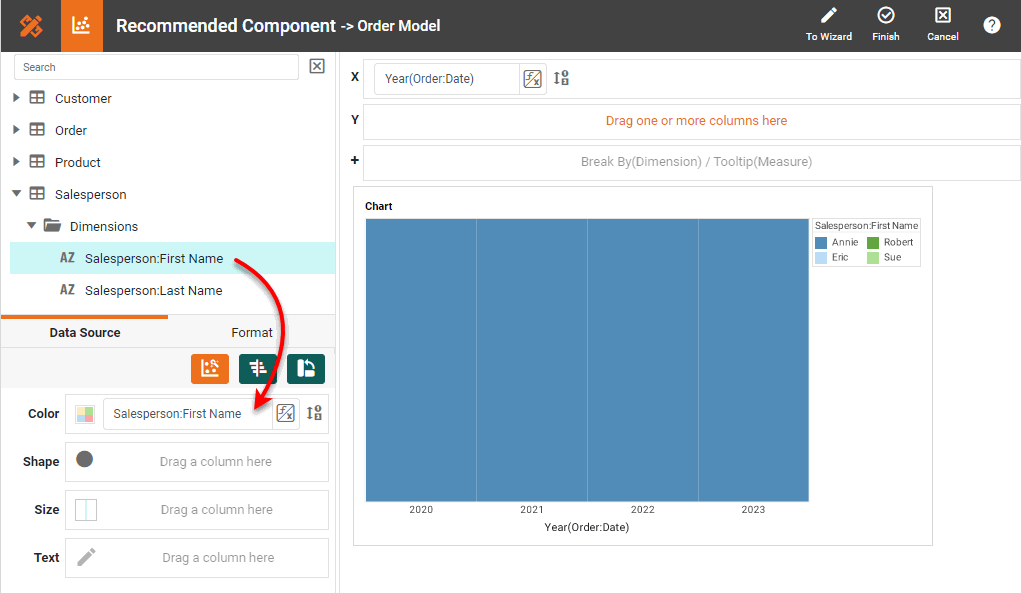
-
To break-out the data into groups without applying any visual formatting, drag a dimension to the ‘Break By/Tooltip’ region.
-
Optional: For a date dimension, press the ‘Edit Dimension’ button
 next to the field name in the Chart Editor, and set the ‘Level’ to the desired date grouping. Then press the ‘Apply’ button .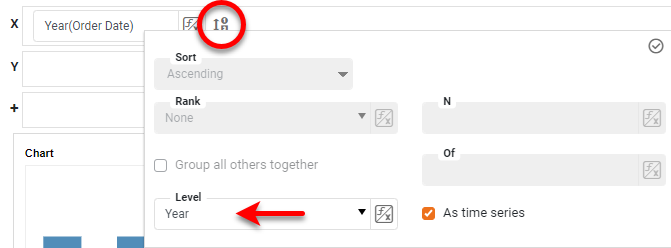
-
Optional: You can add additional dimensions to the Chart if desired. See Trellis Chart (Grid) for information about adding multiple dimensions to a chart axis.
-
From the ‘Measures’ folder of the Data Source panel, drag a measure to the ‘X’ or ‘Y’ region. This places the selected field onto the chart as a measure.
What is a measure?
A measure is generally used for aggregation, for example summation, averaging, correlation, etc., within a Crosstab, Chart, Text component, or Gauge. Adding a measure to the ‘Y’ region in a chart displays the computed aggregates by using locations on the Y-axis. Adding a measure to the ‘X’ region displays the computed aggregates by using locations on the X-axis. You can also display aggregates by using color, shape, size, or label.
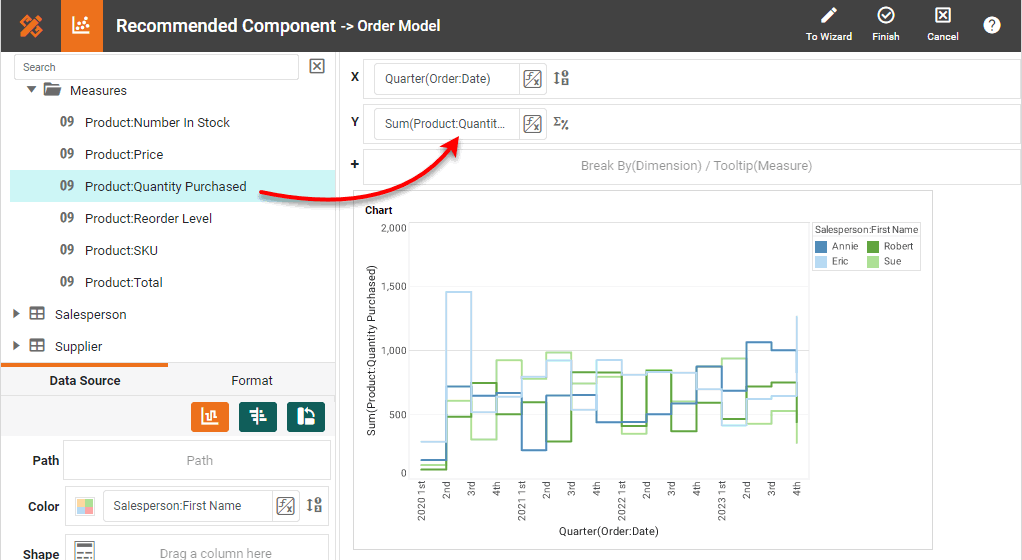
To convert a dimension to a measure, right-click the dimension in the data source and select ‘Convert to Measure’. -
Press the ‘Edit Measure’ button
 next to the measure, and select the desired aggregation method for the measure.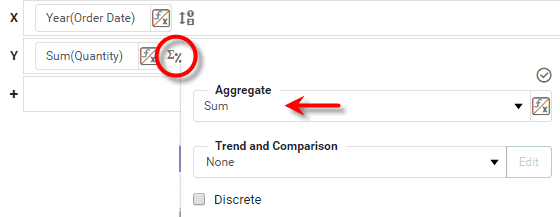
-
To represent a measure by using tooltip information, drag the measure to the ‘Break By/Tooltip’ region.
-
Optional: You can add additional measures to the Chart if desired. See Multiple Measure Chart for more information about adding multiple measures to a chart axis. See Basic Charting Steps for information on how to add measures using color, shape, or size representation.
-
Optional: To specify an alternate order for drawing the lines between the data points, drag a measure to the ‘Path’ region. The magnitude of the aggregates for the ‘Path’ measure will determine the order in which the chart points are connected. (The point with largest ‘Path’ aggregate is connected to the point with second-largest aggregate, and so on.)
-
Press the ‘Finish’ button
to close the Editor.
You can proceed to edit the titles, legend, etc. See Basic Charting Steps and Chart Properties for more information. See Add Data Format for information on how to format text on a Chart.