Launch Enterprise Manager
Enterprise Manager is a web-based tool that allows you to administer the InetSoft server. To open Enterprise Manager, follow these steps:
-
Point a web browser to the StyleBI webapp homepage and select ‘Enterprise Manager’.
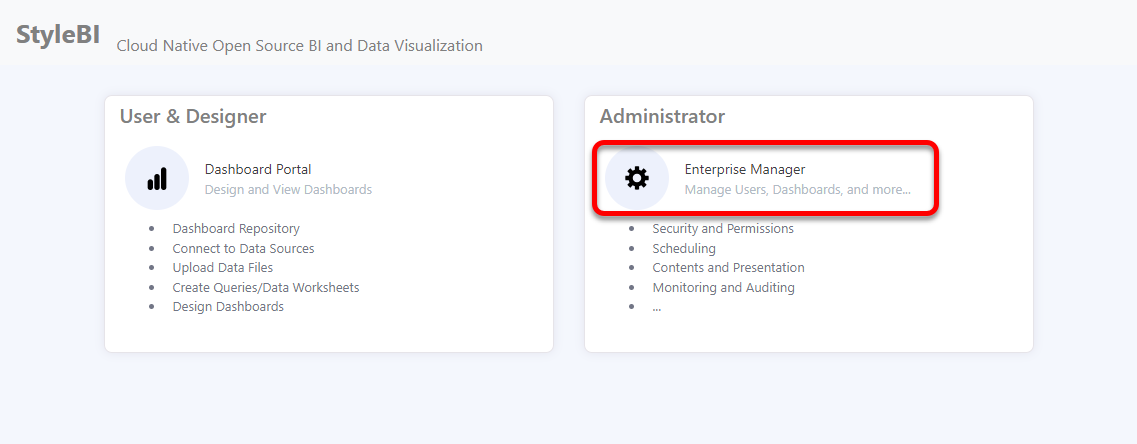
This opens the Enterprise Manager login screen. Alternatively, enter the Enterprise Manager URL:
http://{servername}:{port}/em. -
Enter your login credentials, and press ‘Login’.
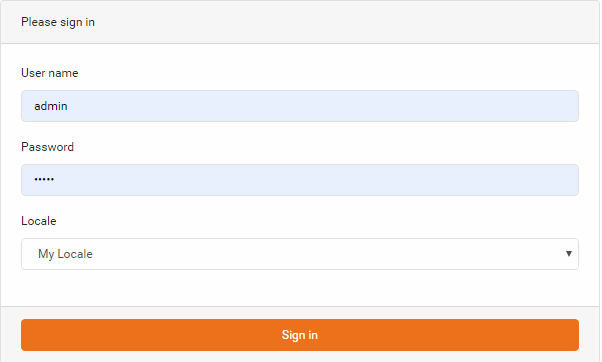
The default login/password is
admin/admin. For security reasons, login information expires after five minutes. If you receive a ‘Login Expired’ warning, simply re-enter your credentials to log in.
Before you begin managing resources and configuring components in Enterprise Manager, verify that you have completed the following steps:
-
Specify valid license keys. See Administer License Keys.
-
Ensure that the minimum system requirements are satisfied: StyleBI requires a minimum hardware configuration of an i5-equivalent processor on a x86-64 platform with 8GB RAM. (Browsers should have JavaScript enabled.) Installation of StyleBI requires Docker to be installed on the machine. See Install Docker Engine for requirements specific to your platform and OS.
-
Allocate the desired amount of memory to the Docker container. See Set Container Memory for more information.