Login as Different User
| This method does not require knowledge of the user’s password. |
To login as a particular user, follow the steps below:
-
On the All Properties page (see All Properties), add the following property:
login.loginAs=on
This adds a ‘Log in As’ action to the Actions tab of the Security page that determines which users are allowed to login as another user.
-
Select the ‘Log in As’ action on the Actions tab of the Security page. (See Set Security Actions.) Assign permission to the users, groups, or roles who should have access to this feature.
-
Specify which users can have their login emulated by the selected user:
-
To allow the selected user (for example, a site administrator) to login as any user in the system, ensure that the user has “Administrator Permissions” for all other users (or belongs to a role that has “Administrator Permissions” for all other users). See Create a User and Create a Group for more information about setting “Administrator Permissions”.
-
To allow the selected user (for example, a tenant administrator) to login as any user in the tenant organization, add all users of the tenant organization to a unique group, and ensure that the selected user has “Administrator Permission” for that group (or belongs to a role that has “Administrator Permission” for that group). See Create a Group for more information about setting “Administrator Permissions”.
-
-
Open the User Portal.
-
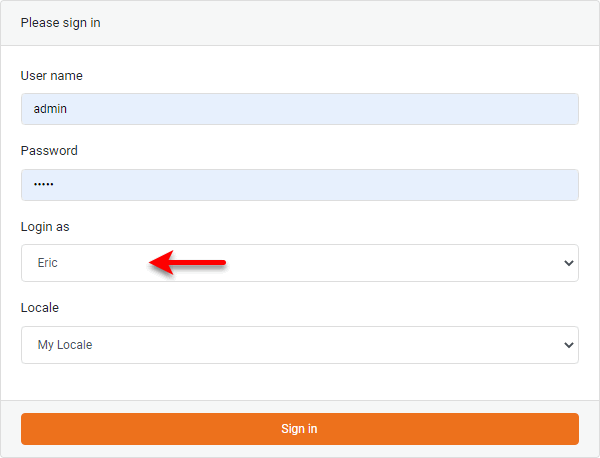
On the login screen, enter your administrator name and password. The login screen displays a special ‘Login as’ field.
-
In the ‘Login as’ field, enter the name of the user whose environment you wish to access.
-
Press the Sign in button.
This will effectively log you in as the user without requiring the user’s password. Operations that you perform while logged in using this method (i.e., as administrator emulating a user) are listed in audit records as administrator operations, rather than as user operations.