Contour Map Chart
This chart type combines a Map Chart with a Scatter Contour Chart to display density data either based on regional information (country, state, city, etc.) or based on latitude and longitude. For information on creating maps with user-defined regions, see Create a Custom Map in Manage the Server.
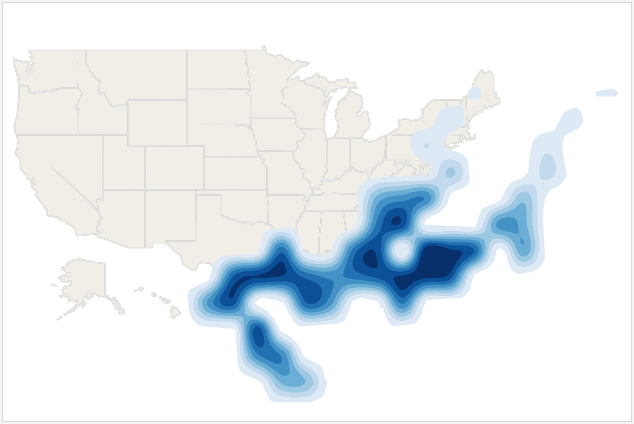
Display Data by Region
To display data on a map by region (state, city, zip code, etc.), follow the steps below:
|
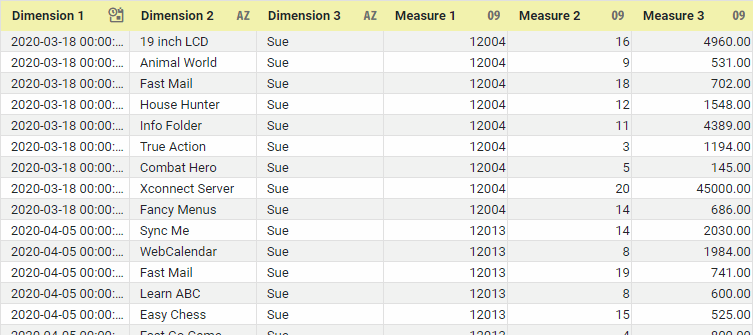
If you are new to charting, see the following sections first: Configure Your Data…The data source for the chart (data block or data model) should represent dimensions and measures as independent columns or fields, as shown below. See Prepare Your Data for information on how to manipulate your data, if it is not currently in this form. (Note: A properly designed data model will already have the correct structure.)
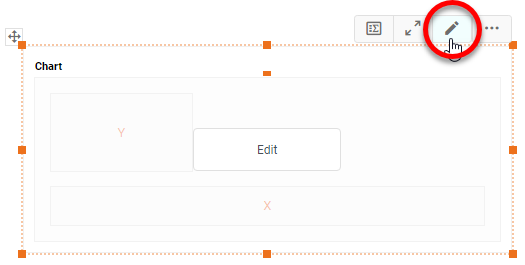
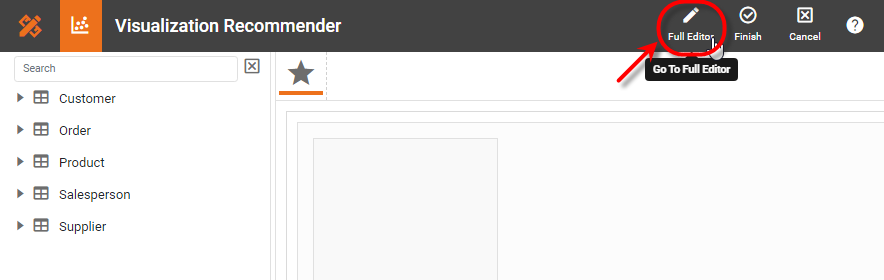
In some cases (e.g., Pie Chart), you may want your data to provide just a single measure. In other cases (e.g., Line Chart), you may want the data to supply multiple measures. If the data does not provide the correct number of measures, you may be able to alter the number of measures to suit the needs of the chart by “pivoting” or “unpivoting” the data. See Pivot Data in Prepare Your Data for more information about this procedure. Open a Chart for Editing…Watch Video: Create a Chart (Open the Chart Editor)This video might show an earlier version of the feature or operation that differs in minor ways from the current version. Follow the steps below to get started with a new Chart. See Basic Charting Steps for more details.
|
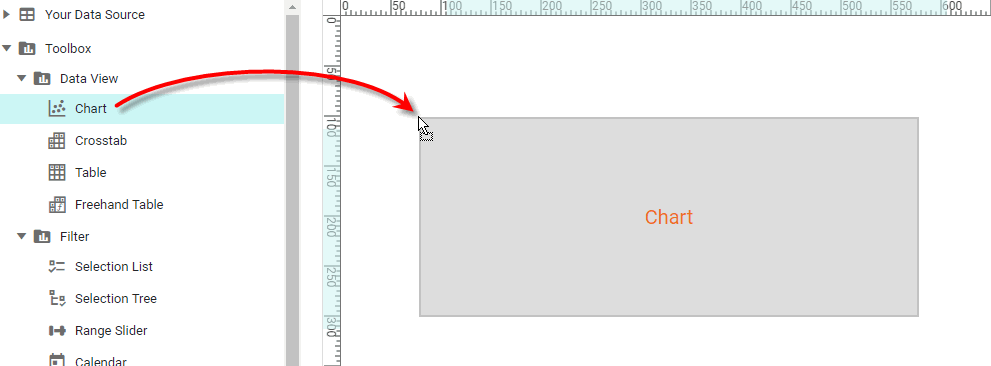
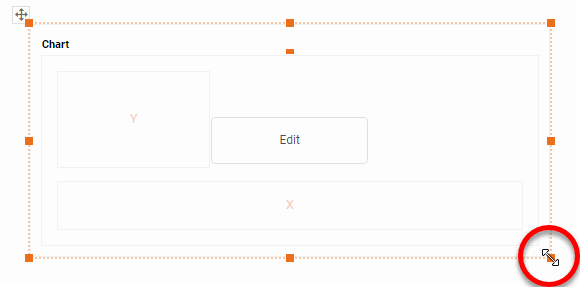
-
Press the ‘Select Chart Style’ button
 . Choose the ‘Contour Map’ style. Press the ‘Apply’ button
  (or double-click the ‘Contour Map’ icon).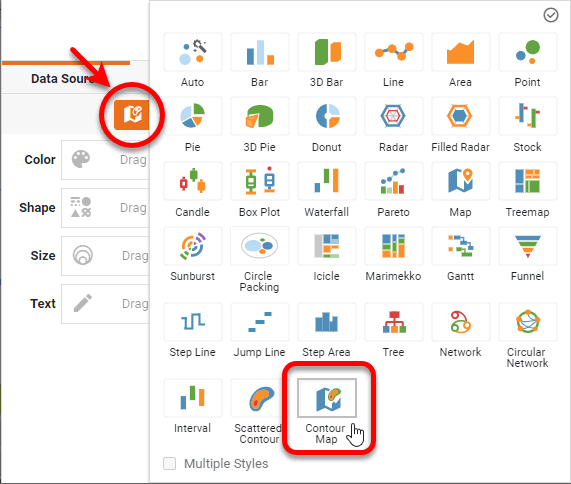
The Chart Editor now provides a ‘Geographic’ field.
-
Optional: If you want to use a web map background (Mapbox map or Google Map, depending on what your administrator has configured), follow the steps below:
The Mapbox and Google Map APIs impose restrictions on the size of a map. If you see an error when you attempt to display the map background, resize the Chart to a smaller width. -
Right-click the Chart and select ‘Properties’. This opens the ‘Chart Properties’ dialog box.
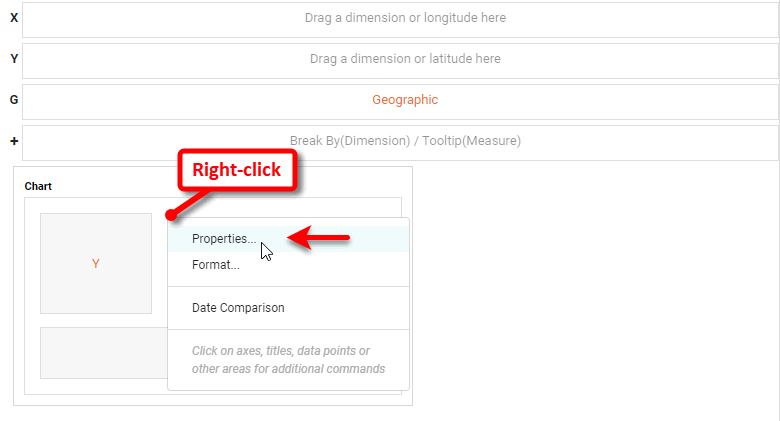
-
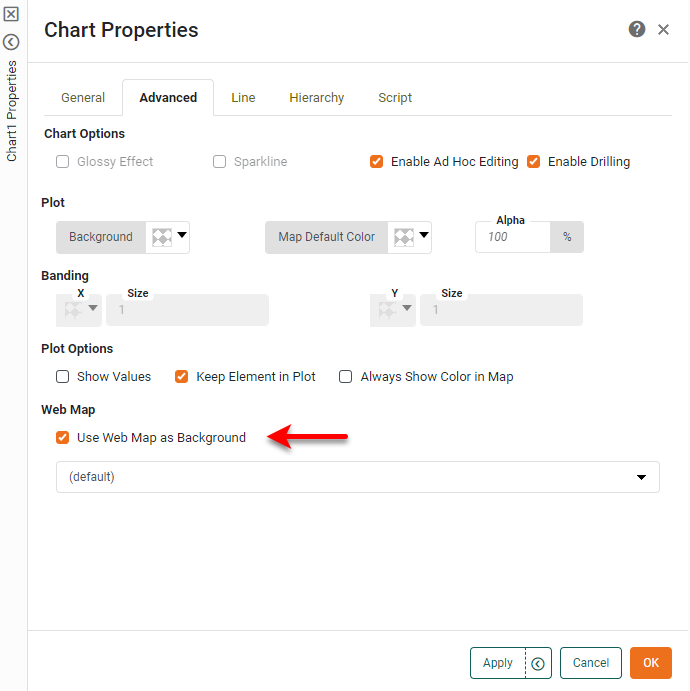
Under the Advanced tab, enable ‘Use Web Map as Background’ and press OK. (If this option is not available, ask your administrator to enable the Web Map feature.)
-
Optional: If your geographical field represents areas on the Chart (e.g., states) rather than points (e.g., cities), adjust the ‘Alpha’ setting to less than 100% so that the filled regions do not obscure the underlying map background.
-
Press OK to exit the ‘Chart Properties’ dialog box.
-
-
Mark the dimensions you want to use on the map as geographical fields. To do this, see Set a Geographical Field.
What is a dimension?
A dimension is used to break-down the dataset into multiple groups, often within a Crosstab, Chart, or Selection List. Adding a dimension to the ‘X’ region of a Chart distinguishes the different dimension groups by location on the X-axis. Adding a dimension to the ‘Y’ region distinguishes the different dimension groups by location on the Y-axis. You can add multiple dimensions into the ‘X’ or ‘Y’ regions of a Chart, or into the ‘Rows’ or ‘Columns’ regions of a Crosstab, to create multiple grouping levels. You can also distinguish groups in a dimension by using color, shape, size, or label in a Chart.
-
From the Data Source panel in the Chart Editor, drag a geographic dimension onto the ‘Geographic’ field in the Chart Editor.
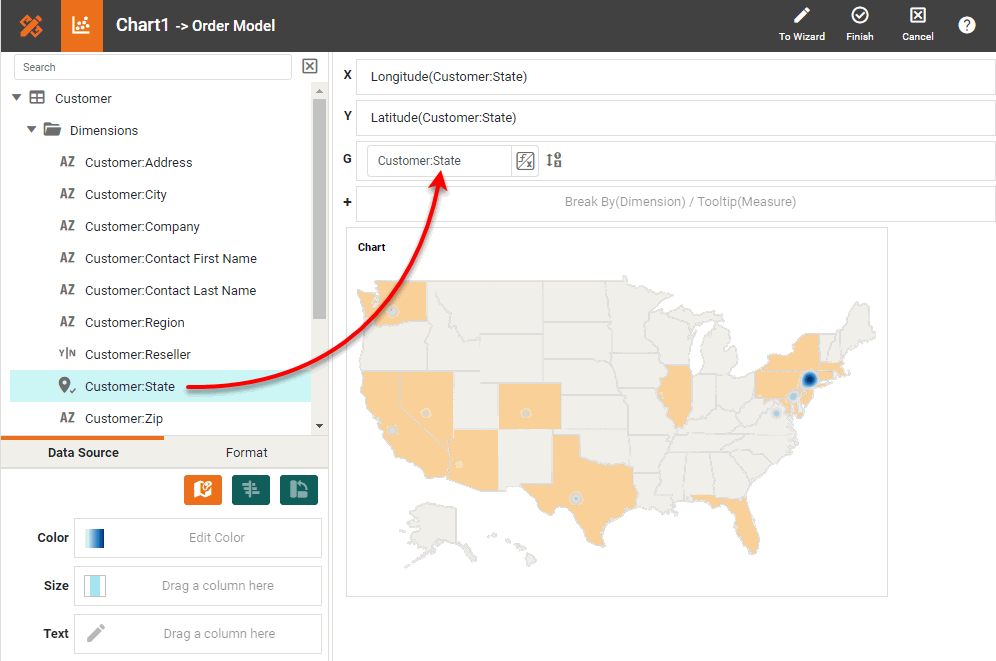
The chart updates to display the locations contained in the geographic field.
-
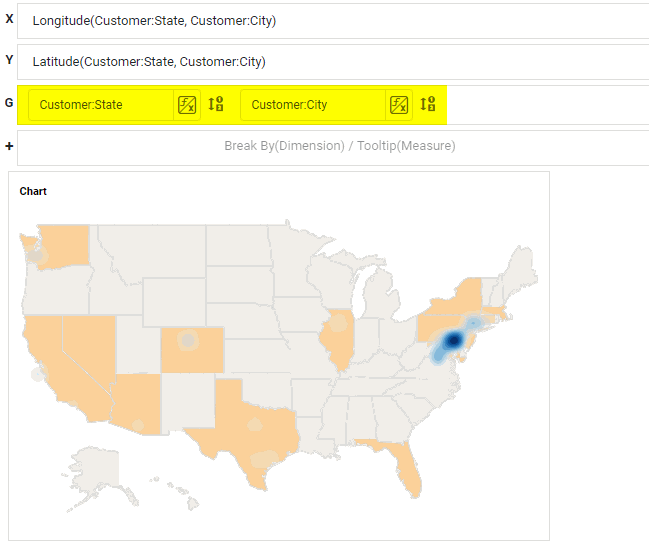
Repeat the previous step to bind additional ‘Geographic’ levels. For example, you can bind ‘City’ and ‘State’ fields.
-
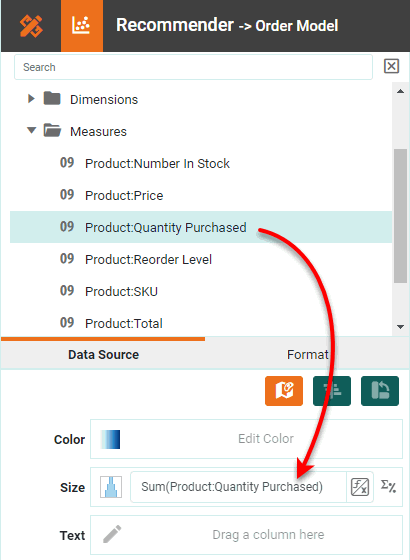
Optional: To weight the data points according to a specified measure, drag a measure representing the weights to the ‘Size’ region. A larger weight assigns greater density to the point.
What is a measure?
A measure is generally used for aggregation, for example summation, averaging, correlation, etc., within a Crosstab, Chart, Text component, or Gauge. Adding a measure to the ‘Y’ region in a chart displays the computed aggregates by using locations on the Y-axis. Adding a measure to the ‘X’ region displays the computed aggregates by using locations on the X-axis. You can also display aggregates by using color, shape, size, or label.
-
To change how the contours are focused on the data points (without weighting), press the ‘Edit Size’ button, and choose a fixed size value.
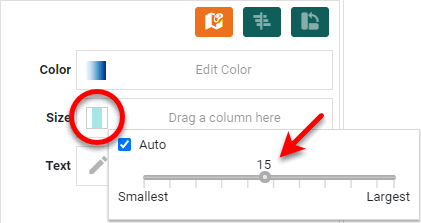
You can make additional adjustments to the appearance of the contours from the ‘Chart Properties’ dialog box. See below. -
Optional: To change the characteristics of the contours, press the ‘More’ button (
 ) in the Chart toolbar, and select ‘Properties’. In the ‘Chart Properties’ dialog box, adjust the following settings under ‘Density Contour’ in the Advanced tab.
 -
Optional: Set the initial map view by pressing the ‘Pan’ button
 and dragging on the map to reposition, and by pressing the ‘Zoom In’ button
  or ‘Zoom Out’ button
  to zoom. Press the ‘Clear’ button
  to reset the view.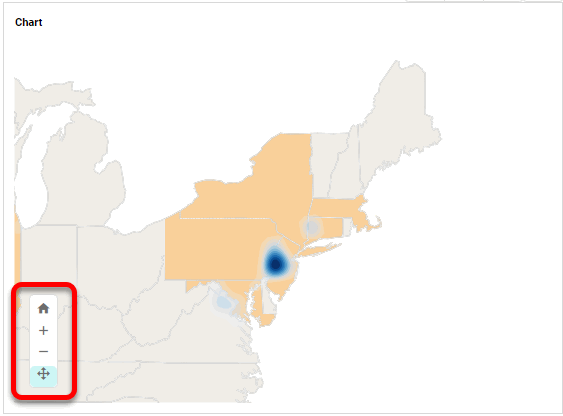
Display Data by Latitude and Longitude
To learn how to display a contour on a map by latitude and longitude, follow the steps in the walkthrough below.
|
If you are new to charting, see the following sections first: Configure Your Data…The data source for the chart (data block or data model) should represent dimensions and measures as independent columns or fields, as shown below. See Prepare Your Data for information on how to manipulate your data, if it is not currently in this form. (Note: A properly designed data model will already have the correct structure.)
In some cases (e.g., Pie Chart), you may want your data to provide just a single measure. In other cases (e.g., Line Chart), you may want the data to supply multiple measures. If the data does not provide the correct number of measures, you may be able to alter the number of measures to suit the needs of the chart by “pivoting” or “unpivoting” the data. See Pivot Data in Prepare Your Data for more information about this procedure. Open a Chart for Editing…Watch Video: Create a Chart (Open the Chart Editor)This video might show an earlier version of the feature or operation that differs in minor ways from the current version. Follow the steps below to get started with a new Chart. See Basic Charting Steps for more details.
|
-
Create a new Dashboard based on the ‘Hurricane’ Data Worksheet. (See Create a New Dashboard.)
The ‘Hurricane’ Data Worksheet can be found in . You may need to download and import the Hurricane Dashboard into your environment. (This requires access to Enterprise Manager.) See Import and Export Assets for instructions on how to import. -
Press the ‘Select Chart Style’ button
. Choose the ‘Contour Map’ style. Press the ‘Apply’ button (or double-click the ‘Contour Map’ icon).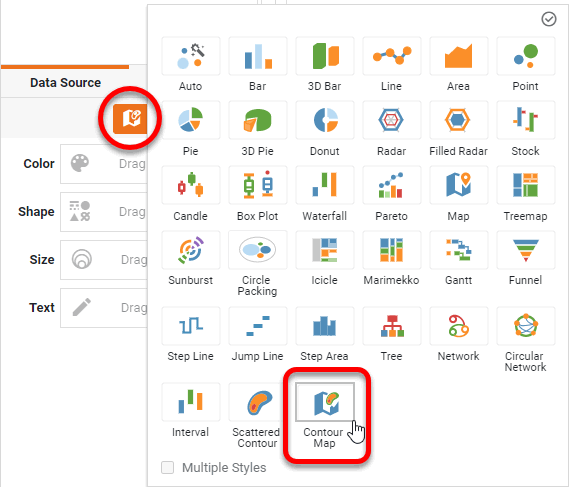
The Chart Editor now provides a ‘Geographic’ field.
-
Optional: If you want to use a web map background (Mapbox map or Google Map, depending on what your administrator has configured), expand the section below:
Use Web Map…
-
Right-click the Chart and select ‘Properties’. This opens the ‘Chart Properties’ dialog box.
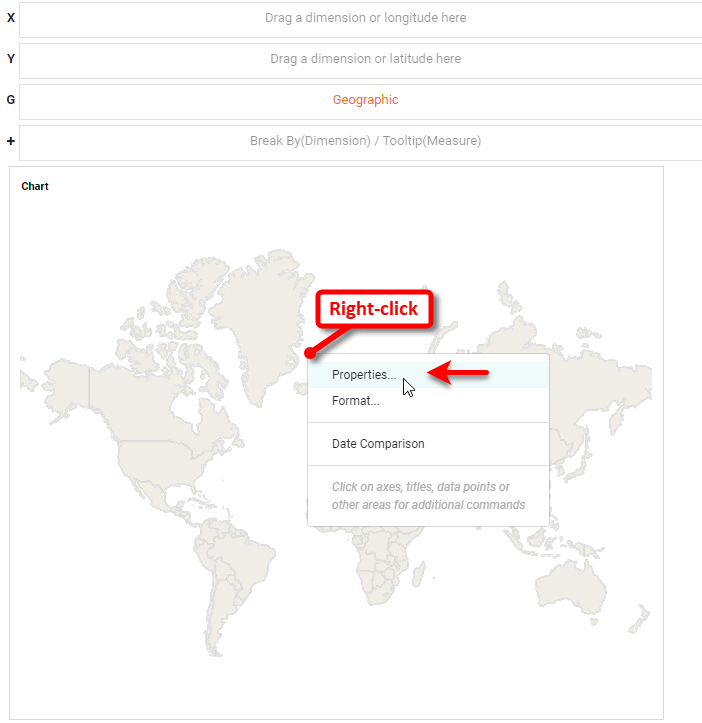
-
Under the Advanced tab, enable ‘Use Web Map as Background’ and press OK. (If this option is not available, ask your administrator to enable the Web Map feature.)
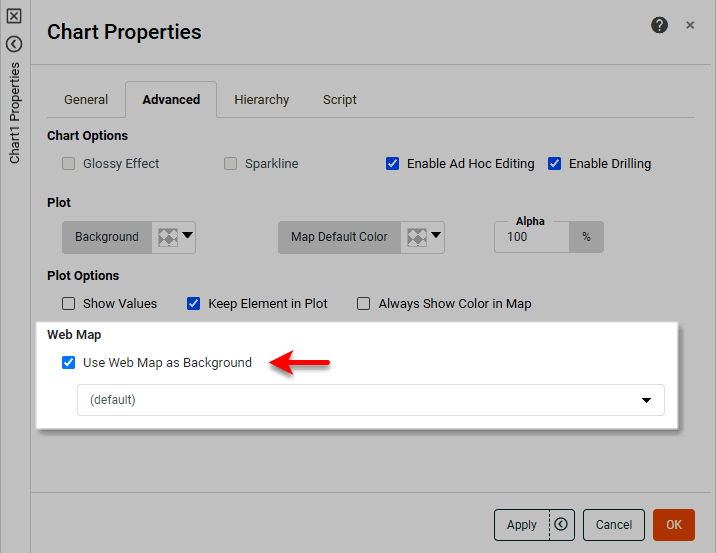
-
Optional: If your geographical field represents areas on the Chart (e.g., states) rather than points (e.g., cities), adjust the ‘Alpha’ setting to less than 100% so that the filled regions do not obscure the underlying map background.
-
Press OK to exit the ‘Chart Properties’ dialog box.
The Mapbox and Google Map APIs impose restrictions on the size of a map. If you see an error when you attempt to display the map background, resize the Chart to a smaller width.
-
-
In the Data Source panel, right-click the ‘latitude’ measure or press the ‘Actions’ button
, and select ‘Set Geographic’ from the context menu.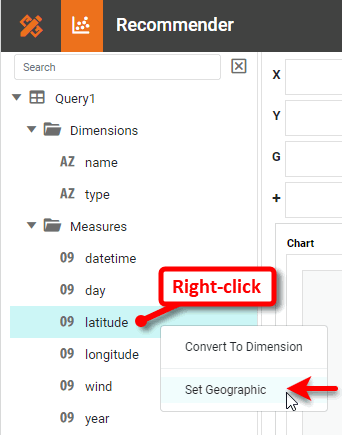
This opens the ‘Edit Geographic’ dialog box. If you need to open the ‘Edit Geographic’ dialog box later, right-click the ‘latitude’ measure or press the ‘Actions’ button
, and select ‘Edit Geographic’ from the context menu. -
From the ‘Map’ menu, select ‘World’, and press OK.
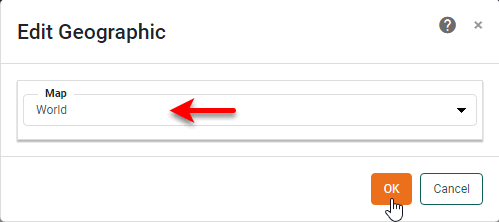
If you are using a Web Map background with latitude and longitude data, you should always use the ‘World’ map option. -
Repeat the above steps to set the ‘longitude’ measure as a geographic field.
-
Drag the ‘longitude’ field to the ‘X’ region.
-
Drag the ‘latitude’ field to the ‘Y’ region.
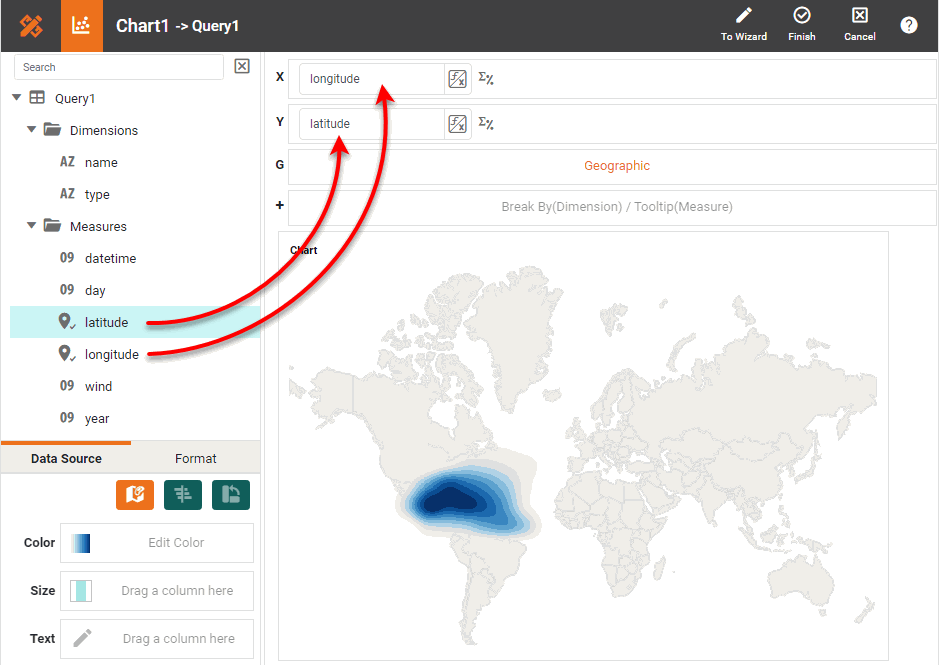
-
Optional: Drag the ‘wind’ measure to the ‘Size’ region to weight the points by wind speed.
What is a measure?
A measure is generally used for aggregation, for example summation, averaging, correlation, etc., within a Crosstab, Chart, Text component, or Gauge. Adding a measure to the ‘Y’ region in a chart displays the computed aggregates by using locations on the Y-axis. Adding a measure to the ‘X’ region displays the computed aggregates by using locations on the X-axis. You can also display aggregates by using color, shape, size, or label.
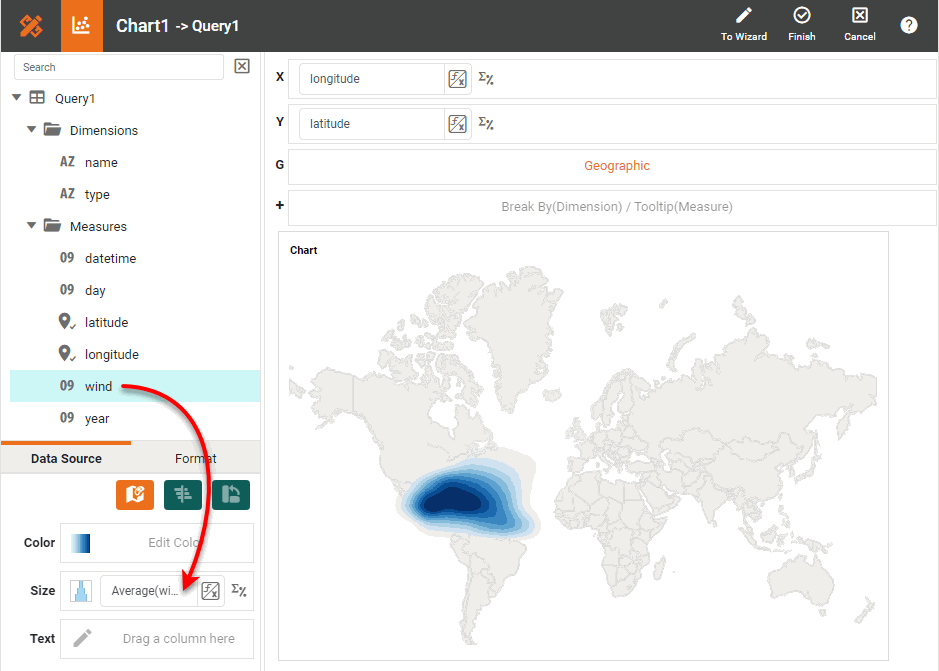
To change how the contours are focused on the data points (without weighting), press the ‘Edit Size’ button, and choose a fixed size value.
You can make additional adjustments to the appearance of the contours from the ‘Chart Properties’ dialog box. See below. -
To add the labels to the points on the map, drag the ‘name’ field from the Data Source panel to the ‘Text’ field.
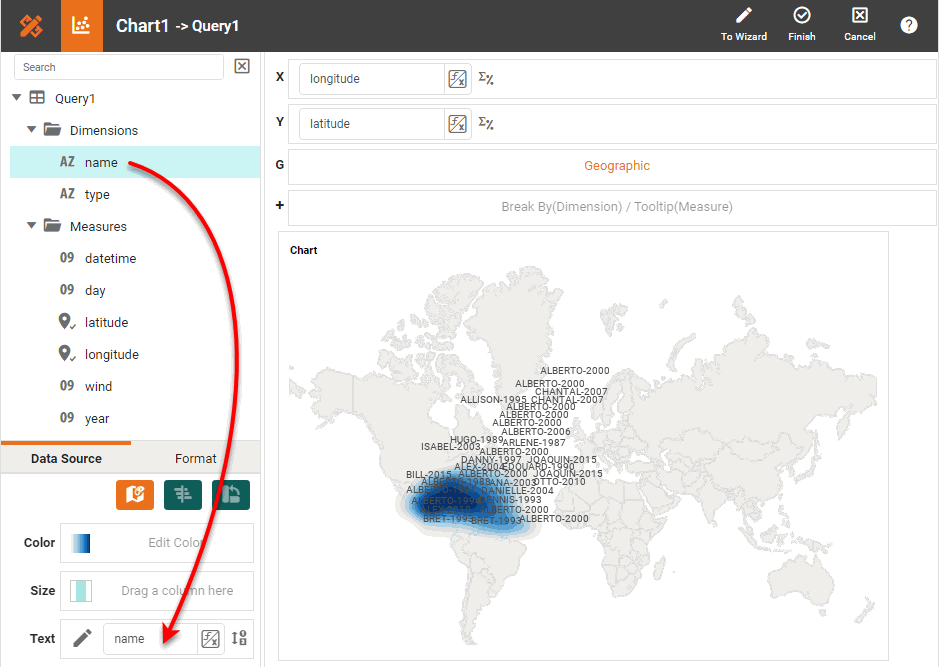
The labels appear fairly crowded because of the long landmark names. You can zoom the map to see the labels more clearly. See Drill Down into Data for instructions.
-
Press the ‘Finish’ button
to close the Editor. -
Optional: To change the characteristics of the contours, press the ‘More’ button (
) in the Chart toolbar, and select ‘Properties’. In the ‘Chart Properties’ dialog box, adjust the following settings under ‘Density Contour’ in the Advanced tab.- Levels
-
Specifies the number of contours used to represent each region. A larger number produces a smoother transition of colors.
- Bandwidth
-
Specifies the area over which to calculate density. A larger number produces contours that span larger areas.
- Edge Alpha
-
Specifies the transparency of the contour edge. The transparency of the contour center is determined by the Chart ‘Alpha’ property. A higher value makes the edges more visible.
- Cell Size
-
Specifies the size of the cells that make up the grid on which contour weights are computed. Higher values specify larger cells, and hence broader clusters. Lower values specify smaller cells, and hence smaller clusters.
-
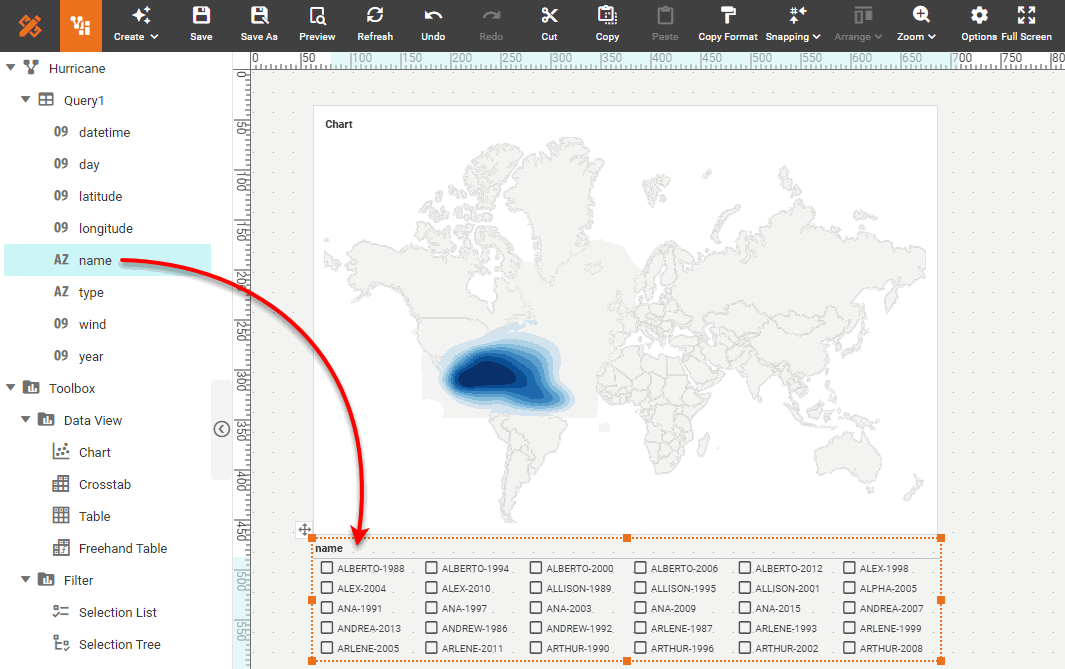
Drag the ‘name’ field into the Dashboard to add a Selection List for the hurricane names. Select the desired hurricanes in the Selection List.
-
Optional: Set the initial map view by pressing the ‘Pan’ button
and dragging on the map to reposition, and by pressing the ‘Zoom In’ button or ‘Zoom Out’ button to zoom. Press the ‘Clear’ button to reset the view.
Set a Geographical Field
To mark a field as geographical, follow these steps:
-
Right-click the field in the tree or press the ‘Actions’ button
, and select ‘Set Geographic’ from the context menu. This places a location icon  next to the field name.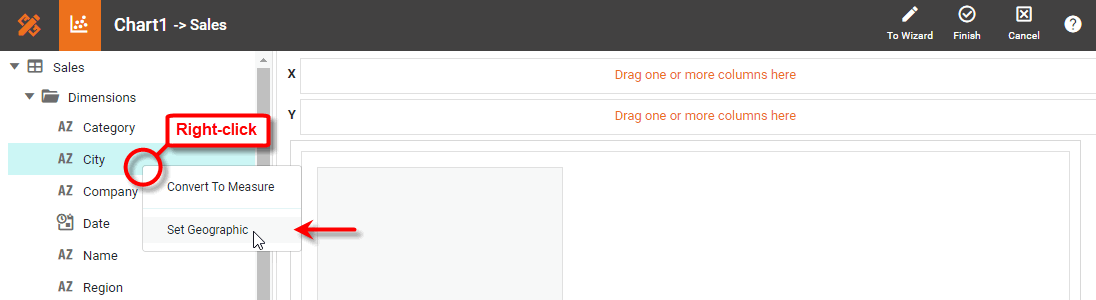
If the field is shown with a location icon
, this means the field has been already been mapped to a geographical level. If the field is shown with an unmapped location icon  , this means you may need to set the geographical level for the field or resolve location names.
 -
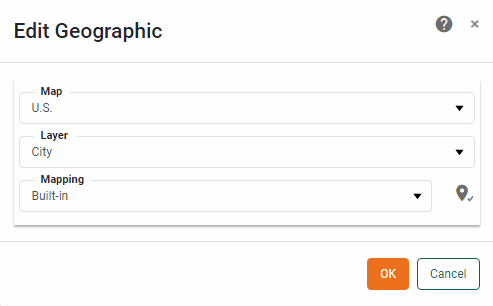
To set the geographical level, right-click the field name and select ‘Edit Geographic’ from the context menu. This opens the ‘Edit Geographic’ dialog box.
-
In the ‘Edit Geographic’ dialog box, select the desired region from the ‘Map’ menu: Asia, Canada, Europe, Mexico, U.S., or World.
The map that you select for a geographic field applies to all other geographical fields. -
From the ‘Layer’ menu, select the geographical layer that corresponds to the data in the selected field.
This specifies the layer of the geographical database against which field values should be matched (e.g., city names should be matched against the city layer, etc.). The options available in the ‘Layer’ menu depend on the previously selected ‘Map’ option.
-
From the ‘Mapping’ menu, select the desired map database. (This is almost always ‘Built-in’.) The Chart Editor attempts to resolve values in the selected geographic field against the corresponding layer in the map database.
If the field was shown with an unmapped location icon
, this means you may need to resolve location names. To do this, follow the steps below:-
Press the ‘Edit’ button
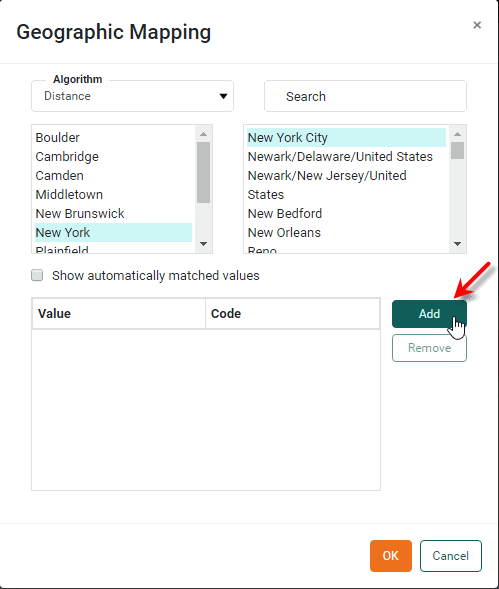
 next to the ‘Mapping’ menu. This opens the ‘Geographic Mapping’ dialog box, which allows you to manually match place names.
 -
Select an unmatched location in the left panel, and choose the correct match from the right panel. Use the ‘Algorithm’ and ‘Search’ options to help you find the desired match.
-
Press Add to add the match to the list of matched locations.
-
Optional: Enable ‘Show automatically matched values’ to see all currently matched locations.
-
Repeat the above steps to match all locations and press OK.
-
-
Optional: To remove the geographical status of a field, right click the field or press the ‘Actions’ button
, and select ‘Clear Geographic’ from the context menu.
Transforming Coordinates for Alaska and Hawaii
For convenience, the default ‘U.S.’ map does not display Alaska and Hawaii in their geographical locations, but shifts and (in the case of Alaska) re-scales them to an inset position below California. For this reason, if you are plotting data on the ‘U.S.’ map you should transform your raw latitude and longitude data for Alaska and Hawaii prior to generating the chart.
To remap your raw longitude and latitude data, [long lat], to the corrected values, [long' lat'], apply the following matrix transformations to your data.