Set Repository Permissions

To set permissions for Dashboards, data sources, multi-tenant connections, repository folders, etc., follow the steps below. Use the same steps to view existing permissions for any of these assets.

Repository folders are logical groupings, and do not represent file system directories.
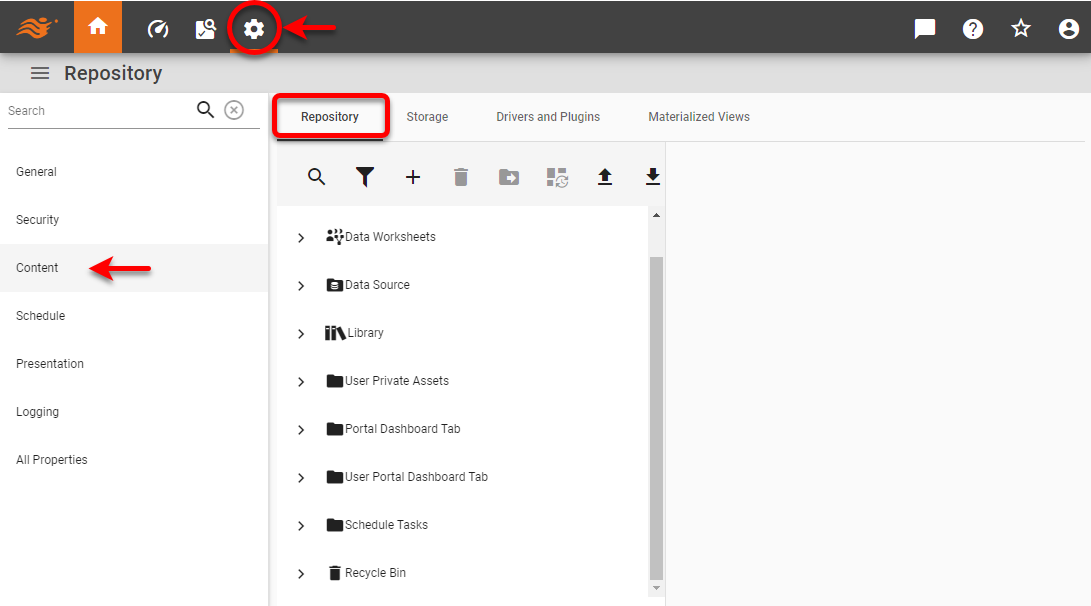
  1. Press the ‘Settings’ button setting at the top of Enterprise Manager.

  2. Select the Content page in the left panel.

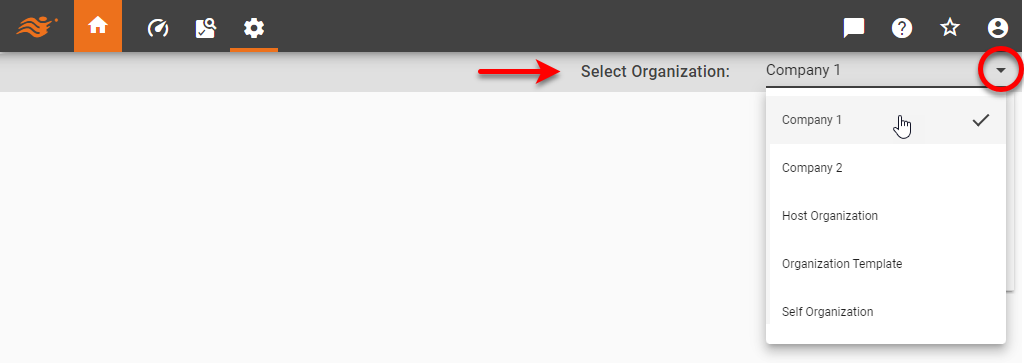
  3. If multi-tenancy is enabled, from the ‘Select Organization’ menu, choose the desired organization. This feature is available only in Enterprise Edition.
    organization1

    Settings you make in the steps below apply only to the selected organization. Users and assets of other organizations are not affected. Note that some settings may only be available to the Host Organization, and are only visible to the Site Administrator.
  4. Select the Repository tab.

    Figure 15

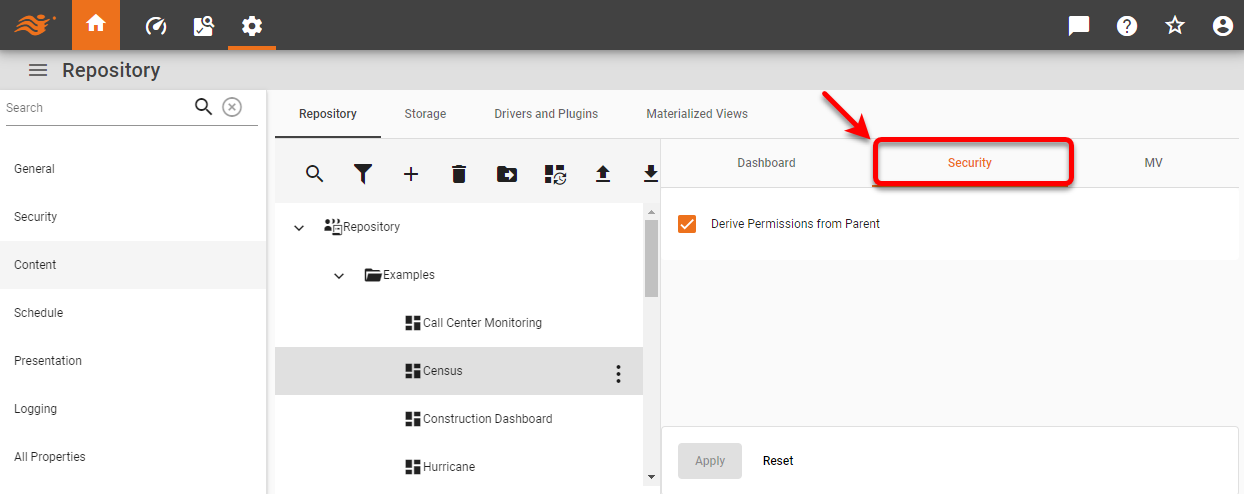
  5. Click to select the desired repository asset (Dashboard, folder, etc.) in the tree.

  6. Select the Security tab.

    dashboardSecurityTab

  7. Uncheck ‘Derive permissions from Parent’.

    Expand to view a list of parent permissions

    The list below shows the “parent” for each type of resource capable of inheriting parent permissions.

    Dashboard

    Parent is the repository folder containing the Dashboard on the Repository tree (under the Content tab).

    Folder

    Parent is the repository folder containing the folder on the Repository tree (under the Content tab).

    Datasource

    Parent is the root ‘Data Source’ node on the tree (under the Content tab).

    Connection

    Parent is the same parent as the datasource on which the connection is defined.

    Data model

    Parent is the datasource on which the data model is defined.

    Data Worksheet

    Parent is the ‘Data Worksheet’ node on the tree (under the Content tab).

    Library asset

    Parent is the ‘Library’ node on the tree (under the Content tab).

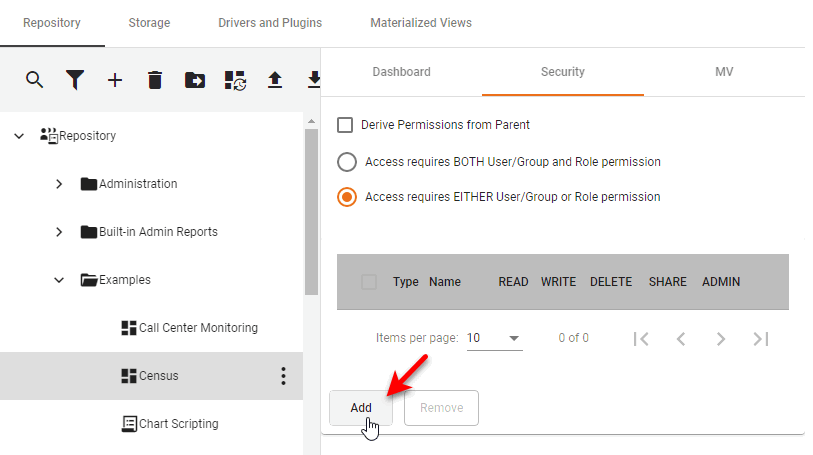
  8. Select ‘Access requires BOTH User and Role permission’ to specify that access to the Dashboard or folder is granted only if the current user has both user and role permissions; i.e., both the user’s name (or group) and at least one of the user’s roles appear in the ‘Selected Entities’ table.

    Select ‘Access requires EITHER User or Role permission’ to specify that access to the Dashboard or folder is granted if the current user has either user or role permissions; i.e., either the user’s name (or group) or at least one of the user’s roles appear in the ‘Selected Entities’ table.

    This is an organization-wide setting, and will be applied to all assets within the same organization.
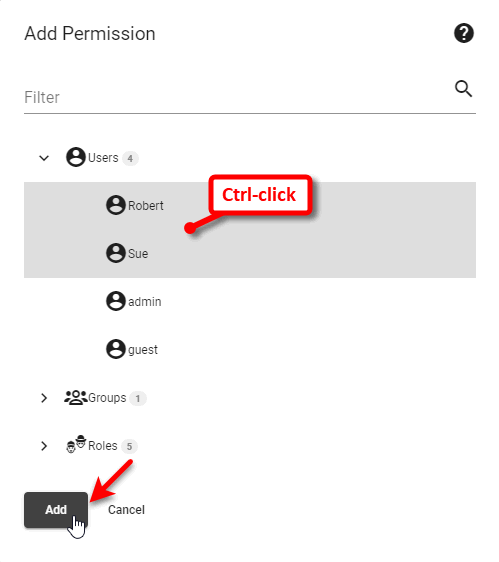
  9. Press the Add button. This opens the ‘Add Permission’ dialog box.
    dashboardSecurityTab2

  10. Ctrl-click to select the desired users, groups, or roles, and press Add.
    Report Permissions

  11. Select the desired permission (READ, WRITE, DELETE, SHARE, ADMIN) by checking the boxes next to the users, roles, or groups. Note that ADMIN permission provides privileges for administering the corresponding asset within Enterprise Manager, and therefore implies the other permissions. The SHARE setting controls access to social sharing options in the Portal.

  12. Press Apply to save your changes.

Notes on Repository Permissions
  • The ‘Derive permissions from parent folder’ option for a Dashboard or folder specifies that permissions will be derived from the parent folder, as described below. If there are no explicit permissions set for its immediate parent, its permission inheritance will recurse higher up in the hierarchy of folders, until the root folder is reached.

  • 'Write' permission on a folder indicates that Dashboards or sub-folders can be added to the folder, deleted from the folder, or modified within the folder.

  • 'Delete' permission on a folder indicates that the folder itself can be deleted, but does not entail individual delete permission for Dashboards or sub-folders within the folder. To assign delete permission to all contents of a folder, set the ‘Write’ permission on the parent folder.

  • 'Write' permission on an individual Dashboard indicates that the Dashboard can be modified, but does not entail delete permission for the Dashboard. To assign delete permission to a Dashboard, set the ‘Delete’ permission on the individual Dashboard.

  • Every user has full ‘Read’/’Write’/’Delete’ permissions to their own ‘My Dashboards’ folder.

  • If explicit permissions are set on an individual Dashboard or folder (i.e., ‘Derive permissions from parent folder’ is disabled), the explicit permissions govern the asset and the parent permissions are ignored.

  • If a user experiences a Read Access Denied error, this generally indicates that permissions on the asset or parent folder are not set correctly for the user.