Preview Query
To view the SQL statements that a data block will attempt to execute (the query plan), follow the steps below:
-
Click on the data block to select it.
-
Right-click the data block, and select ‘Show Plan’ from the context menu. Note: You can also access menu options from the ‘More’ button (
 ) in the mini-toolbar.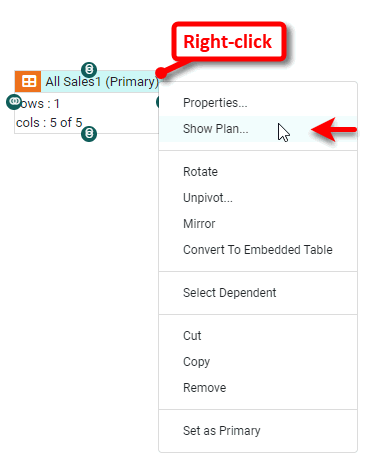
This opens the ‘Query Plan’ panel. The ‘Query Plan’ dialog box displays the queries that will be sent to the database at runtime. Additionally, it shows the data operations that the Data Worksheet will perform in post-processing, after the data is retrieved from the database. The plan also shows the source information for parameterized conditions.
By default, the Data Worksheet attempts to create a single SQL query that fully generates the table’s data. This is typically the most efficient approach because it allows the database to perform all the needed data operations (joins, filtering, etc.). However, you can override this behavior for a particular table by deselecting the ‘Merge SQL’ option in the ‘Table Properties’ dialog box, and in some cases this may improve performance. See Data Block Properties for more information.
This example illustrates how you can control the SQL query that a table sends to the database.
-
Expand the node of the Orders data source.
You may need to download the examples.zip file from GitHub into your environment. (This requires access to Enterprise Manager.) See Import and Export Assets for instructions on how to import. -
Drag the PRODUCTS table to an empty location in the right panel.
-
Drag the CATEGORIES table to an empty location in the right panel.
-
Join the two data blocks using an inner join on the
CATEGORY_IDfield in each data block. See Join Data more details.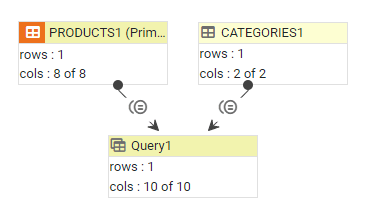
This creates a new table called ‘Query1’.
-
Right-click the ‘Query1’ data block, and select ‘Show Plan’. Note: You can also access menu options from the ‘More’ button (
) in the mini-toolbar. This displays the ‘Query Plan’ dialog box.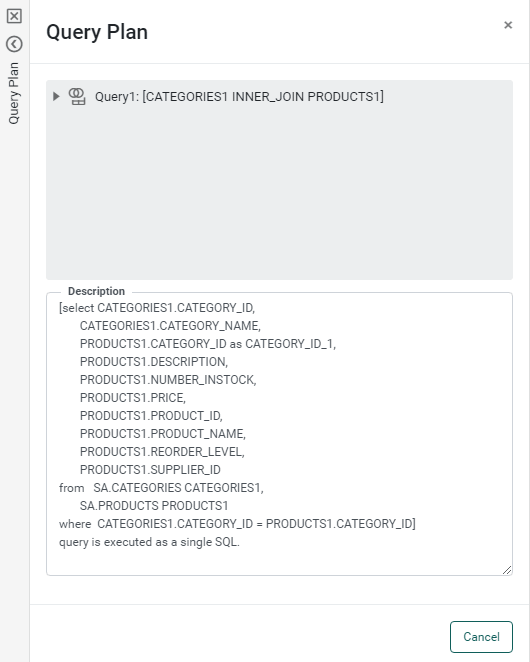
The ‘Query Plan’ dialog box displays the query that the table will send to the database. The statement below the query indicates that this query (including the instructions to join the two tables) will be sent to the database as a single SQL statement, which is also indicated by the single icon in the top panel.
To override the default single-query behavior, follow the steps below:
-
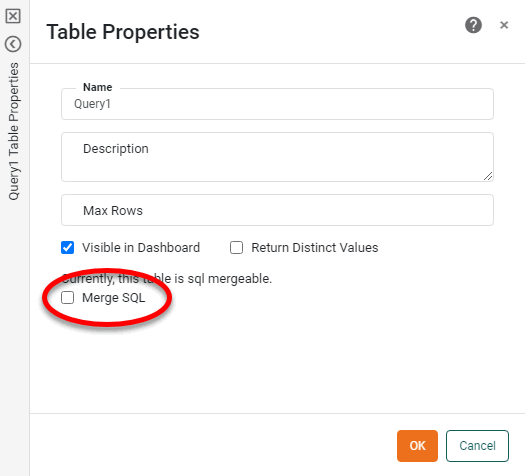
Right-click the ‘Query1’ table again, and select ‘Properties’ from the context menu. This opens the ‘Table Properties’ panel.
-
Deselect ‘Merge SQL’ and press OK to exit the panel.
Right-click the data block, and select ‘Show Plan’ again.
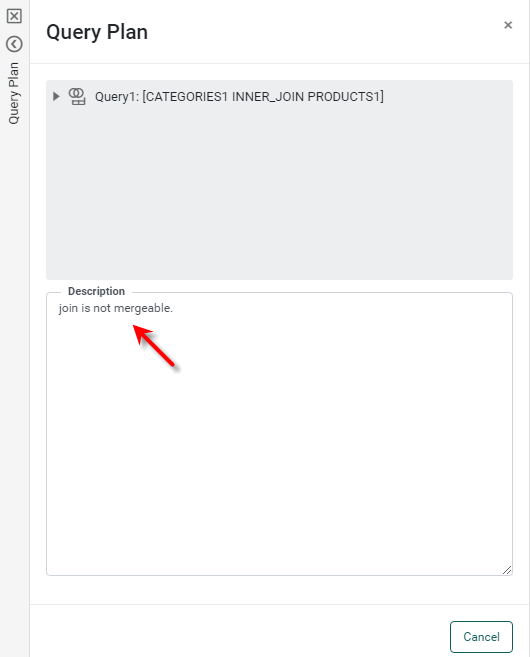
The query plan is again displayed, but the top panel now shows an expandable hierarchy of queries. The PRODUCTS and CATEGORIES queries are each individually executed as single queries, but the inner join that generates the final ‘Query’ table is performed in post-processing.