Enable Self-Signup
| This feature is available only in Enterprise Edition. |
If the Self-Signup feature is enabled, users who log in from the base URL (not a URL containing an organization) can create their own account by pressing the ‘Create an Account’ link on the login page. Users who sign up this way will be added to a special Self Organization that contains only the user signing up.
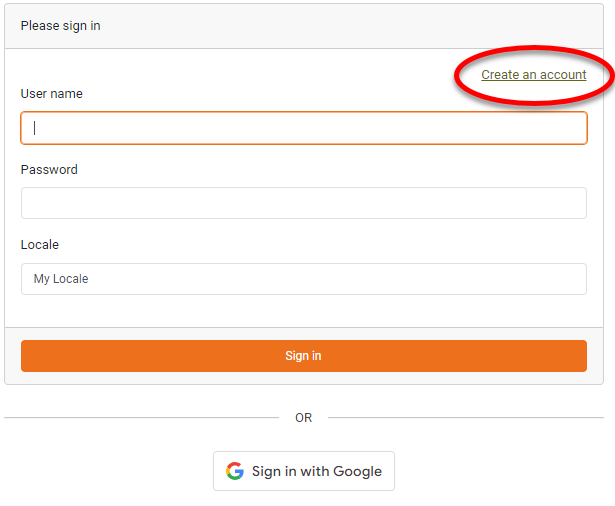
Users who log in from a URL containing an organization (e.g., organization.host:8080/login.html) do not have the ability to self-signup. The organization URL directs users to their organization-specified account.
|
The self-signup option is only available if you enable the Self Signup feature. To enable self-signup, follow the steps below:
-
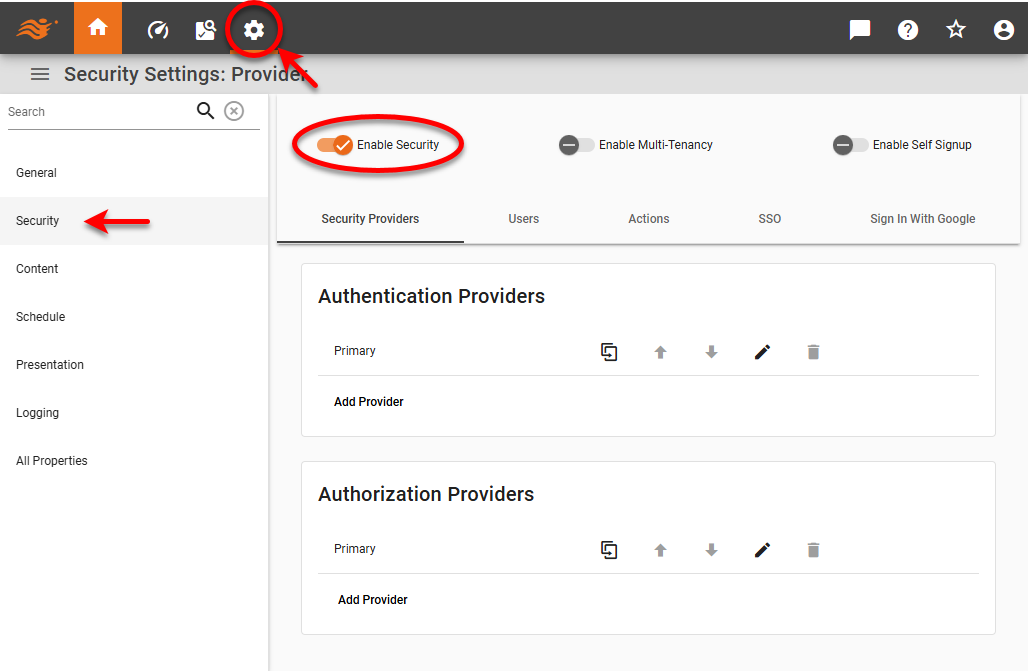
Press the ‘Settings’ button
 at the top of Enterprise Manager.
 -
Verify that the server email is configured. See Configure Server Email.
-
Select the Security page in the left panel.
-
Select ‘Enable Security’ to activate security settings.
-
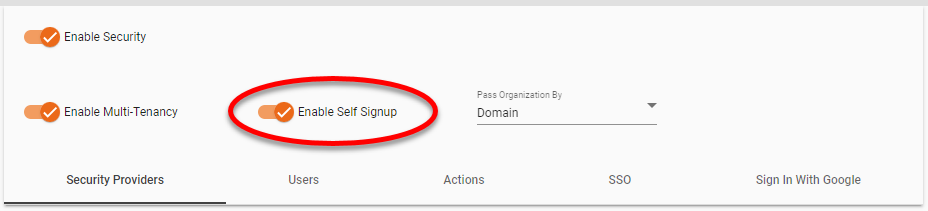
Optional: To allow users from multiple organizations to access the server, check ‘Enable Multi-Tenancy’. See Enable Multi-Tenancy for more information.
-
Check ‘Enable Self Signup’. This enables the ‘Create an Account’ option for users on the login page.
-
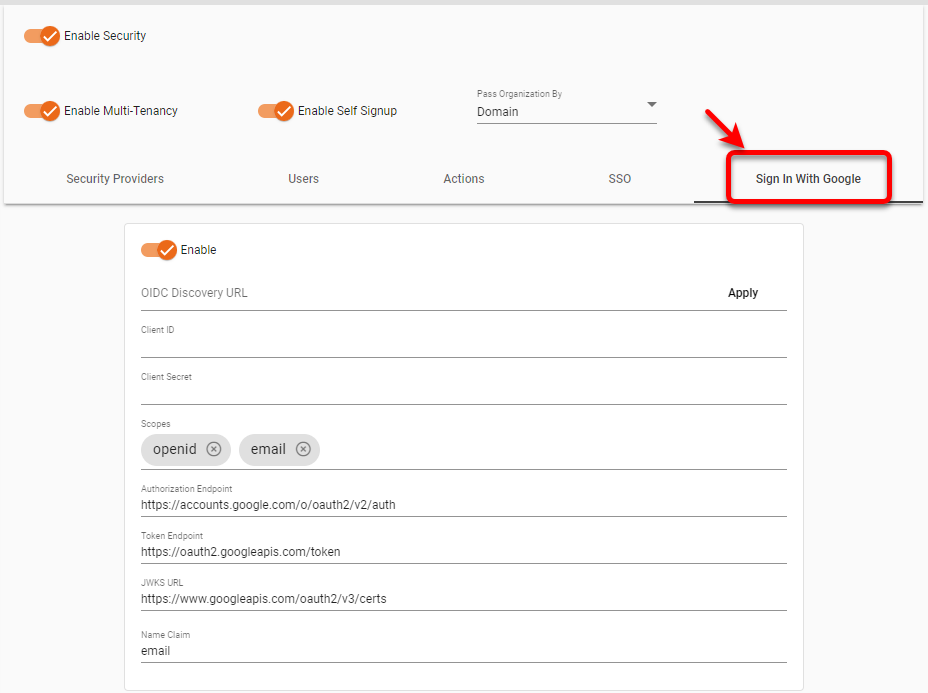
To enable users to sign in with Google, select the Sign In With Google tab.
-
Select the Enable option.
-
Enter the OIDC Discovery URL and press Apply or enter the required OpenID Connect properties. See the OpenID Connect documentation for more information about the settings.
-
Press the Apply button at the bottom of the page.
When a user attempts to log in using the Self-Signup feature, they will receive a confirmation email from “Inetsoft StyleBI” with a default subject and message. If you want to change the subject or message, set the signup.mail.subject and signup.mail.message properties. (See All Properties for information about setting properties.) You can use placeholder {0} to insert the email address of the user, and {1} to insert the verification code.
signup.mail.subject = CompanyName verification code
signup.mail.message = CompanyName verification code, {0}: {1}