Gantt Chart
A Gantt chart displays the timeline of a process, and usually consists of sequential or concurrent tasks arranged from top to bottom by start time.
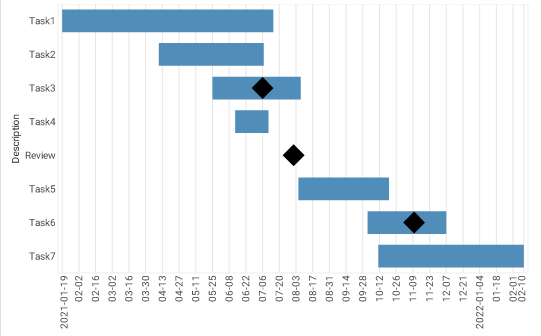
To create a Gantt chart, follow the basic steps below.
|
Configure your data
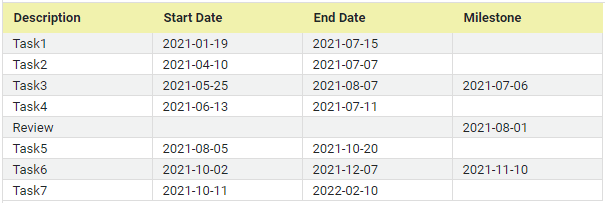
The data for a Gantt chart should be the start and end times for tasks, as well as any milestones, as shown below. See Prepare Your Data for information on how to manipulate your data, if it is not currently in this form.
|
|
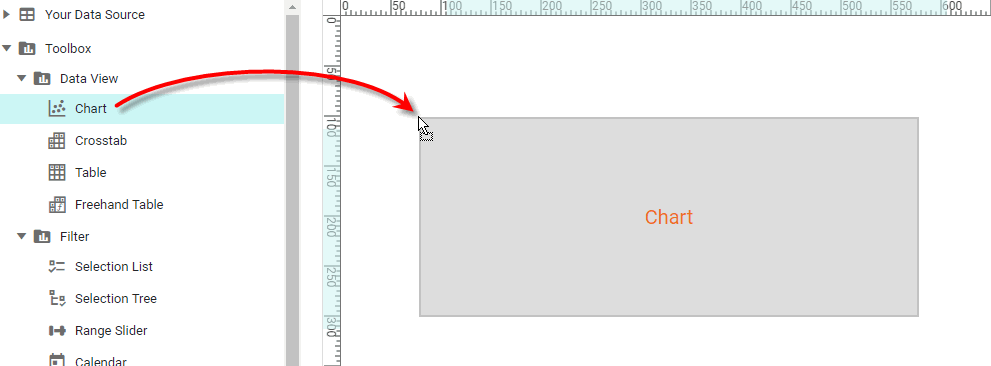
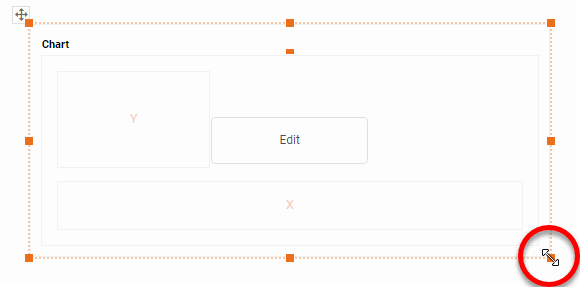
If you are new to charting, see the following section: Open a Chart for Editing…Watch Video: Create a Chart (Open the Chart Editor)This video might show an earlier version of the feature or operation that differs in minor ways from the current version. Follow the steps below to get started with a new Chart. See Basic Charting Steps for more details.
|
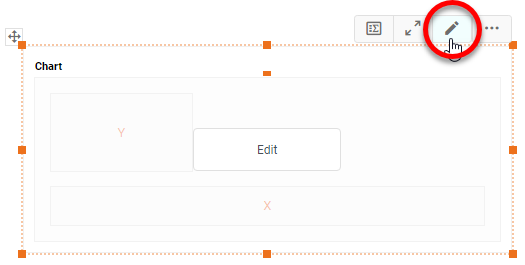
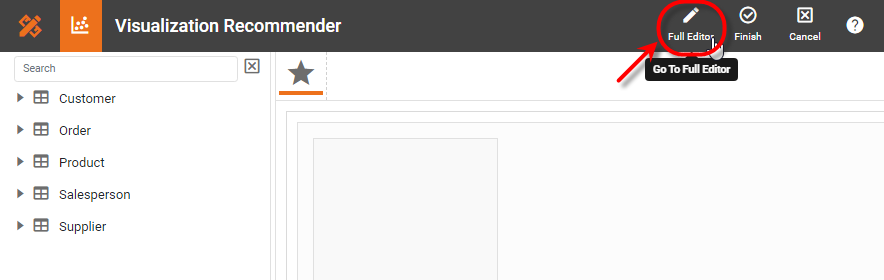
-
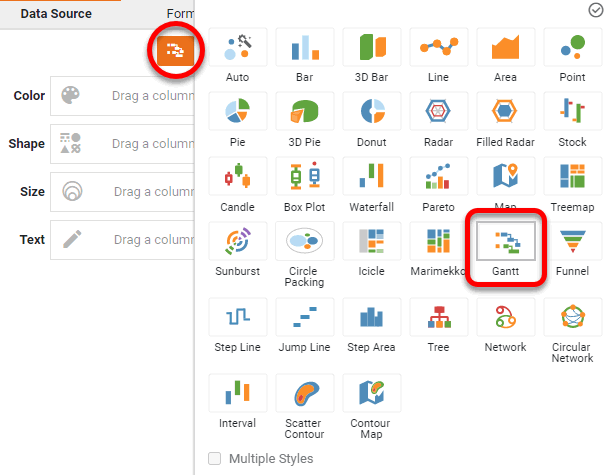
Press the ‘Select Chart Style’ button
 . Choose the ‘Gantt’ style. Press the ‘Apply’ button
  .
.
-
If the date fields are listed under the ‘Dimensions’ folder in the Data Source panel, convert each date field to a measure. To do this, right-click each date dimension in the ‘Dimensions’ folder and select ‘Convert to Measure’.
What is a measure?
A measure is generally used for aggregation, for example summation, averaging, correlation, etc., within a Crosstab, Chart, Text component, or Gauge. Adding a measure to the ‘Y’ region in a chart displays the computed aggregates by using locations on the Y-axis. Adding a measure to the ‘X’ region displays the computed aggregates by using locations on the X-axis. You can also display aggregates by using color, shape, size, or label.
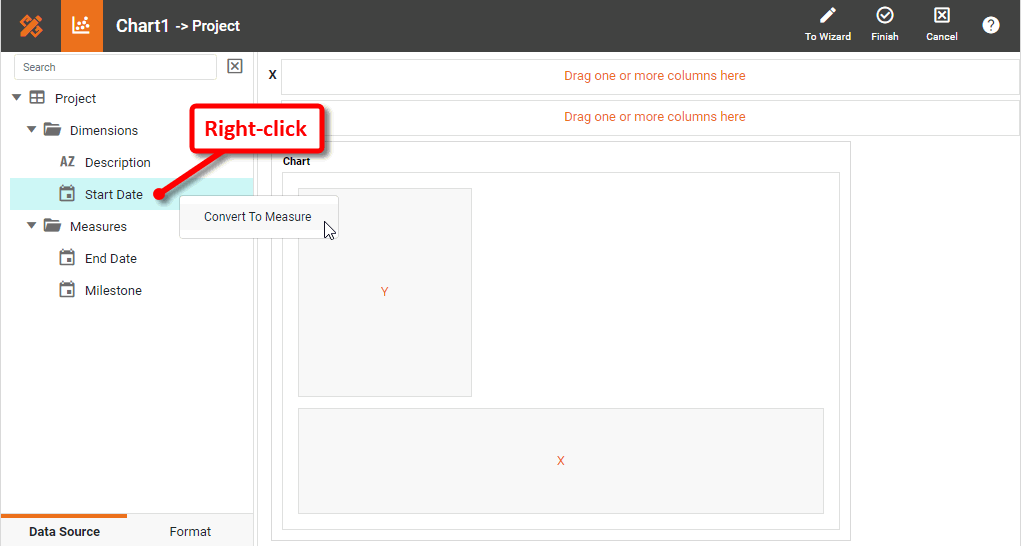
-
Drag the start date measure to the ‘Start’ region.
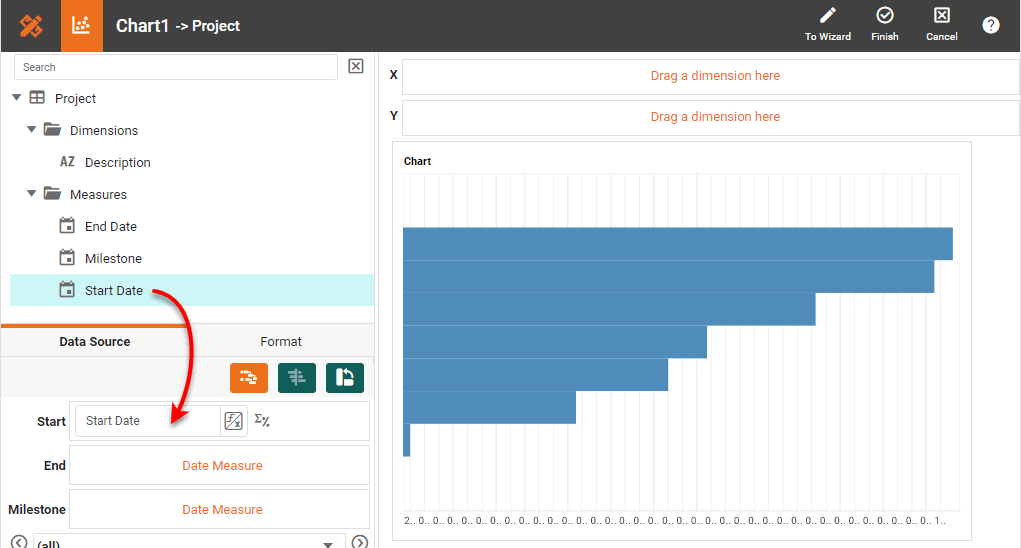
-
Drag the end date measure to the ‘End’ region.
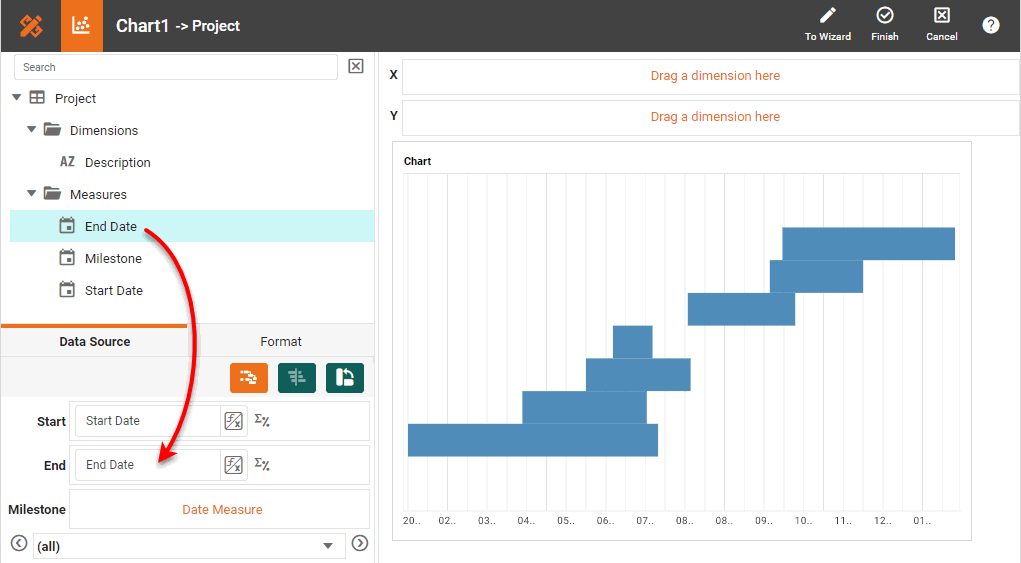
-
Drag the milestone date measure to the ‘Milestone’ region.
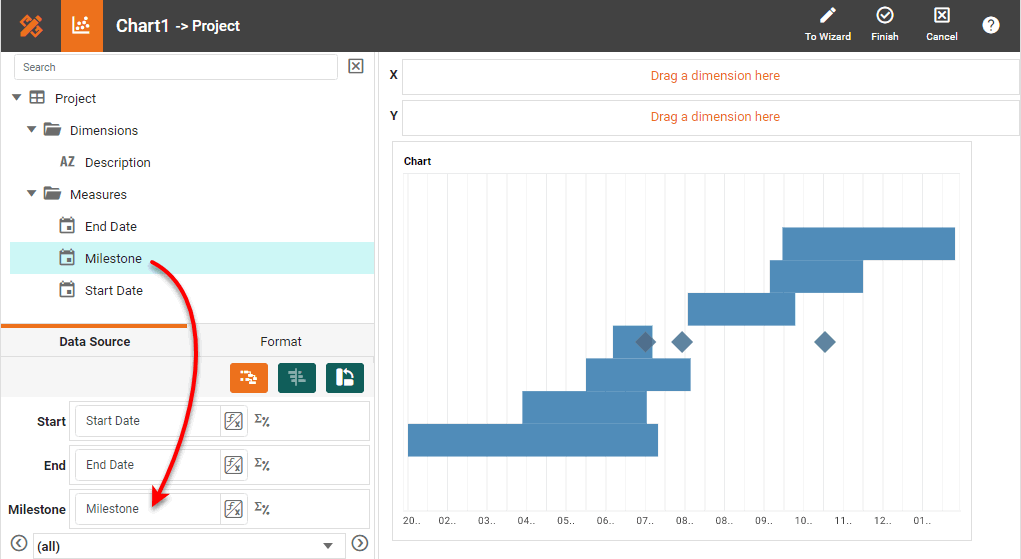
-
From the Data Source panel, drag a desired dimension designating the different tasks to the ‘Y’ region.
What is a dimension?
A dimension is used to break-down the dataset into multiple groups, often within a Crosstab, Chart, or Selection List. Adding a dimension to the ‘X’ region of a Chart distinguishes the different dimension groups by location on the X-axis. Adding a dimension to the ‘Y’ region distinguishes the different dimension groups by location on the Y-axis. You can add multiple dimensions into the ‘X’ or ‘Y’ regions of a Chart, or into the ‘Rows’ or ‘Columns’ regions of a Crosstab, to create multiple grouping levels. You can also distinguish groups in a dimension by using color, shape, size, or label in a Chart.
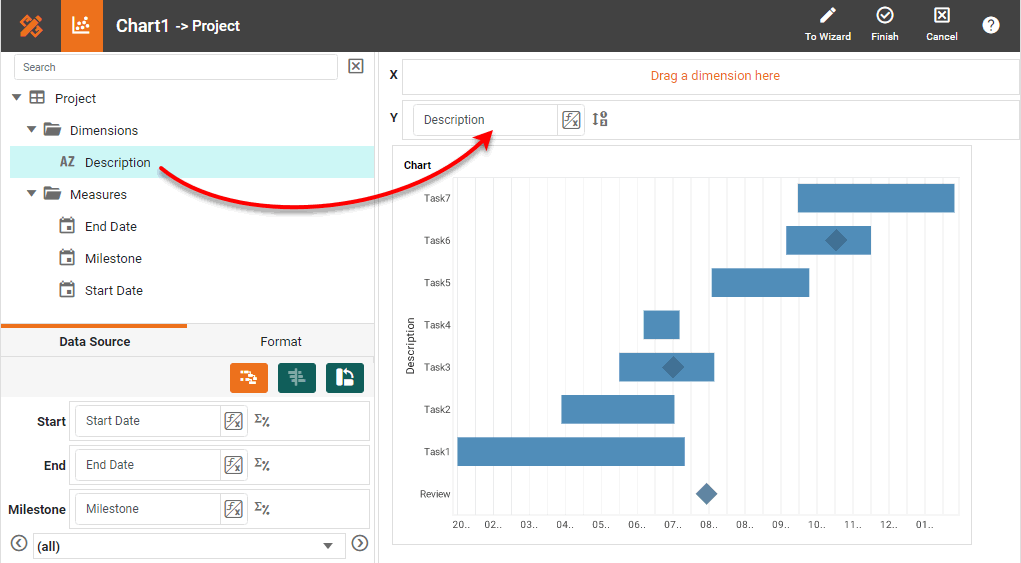
To convert a measure to a dimension, right-click the measure in the data source and select ‘Convert to Dimension’. Note that the order of the tasks may not be correct. To address this, proceed to the next step.
-
Press the ‘Edit Dimension’ button
 next to the dimension. Select the ‘Manual’ option in the ‘Sort’ menu, and press the ‘Edit’ button
  to open the ‘Manual Ordering’ dialog box. To reorder an item in the ‘Manual Ordering’ dialog box, select the item and press Up or Down. Press OK to close the dialog box.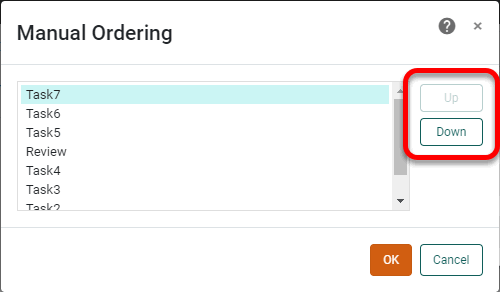
See Sort Data for more information about setting dimension properties.
-
To display the milestones using a different color, select the milestone field from the menu above the ‘Color’ region, press the ‘Edit Color’ button
 , and choose the desired color.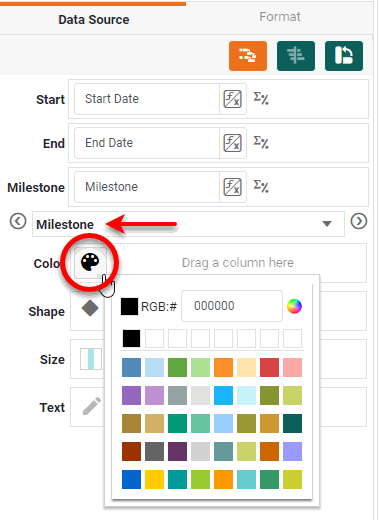
-
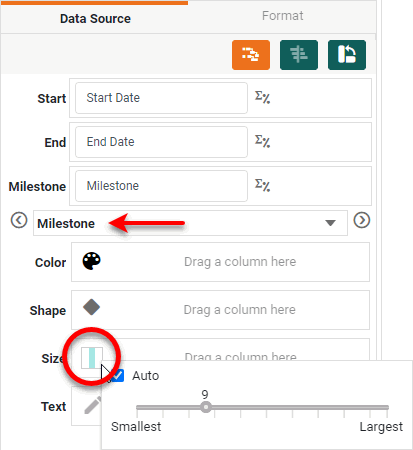
Optional: To change the size of the milestones, select the milestone field from the menu above the ‘Color’ region, press the ‘Edit Size’ button, and choose the desired size.
-
Optional: To hide the legend, right-click the legend and select ‘Hide Legend’.
-
Optional: To format the dates on the axis, click on one of the axis labels and select the Format tab in the left panel. See Add Data Format for more information. See Axis Properties for information on how to rotate the labels.
-
Press the ‘Finish’ button
to close the Editor.
You can proceed to edit the titles, legend, etc. See Basic Charting Steps and Chart Properties for more information. See Add Data Format for information on how to format text on a Chart.