Introduction to Programming
You can add advanced interactivity to your Dashboards by attaching scripts to components or events (e.g., Dashboard loading). Dashboard scripts use JavaScript syntax (ECMA-262) and support most standard JavaScript functions. The JavaScript function libraries are enhanced with additional functions that provide programmatic access to Dashboard properties and behaviors.
The following sections provide a brief overview of Dashboard programming with JavaScript. A basic JavaScript reference is provided in User Functions. To find more complete information about the JavaScript language, please refer to a JavaScript book or tutorial website (e.g., https://www.w3schools.com/js). If you are already familiar with the JavaScript language, you can skip ahead to Add Script to a Dashboard, which explains the different areas of a Dashboard to which you can add script.
Server-Side vs. Client-Side Script
In Web development, JavaScript is used to add client-side scripting to HTML pages. Scripts are embedded into the contents of a Web page and executed inside the client browser. Traditionally, these client-side scripts deal exclusively with user-browser interactions, and have limited server-side actions (e.g., HTTP requests).
In contrast, Dashboard scripting is server-side scripting. The scripts contained in a Dashboard are executed as part of the Dashboard generation process on the server. StyleBI scripts can also control certain client-side interactions through event handlers and hyperlinks.
Object-Oriented Concepts
JavaScript is an object-oriented programming (OOP) language, and provides various objects and methods, as well as the ability to create user-defined methods. To use JavaScript effectively, it is important to understand the following concepts:
- Properties
-
Properties are predefined attributes associated with an object. You can ‘get’ or ‘set’ these properties to observe or alter the corresponding aspects of the object.
- Methods
-
Methods are predefined functions associated with an object. In general, these functions operate on the object itself.
- Events
-
Events are predefined actions that are recognized by an object, such as a mouse movement or clicking.
Script Language Basics
|
JavaScript’s syntax is very similar to that of C++ and Java. It uses the same construct for all loops and has similar syntax for operators. The following sections cover the basics of programming with JavaScript.
Comments and Names
JavaScript uses double slashes // to start a single line comment and /* */ to enclose a multi-line comment.
// single line comment
/* multi-line comment */
The semicolon is used as a statement separator:
var n = 0;
k = parseInt(123);
Variable names can only contain alphanumeric characters plus the underscore character (_). They cannot start with a digit and cannot use reserved JavaScript words. All symbols in JavaScript are case-sensitive.
Declaration and Assignment
JavaScript is a weakly-typed language. This means variables are not assigned a type. A variable can be assigned any value. The type of the variable is determined by the value currently assigned to it. Consequently, a local variable does not need to be declared before it is used.
var variable_name= "Hello"; // recommended
message1 = "Hello";         // will also work
var count = 100;            // integer
var array1 = [1, 2, 3];     // array
var val;                    // definition without assignment
If a variable is used as a Dashboard-level variable, it must be declared using the var keyword. After the variable is declared, it can be used everywhere as a shared Dashboard variable.
// put this in onRefresh handler
var pageTotal = 0;
Arithmetic operators and bitwise operators can be combined with the assignment operator as a shorthand for performing a computation and assigning the results to a variable.
x += y; // same as "x = x + y"Comparison Operators
A comparison operator compares two values and returns true or false depending on the comparison result.
| Operator | Description |
|---|---|
== |
Equal |
!= |
Not equal |
> |
Greater than |
>= |
Greater than or equal to |
< |
Less than |
⇐ |
Less than or equal to |
Note that these operators cannot be used to compare Date objects. Use date functions instead, such as dateDiff() or CALC.dateValue(). See Date Object Functions and Useful Date Functions below for more information about date functions.
Object Type and Scope
JavaScript is an object-based language. This means that every value in JavaScript is an object. As with any Object Oriented language, the properties and methods are associated with each object and need to be invoked by qualifying the names with the object name.
// the following statements are equivalent
var name = first_name.concat(last_name);
name = first_name + last_name;
As is the case in C++ and Java, if a script is running inside an object scope, it can reference its properties and methods without qualifying the name. There is a global scope in JavaScript, which provides the common methods. Since every script is running inside a global scope, those methods do not need to be qualified.
// parseInt() is a global method
var num = parseInt(parameter['count']);

// toFixed() is a number method, so it needs to be qualified
var int_num = num.toFixed(0);
A ‘with’ statement establishes an object as the default object for a set of statements.
with(object) {
  // statements;
}
The properties and methods of the object can then be referenced without qualifying the names with the object name:
with(Text1) {
  text = "contents of this text element";
}
Number Type
The JavaScript number type can store both integers and doubles.
var total = 2 + 3;
text = total; // integer 5

var total = 2 + 3.1;
text = total; // double 5.1
To force a number to be treated as an integer, use toFixed(fractionDigits) with a decimal point of zero:
text = total.toFixed(0); // this generates a string 5Number constants can be in decimal format, hexadecimal format they start with ‘0x’, and octal format if they start with ‘0’.
decimal_number = 255 // Decimal is the default
hex_number = 0xfff
p_number = 2.456 // Floating point number
Numbers can be used in computation using the usual operators, +, *, /, -. The increment and decrement operators (++, --) are also available in JavaScript.
Boolean Type
A Boolean has a value of true or false.
while(true) {
  // keep doing something
}
All undefined values are treated as false Boolean values when used in the context of a condition. You can check if a value is defined by using the value in the if() condition:
if(parameter['start_time']) {
    // do something
}
String Type
Enclose String constants with a single or double quote. Use \n to introduce a carriage return (line feed).
var comp = "InetSoft Technology Corp."
var comp2 = 'InetSoft Technology \n Corp.'
Strings can be concatenated using the plus operator:
var str = 'Total: ' + total;If a value concatenated to a string is of a different type, it is converted to a string automatically. Strings have many methods. Some common ones are shown in Useful Text Functions.
var str = 'abcd';
str = str.toUpperCase(); // converts to ABCD
var bIdx = str.indexOf('B'); //return 1
str = str.substring(1, 2); // return 'B'
Strings have built-in support for regular expressions. You can find a regular expression in a string using the match(regex) or search(subStr) methods:
str = 'this is a test of regular expression';
re = /test/; // create a regular expression
var idx = str.search(re); // return the position of the regular expression
Date Type
Date is represented as milliseconds since EPOC (Equipment Point of Connection). Creating a date object with no parameter gives the current time:
var now = new Date();A date can be converted to a string using a global function, formatDate(date,string).
str = formatDate(now, 'yyyy-MM-dd'); // 2002-02-21The date format is described in Add Data Format.
Arrays
An array is a list contained in a single variable. Each item in the list is known as an array element and is enclosed in square brackets ([]). When you create an array, it is initialized with the specified values as its elements. Its length is set to the number of elements specified. The following example creates the coffeelist array with three elements and a length of three:
coffeelist = ["French Roast", "Columbian", "Kona"];Multidimensional arrays are represented by an array of arrays. A multidimensional array (rows and columns) may be created as follows:
monthly_rain = [['Jan', 'Feb', 'Mar'],[100,10,30],[30,10,300],[10,10,10]];Control Structures
Control structures allow you to control the flow of a script based on logic that you specify.
Conditionals
The ‘if/else’ statement tests a Boolean expression to decide between two alternative actions. The statements within the ‘if’ block execute only when the specified condition is true. Alternative conditions can be tested by using one or more optional ‘else if’ blocks (similar to Switch). An optional final ‘else’ block will be executed if all other conditions evaluate false.
if(condition0) {
  // statements to execute if condition0 is true
}
else if(condition1) {
  // statements to execute if condition1 is true
}
else if(condition2) {
  // statements to execute if condition2 is true
}
else if(condition3) {
  // statements to execute if condition3 is true
}
else {
  // statements to execute if all above conditions are false
}if (field['total'] > 0) {
reg = event.region;
}
else {
reg = event.firstRegion;
}var day = CALC.weekdayname(CALC.today())
if (day == 'Thursday') {
Text1.text = 'Note: ' + day + ' hours are 10am-4pm.';
}
else if (day == 'Friday') {
Text1.text = 'Note: ' + day + ' hours are 10am-12pm.';
}
else if (day == 'Sunday') {
Text1.text = 'Note: ' + day + ' office closed.';
}
else {
Text1.text = 'Note: ' + day + ' hours are 9am-5pm.';
}Try-Catch
The “try-catch” construction allows you to catch a script error before it causes Dashboard execution to fail. To catch an error, place the desired sequence of code inside a ‘try’ block. If any line of this ‘try’ code generates an error, program execution immediately jumps to the code in the ‘catch’ block.
try {
  // Code to try
}
catch(err) {
  // Alternative code for case of error
  log(err.stack);
}
finally {
  // Code to execute in either case
}
The err parameter contains the exception message that was generated by the ‘try’ block. Use the stack property to log explicit information about script errors, as shown above. The ‘finally’ block contains code to be executed whether an error occurred or not. The ‘catch’ block and ‘finally’ block are optional, but cannot both be omitted.
For
A for loop is an iteration statement that instructs the computer to repeat an action a specific number of times. the ‘for’ loop consists of three optional expressions, enclosed in parentheses and separated by semicolons.
for([init-expression];[condition];[increment-expression]) {
  //statements;
}
The init-expression is evaluated before the loop starts. It is normally used to declare and initialize a counter variable. The condition statement is evaluated at the beginning of every loop. If the condition is true, the statements are executed. Otherwise, the loop terminates. The increment-expression is executed after the body statements. It is normally used to increment the counter variable.
var total = 0;
for (var j = 1; j < TableView1.table.length; j++) {
    total += TableView1.table[j][3];
}
The first expression in the loop (j=1) initializes the loop variable. The second expression (j<TableView1.table.length) is a condition used to check whether to continue the loop (i.e., continue while the condition evaluates true). The third expression (j++) is the variable increment that is evaluated at the end of every iteration. The j++ notation is the same as j=j+1, i.e., increment by one.
A special ‘for’ loop allows iteration through all properties of an object, as shown below. If the object is an array, each item in the array is treated as a property.
var props = "";
for(var item in obj) {
  props += item + " = " + obj[item];
}
While
A while loop is an iteration statement that instructs the computer to repeat an action until a specified condition becomes false.
while(condition) {
  statements;
}
The condition is evaluated at the beginning of every loop. If the condition is true, the body of the loop is executed. Otherwise, the loop is terminated.
var n = 5;
Text1.text = "The factorial of " + n;
var fact = 1;
// Compute n!, where n is a non-negative integer
while (n > 1) {
    fact = fact * n;
    n = n - 1;
}
Text1.text += " is " + fact;
A variation of the ‘while’ statement is ‘do…while’. Instead of evaluating the condition at the beginning of the loop, ‘do…while’ statement evaluates the condition at the end of a loop. This guarantees the loop is at least executed once.
do {
  // statements
}
while(condition);
A loop can be terminated in the body by inserting a ‘break’ statement. A ‘break’ statement causes the execution to immediately transfer to the point following the end of the loop. Similarly, a ‘continue’ statement interrupts the execution of a loop and transfer the execution to the end of the loop block.
Switch
A switch statement chooses a branch to be executed based on a value. One or more values can be listed on each case.
switch(expression) {
case label1:
  //statements;
  break;
case label2:
  //statements;
  break;
//...
default:
  //statements;
}
A ‘break’ must be included at the end of each case to terminate the switch statement. The default label at the end serves as a catch-all phrase. If the switch value does not match any of the listed values, the default section is processed.
switch(field['option']) {
case 'A':
    text = 'Add';
    break;
case 'R':
    text = 'Remove';
    break;
default:
    text = "N/A";
    break;
}
Custom Functions
JavaScript, like most programming languages, has facilities for creating subprograms to modularize or divide operations into distinct functions. Once you define such a function, you can call it from other parts of your script to perform the specified operations, as needed. See Create a Custom Function for more details on how to define a function.
JavaScript functions behave a little differently than you might expect:
-
There is no value reference distinction
-
There is no data type distinction
-
Return values do not have data types and are optional
// Define function 'max'
function max(a,b) {  (1)
  if (a > b)
    return(a); // -- Return a because it is larger
  else
    return(b); // -- Return b because it is larger
}

// Call function 'max'
var maxValue = max(10,11);| 1 | See Create a Custom Function for more details on how to define a function. |
// Define function 'sumarray'
function sumarray(arr) {  (1)
  var total = 0;
  for(var idx = 0; idx < arr.length; idx++) {
    total += arr[idx];
  }
  return total;
}

// Call function 'sumarray'
var myArray = [2,3,4,5,6];
var myTotal = sumarray(myArray);| 1 | See Create a Custom Function for more details on how to define a function. |
Useful Text Functions
Two common string operations are changing case and searching for substrings.
Change Case
To change a string to upper/lower case, use CALC.upper(string) and CALC.lower(string), respectively.
var s = 'John Lennon';
Text1.text = s.toLowerCase();
To change the header cells of a table to upper case, add the following lines to the table-level script:
for(var col = 0; col < Table1.table.size; col++) {
  Table1.table[0][col] = Table1.table[0][col].toUpperCase();
}
Search within String
To find one string within another string, use indexOf(searchValue[, fromIndex]). The indexOf() function returns the starting index of the substring within the parent string. If the substring is not found, it returns a value of -1.
var state = 'New Jersey';
if(state.indexOf('New') > -1) {
  Text1.text = 'With New';
}
else {
  Text1.text = 'Without New';
}
Other common string search functions include search(subStr), match(regex), and CALC.find(string1, String2, search_index).
Useful Date Functions
This section discusses several basic date functions.
Finding Date Difference
Use dateDiff(interval, date1, date2) to find the difference between two dates in days/months/years.
dateDiff('d', fromDate, toDate); // days
dateDiff('m', fromDate, toDate); // months
dateDiff('yyyy', fromDate, toDate); // years
For example, if you have a table bound to a query which contains the date field ‘Birth Date’, you can create a formula field (in the data binding dialog) that calculates the age of this Birth Date in years by subtracting the birthday from the current date, as shown below:
dateDiff('yyyy', field['Birth Date'], CALC.today())Find Past/Future Date
The dateAdd(interval, amount, date) function is used to find a date which is n number of days/months/years before/after another date.
// 1 day before today
dateAdd('d', -1, CALC.today());

// 5 months after today
dateAdd('m', 5, CALC.today());

// 3 years before Order Date
dateAdd('yyyy', -3, field['Order Date']);
For example, the following query takes in two date parameters: ‘StartDate’ and ‘EndDate’. You want the query to always fetch data which is 15 days before the today and 15 days after today.
var sd = dateAdd('d', -15, CALC.today());
var ed = dateAdd('d',  15, CALC.today());
var q = runQuery('ws:global:Examples/AllSales', [['StartDate', sd],['EndDate', ed]]);
Extract Date Component
When extracting calendar elements within a date (year, month, quarter, etc.) use the date functions within the CALC function library.
//extracting the current date and time
var todDate = CALC.today(); //e.g., Feb-21-2007

//extracting the year
var y = CALC.year(todDate); // 2007

//extracting the quarter
var q = CALC.quarter(todDate); // 1

//extracting the day of the week
var dow = CALC.weekdayname(todDate); // Wednesday

//extracting the date
var d = CALC.day(todDate); // 21

//extracting the month
var m = CALC.month(todDate); // 2
Format a Date
Date fields can be formatted in script using the formatDate(date,string) function.
var d = CALC.today();  // e.g., Feb-21-2007
Text1.text = 'Today is: ' + formatDate(d, 'MM-dd-yy'); // Today is: 02/21/07
Protect Dashboard from Errors
Because scripts are executed when the Dashboard is generated on the server, a script error can cause Dashboard generation to fail. To prevent this from happening, you should wrap error-prone code inside a “try-catch” block, which allows you to trap errors before they affect Dashboard execution. See Try-Catch for more information.
Debug a Script
If a Dashboard generates errors, you can use the Visual Composer Console (see Visual Composer Console) to analyze the errors. Errors will also be recorded in the server logs. See Logging for more information.
When you attempt to debug a Dashboard script, it is often helpful to view the current values of variables and objects. To do this, use the alert(message,level) function, which opens a “toast” message box to display a specified string.
alert('string to display')
The alert() function does not pause script execution.
|
var arr = ['Sue','Robert','Eric'];
alert(arr.join(","))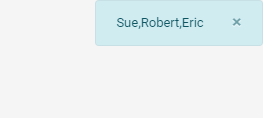
The alert() dialog box is also useful for displaying critical information to a user (for example, if the user’s selections have resulted in an empty dataset). You can also use the confirm(message) function to display information to a user, which also prompts the user to either continue or abort the operation.