Add Data Format
Watch Video: Creating a Dashboard (Format Data)
This video might show an earlier version of the feature or operation that differs in minor ways from the current version.
The ‘Format’ setting allows you to specify a data format. Formatting is available for the following data types: Date, Number, Currency, Text, Percent. (To open the Format panel, see Add Visual Format.)
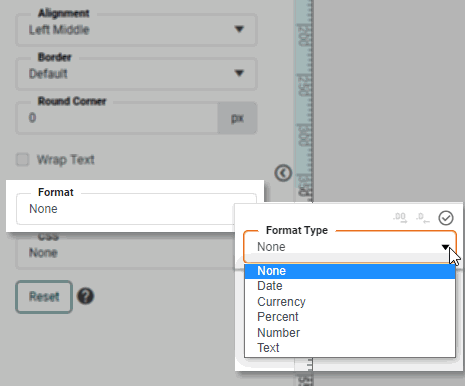
A data format is a method for representing data as a string (for display purposes). For example, the date December 31, 2008 might be displayed as “12/31/08” or “Dec. 31, 2008” or simply “2008,” depending on the format specified. Likewise, the number 123456 might be displayed as “123,456” or “123456.00” or “00123456,” depending on the format specified.
The following sections explain the available formats.
Date Format
For ‘Date’ format, several predefined formats are available from the pop-up menu.
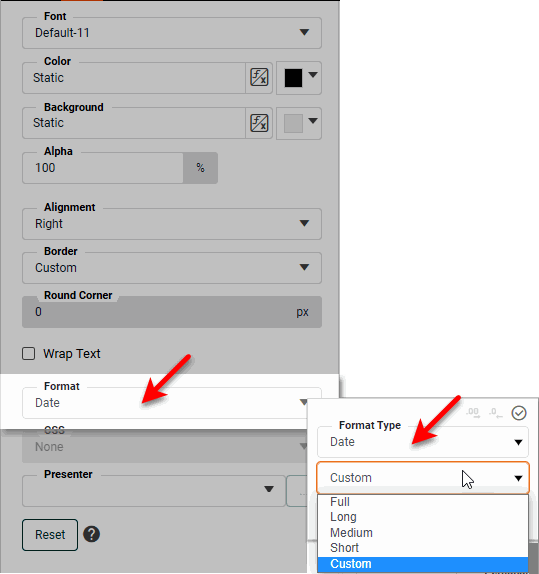
To create other formats, select the ‘Custom’ option and use the following date masks to create the desired format:
| Symbol | Description | Example |
|---|---|---|
G |
Era |
AD |
y, yyyy |
Year |
18, 2018 |
Q, QQQ |
Quarter in year |
2, 2nd |
M, MM, MMM, MMMM |
Month in year |
2, 02, Feb, February |
w |
Week number in year |
34 |
W |
Week number in month |
3 |
D |
Day number in year |
200 |
d, dd |
Day number in month |
5, 05 |
u, uu |
Day number in week (Monday = 1) |
4, 04 |
F |
Day of week in month |
2 (i.e., second Tuesday in month) |
E, EEEE |
Day of week |
Wed, Wednesday |
a |
AM/PM |
PM |
H |
Hour in day (24-hour; midnight is 0) |
23, if time is 11:01PM |
k |
Hour in day (24-hour; midnight is 24) |
23, if time is 11:01PM |
h |
Hour in day (12-hour; midnight is 12) |
11, if time is 11:01PM |
K |
Hour in day (12-hour; midnight is 0) |
11, if time is 11:01PM |
m, mm |
Minute in hour |
3, 03 |
s, ss |
Second in minute |
9, 09 |
S, SSS |
Millisecond |
27, 027 |
z, zzzz |
Time zone |
EST, Eastern Standard Time |
Z |
RFC 822 time zone |
-0500 |
X, XX, XXX |
ISO 8601 time zone |
-05, -0500, -05:00 |
You can insert other text into the format string by using single quotes, for example: 'The date is' MMM, yyyy. To insert a single-quote in the date format, use a double single-quote (e.g., MMM ''yy).
For the date Nov 8, 2006:
M = 11; MM = 11; MMM = Nov; MMMM = November
d = 8; dd = 08
yy = 06; yyyy = 2006
EEE = Wed; EEEE = Wednesday
Therefore, the mask MMM-dd-yyyy yields the string “Nov-08-2006”.
Number Format
For ‘Number’ format, several predefined formats are available.
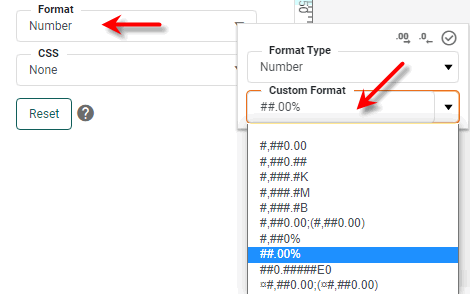
The number format pattern string uses the symbols listed below.
| Symbol | Description |
|---|---|
0 |
Displays the digit at this location. Displays “0” if there is no value at this location. |
# |
Displays the digit at this location (rounded, if placed in least significant position to the right of the decimal point). Suppresses display if there is no value at this location. |
. |
Decimal point |
- |
Minus sign |
, |
Grouping separator |
E |
Separates mantissa and exponent in scientific notation |
; |
Separates positive and negative sub-patterns |
% |
Multiplies by 100 and displays as percentage |
$, ¥, €, etc. |
Inserts the specified currency symbol |
¤ |
Inserts the default currency symbol |
For example, to add commas to a number, use a format such as #,###,###.00. The # placeholder will show a digit if needed, while a 0 placeholder will display zero if the digit is not needed. Add a % symbol at the end of the format to multiply the value by 100 and display as a percentage. To display a % sign without multiplying the values, enclose the ‘%’ in quotes.
| Decimal formatting only works if the value is truly a numeric type. If the numeric value you wish to format is actually text, convert the type using JavaScript so that formatting can be applied. |
Add the suffix “K”, “M”, or “B” (thousands, millions, billions) to the pattern string to automatically divide the numerical value by 103, 106, or 109, respectively.
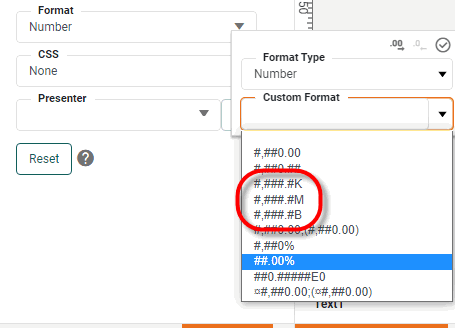
You can insert other text into the format string, for example: Total is $#,###.00. To insert a literal single-quote in the number format, use a double single-quote (e.g., Dave''s total: $#,###.00). To create custom multipliers, see Define Number Formats in Manage the Server.
#,###.## = 124,521.63    (1)
#,###.000 = 124,521.630  (2)
0000000 = 0124522        (3)
| 1 | Insert comma every three places |
| 2 | Pad to hundredths by using ‘0’ to right of decimal |
| 3 | Zero-pad left side and round |
#,###.## = 745,850.78       (1)
#.# = 745850.8              (2)
#,###.000 = 745,850.780 (3)| 1 | Insert comma every three places |
| 2 | Round to tenths by using ‘#’ to right of decimal |
| 3 | Pad to hundredths by using ‘0’ to right of decimal |
Currency Format
The ‘Currency’ format represents the number as a currency rounded to two decimal places. For example, the number 25.867 displays as $25.87. Use the ‘Increase decimal’ button  and ‘Decrease decimal’ button in the panel to change the number of decimals displayed.
The currency symbol ($, £, €, ¥, etc.) is automatically determined by the user locale upon login. If the user has no assigned locale, the locale settings of the operating system are used. To apply a fixed currency symbol for all locales, use the Number Format option with a recognized currency symbol, e.g., $#,###.##.
|
Text Format
Use ‘Text’ format to add a prefix or suffix to string data. The special tag {0} acts as a placeholder for the actual data. Use the escape sequence \n to insert a carriage return in the text.
To apply localization within a text format, use a string identifier in curly braces within the text format. The identifier in curly braces is used as a Text ID to locate the corresponding replacement text (usually a translation into another language) within the SreeBundle localization file. For example, the string {replacementText} within a text format will use “replacementText” as the Text ID. For information on how to map Text IDs to replacement text in the SreeBundle localization file, see Localization in Manage the Server.
|
-
Consider a Table column containing the following values:
Annie
Eric
Robert
Sue
The text format
“Employee name: {0}”will display these values as follows:Employee Name: Annie Employee Name: Eric Employee Name: Robert Employee Name: Sue
-
Consider a Table column containing the following values:
NJ
NY
CA
AZ
The text format
“-{0}-”will display these values as follows:-NJ- -NY- -CA- -AZ-
Percent Format
The ‘Percent’ format displays a number as a percent. For example, percent format displays the number 0.15 as 15%. To gain more precision over how the value is displayed, use a Number Format together with a % symbol.
Duration Format
The ‘Duration’ format provides a way of displaying elapsed time. Select a ‘Custom’ format, or enter your own custom duration format.
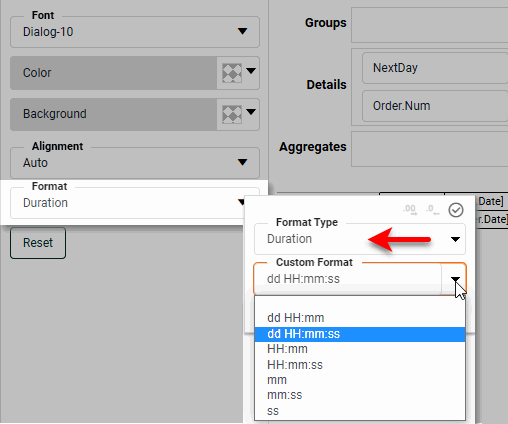
The custom formats use a set of placeholders (H,m,s, etc.) to represent the duration. (See Date Format above for more information about the codes.) The ‘Pad with Zeros’ option places “0” in any position that has no value.
You can represent the millisecond duration of 2684722000 in a variety of ways:
// ‘Pad with Zeros’ enabled or disabled
HH:mm = 745:45 // 745 hours, 45 minutes

// ‘Pad with Zeros’ disabled:
ddd HH:mm:ss = 31 1:45:22 // 31 days, 1 hour, 45 minutes, 22 seconds

// ‘Pad with Zeros’ enabled:
ddd HH:mm:ss = 031 01:45:22 // 31 days, 1 hour, 45 minutes, 22 seconds