Add Components
The following sections explain how to work with components in a Dashboard. See Enhance a Visualization for ideas on improving Dashboard appearance.
Add New Components
To add components to an existing Dashboard, follow the steps below:
|
If you do not have an existing Dashboard, create a new Dashboard. (See Create a New Dashboard.) |
-
Open the desired Dashboard for editing. (See Edit a Dashboard.)
-
Drag components from the left Toolbox panel onto the Dashboard.
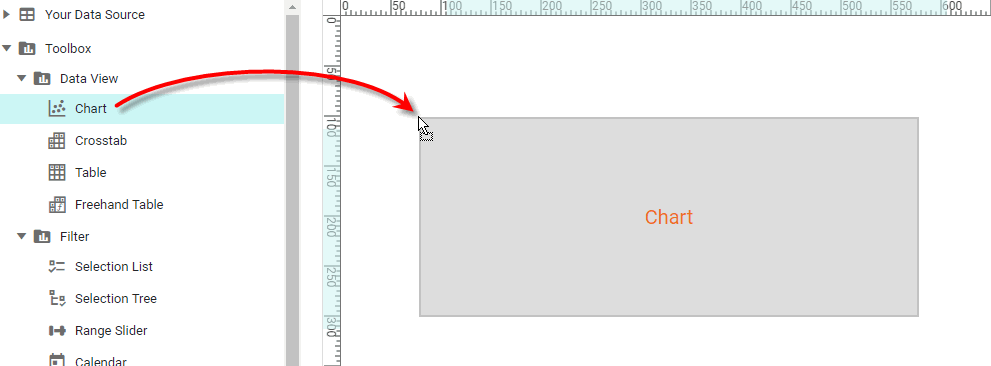
See the following sections (Create a Chart, Create a Table, etc.) for more details on building the Dashboard.
-
Optional: Group components together into larger units. See Group Components for more information.
-
Press the ‘Save’ button
 in the toolbar to save the Dashboard.
 -
To refresh a Dashboard, right-click in an empty region of the Dashboard and select the ‘Refresh’ option from the context menu.
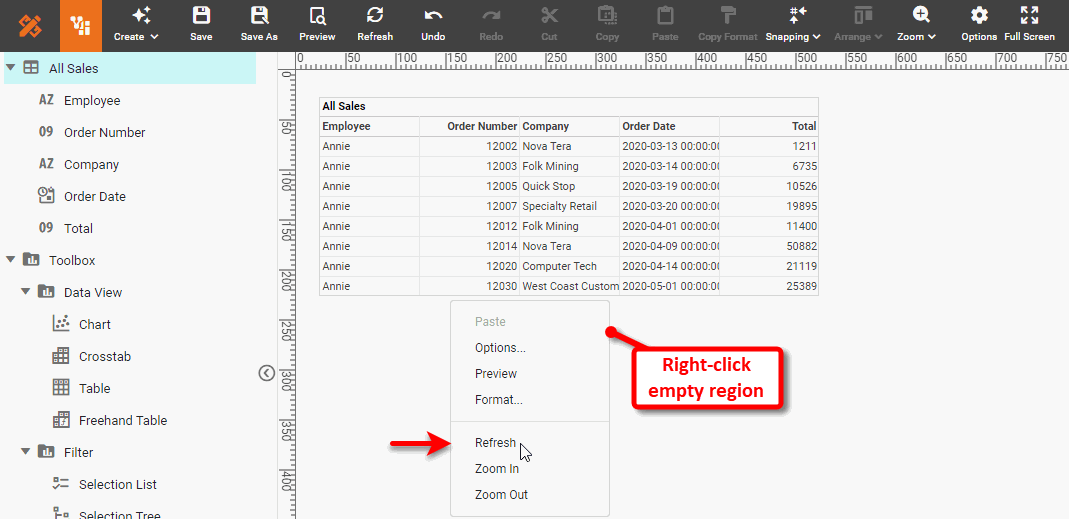
This refreshes the Dashboard to reflect changes to the underlying data source and embedded components.
Arrange Components
To arrange and group components, see Arrange Components.