Pin a Dashboard
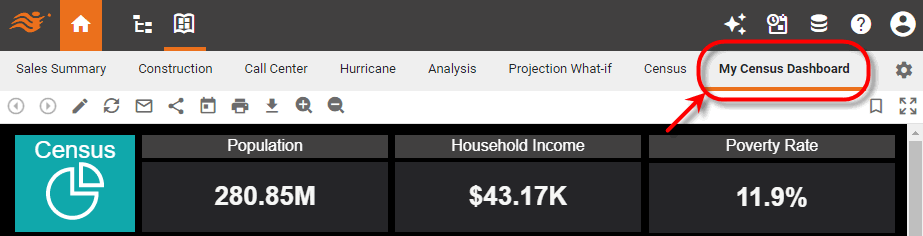
You can arrange the Pinned Dashboards displayed by the ‘Dashboard’ button  of the User Portal, and add your own Pinned Dashboards under this button.
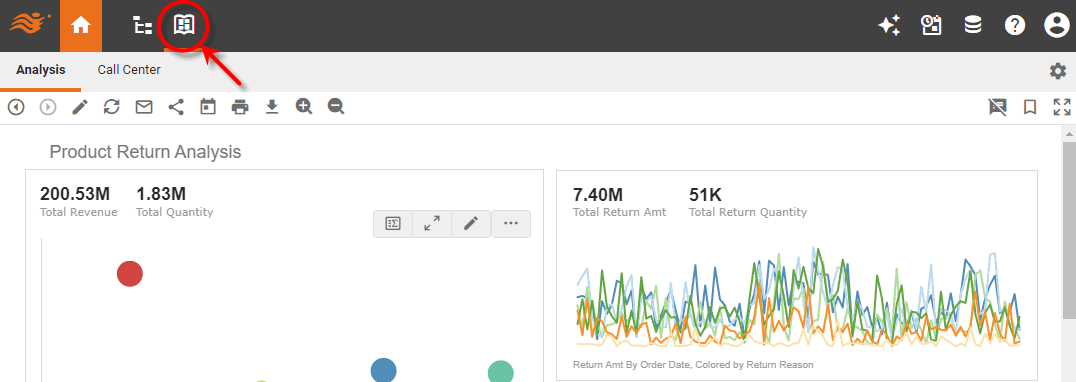
Deploy a Pinned Dashboard
To deploy a Dashboard, follow the steps below:
-
Press ‘Dashboard’ button
the in the User Portal. -
Press the ‘Dashboard Configuration’ button
 , and select the ‘Add’
  option.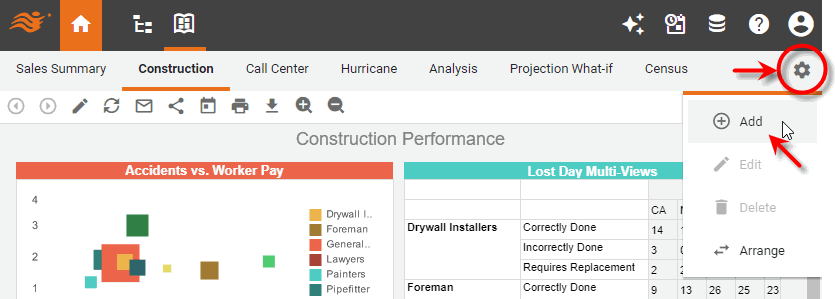
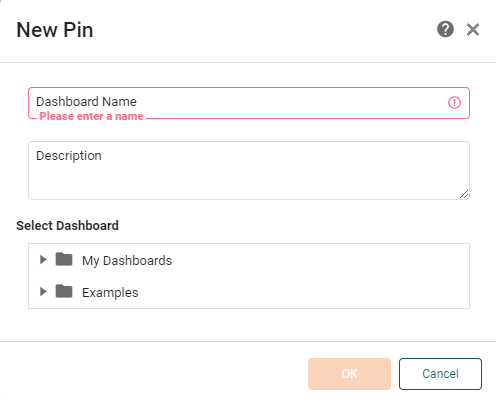
This opens the ‘New Pin’ dialog box.
-
In the ‘Dashboard Name’ field, enter a name for the new Dashboard. This name will be displayed on the Dashboard’s tab in the Portal.
-
Optional: Enter a description for the Dashboard in the ‘Description’ field. This description is only visible when the Dashboard is being edited.
-
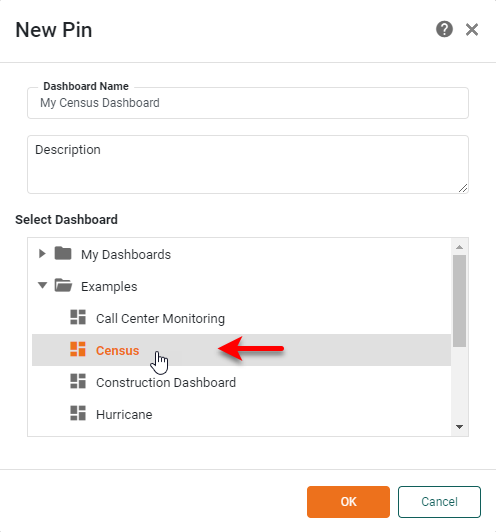
Choose the desired Dashboard from the ‘Select Dashboard’ list.
-
Press OK. This deploys the Dashboard as a Pinned Dashboard.
Edit a Pinned Dashboard
To edit an existing Pinned Dashboard, follow the steps below:
-
Press the ‘Dashboard’ button
in the User Portal. -
Open the desired Pinned Dashboard by selecting the corresponding tab.
-
Press the ‘Dashboard Configuration’ button
, and select the ‘Edit’  option.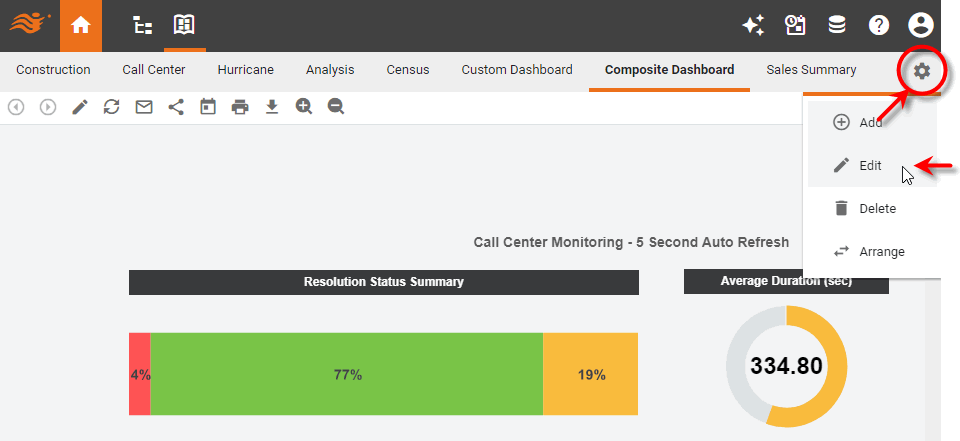
This opens the ‘Edit Dashboard’ dialog box, which is the same as the ‘New Dashboard’ dialog box described above. Follow the instructions above to make the desired edits to the Dashboard name and description, or to select a new Dashboard to display.
Delete a Pinned Dashboard
To delete an existing Pinned Dashboard, follow the steps below:
-
Press the ‘Dashboard’ button
in the User Portal. -
Open the desired Pinned Dashboard by selecting the corresponding tab.
-
Press the ‘Dashboard Configuration’ button
, and select the ‘Delete’  option.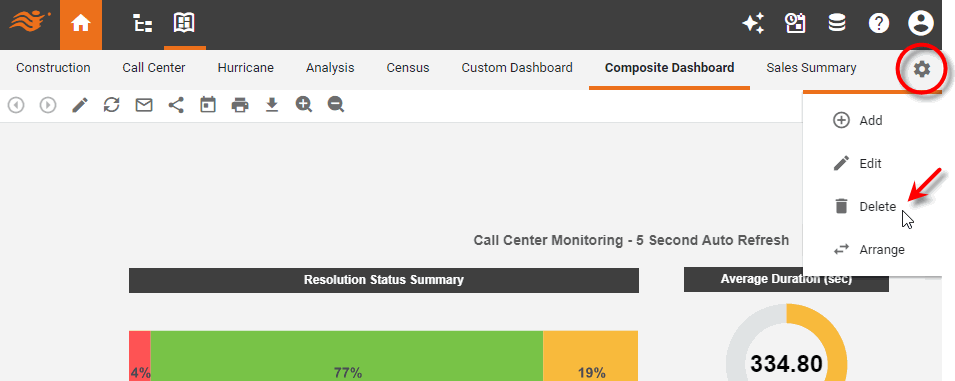
Reposition a Pinned Dashboard
To reposition an existing Pinned Dashboard, follow the steps below:
-
Press the ‘Dashboard’ button
in the User Portal. -
Open the desired Pinned Dashboard by selecting the corresponding tab.
-
Press the ‘Dashboard Configuration’ button
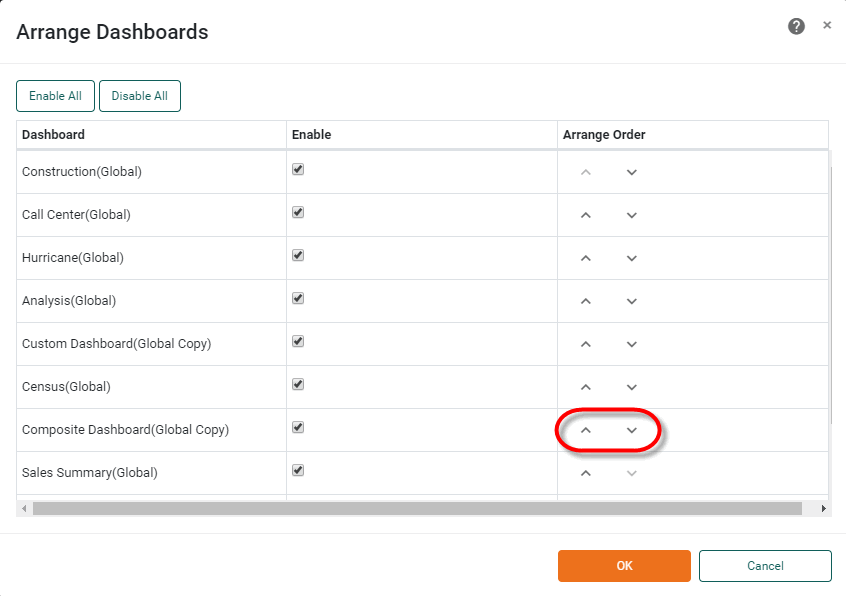
, and select the ‘Arrange’  option. This opens the ‘Arrange Dashboards’ dialog box.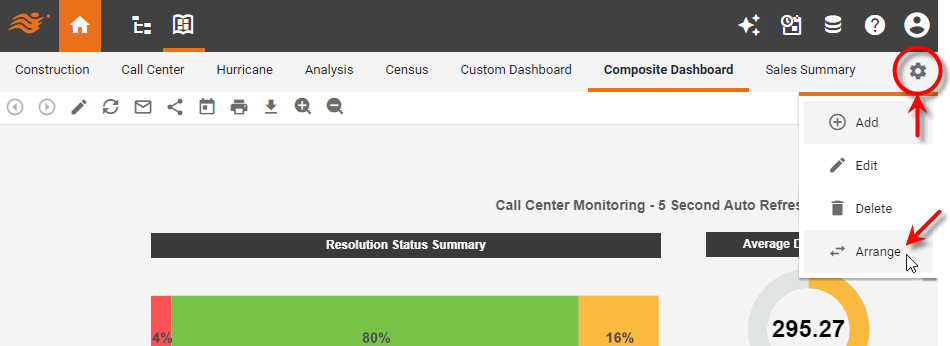
-
Press the ‘up’ or ‘down’ arrow in the ‘Arrange Order’ column to alter the Dashboard’s position in the sequence of Portal tabs. Uncheck the ‘Enable’ option to hide the Dashboard’s tab.
-
Press OK to close the dialog box.