Open User Portal
To open the User Portal, follow the steps below:
-
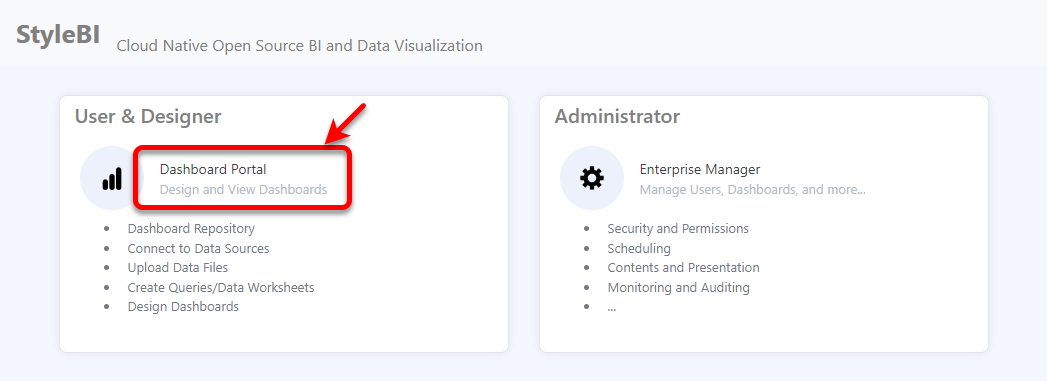
On the main landing page, press the ‘Dashboard Portal’ link.
-
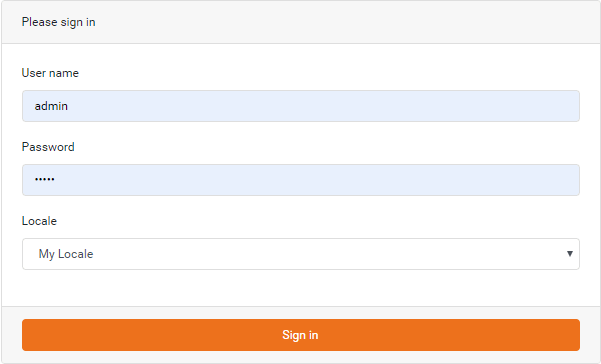
Login to the server. If security is enabled on the server, you must log in before you can use the Portal. Enter your username and password in the provided ‘User’ and ‘Password’ fields. (Ask your system administrator if you don’t know your username and password.) If you are prompted to enter a ‘Locale’, select the correct option for your location.
This opens the User Portal.

The specific options available in the User Portal will depend on what permissions you have been granted by the administrator.
If you see the ‘Create Visualization’ dialog box, press the ‘Close’ button
 and then proceed with the steps below.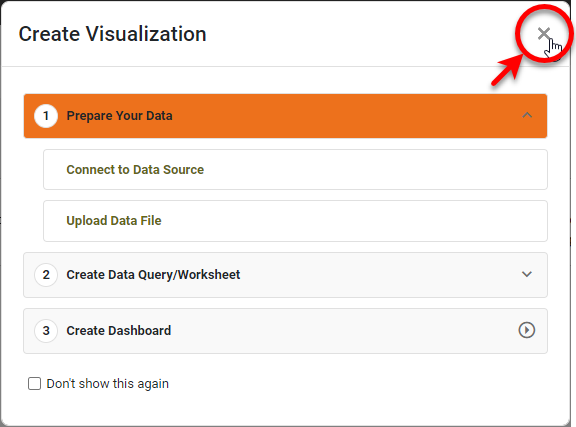
-
Select the desired option in the User Portal.
- ‘Home’ button

-
Return to the InetSoft landing page.
- ‘Dashboard’ button

-
Access your important Dashboards. See Pin a Dashboard for information on configuring Dashboards.
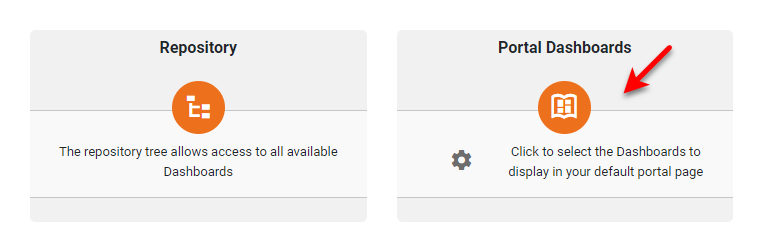
If you are using the Portal for the first time, you can also press the Portal Dashboards link to deploy your first Dashboard.
- ‘Repository’ button

-
View all available Dashboards in the repository. See Manage the Repository for information on how to organize the Repository.
- ‘Create’ button

-
Create data sources, Data Worksheets, and Dashboards. See Connect to Your Data, Create a Data Worksheet, and Create a New Dashboard for more information.
- ‘Schedule’ button

-
Schedule Dashboards to generate automatically, and monitor queued and completed scheduled tasks. See Schedule a Dashboard for more details.
- ‘Data’ button

-
Create and manage data sources. See Connect to Your Data for more information.
- ‘Help’ button

-
Open this documentation.
- ‘Setting’ button

-
Provides access to ‘Preferences’
 , where you can change personal settings and configure private Dashboards, and provides the option to ‘Logout’
  of the Portal (when security is enabled). See Configure the Portal for more information.
- ‘Home’ button