Tailor Performance
To configure server performance options, follow the steps below:
-
Press the ‘Settings’ button
 at the top of Enterprise Manager.
 -
Select the General page in the left panel, and select the Performance page in the right panel.
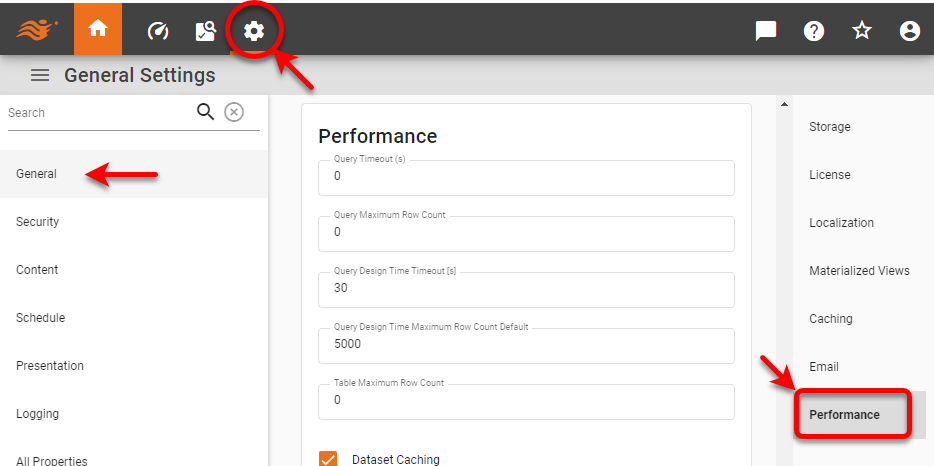
In a multi-tenant environment, only the Site Administrator can access the General settings. See Enable Multi-Tenancy for more information about multi-tenancy.
Performance Options and Safeguards
| All Properties, for property descriptions. |
The options on the Performance page should be set according to the server’s memory size and the performance characteristics of the application. To set the JVM memory available to the server, see Set Container Memory.
- Query Timeout
-
The ‘Query Timeout’ setting specifies the global timeout (seconds) for all queries during Dashboard runtime execution. The timeout setting may not be honored by all databases. The corresponding property is
query.runtime.timeout. - Query Maximum Row Count
-
The ‘Query Maximum Row Count’ setting specifies the global maximum size for all queries during runtime execution for Dashboards. Data limits set at Dashboard level are not permitted to exceed this global limit. The corresponding property is
query.runtime.maxrow.The ordering of a result set may differ for different databases. Limiting a dataset by row count may therefore yeild different results for different databases (if explicit sorting has not been specified). - Query Design Time Timeout
-
The ‘Query Design Time Timeout’ setting specifies the maximum amount of time allowed for design-time requests. This includes Data Worksheet ‘Live Data View’ and Dashboard design views in Visual Composer. The timeout setting may not be honored by all databases. The corresponding property is
query.preview.timeout. - Query Design Time Maximum Row Count Default
-
The ‘Query Design Time Maximum Row Count Default’ setting specifies the maximum number of rows retrieved for design-time requests. This includes Data Worksheet ‘Live Data View’ and Dashboard design views in Visual Composer. The corresponding property is
query.preview.maxrow.This limit is lifted when a Data Worksheet user deselects the ‘Enable Display Row Limit’ for a data block. In this case, the ‘Query Maximum Row Count’ still applies. - Table Maximum Row Count
-
The ‘Table Maximum Row Count’ setting specifies the global maximum size for all Tables (including Crosstabs, Formula Tables, and Freehand Tables) during Dashboard runtime execution. The corresponding property is
table.output.maxrow. This property controls the maximum size of the final displayed table, following any grouping and aggregation. - Dataset Caching
-
The ‘Dataset Caching’ option specifies whether query results are cached and shared across Dashboards. If the option is disabled, then the query results are only shared within the same Dashboard if multiple elements are bound to the same query. The corresponding property is
query.cache.data. (See Cache to set the cache location and automatic clean-up.) - Data Cache Size
-
The ‘Data Cache Size’ option specifies the number of datasets that can be cached and reused. The corresponding property is
query.cache.limit. (See Cache to set the cache location and automatic clean-up.) - Data Cache Timeout
-
The ‘Data cache timeout’ controls the persistence (ms) of a dataset in the data cache. If the dataset is not used for the specified time period, it is removed from the cache. The default timeout is 30 seconds. The corresponding property is
query.cache.timeout. (See Cache to set the cache location and automatic clean-up.)
Limit Query Size and Execution Time
Several properties are available to control the size of queries returned during preview and runtime operation. These properties provide important safeguards that prevent end-users from erroneously requesting very large amounts of data while designing Data Worksheets.
query.runtime.timeout
query.runtime.maxrow
table.output.maxrow
query.preview.maxrow
query.preview.timeout
asset.sample.maxrows
assetData.thread.count
Most of these properties can be configured from the Performance page in Enterprise Manager (see above). See Limits and Safeguards for a description of the others.