Start the Scheduler
To start or stop the Scheduler application, or to view its operational status, follow the steps below:
|
To invoke a custom listener class at the start and end of each scheduled task, specify the fully-qualified name of the class as the value of the |
Start from Docker
In a typical environment, you can start the Scheduler by starting the Scheduler Docker container.
Start from Command Line
| This feature is available only in the Open Source Edition. |
The Scheduler can also be used as a standalone application through the ScheduleServer class. It has a main method so that it can be run as a process:
java -Dsree.home=. inetsoft.sree.schedule.ScheduleServer
If the classpath is not already set (e.g., by an environment variable), the classpath should also be specified, as follows:
java -cp {CLASSPATH} -Dsree.home=. inetsoft.sree.schedule.ScheduleServer
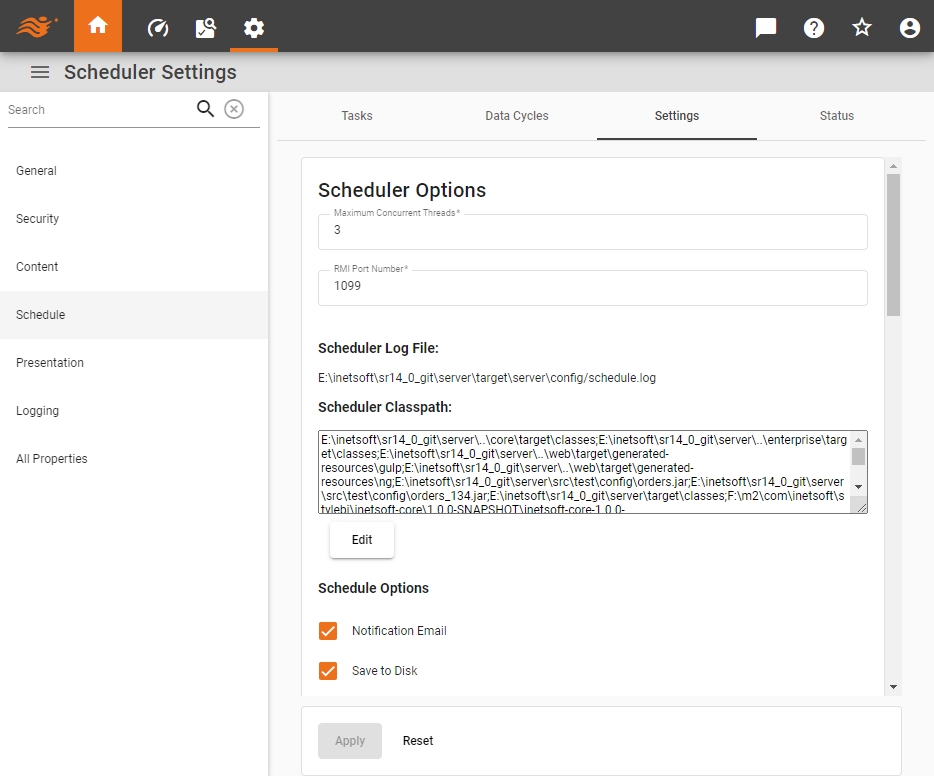
You can find an example {CLASSPATH} in the ‘Scheduler Classpath’ field in Enterprise Manager to use as a guide.
The launching application can then get an instance of the Scheduler object:
Scheduler scheduler = Scheduler.getScheduler();Check Scheduler Status
To check the Scheduler status, follow the steps below:
-
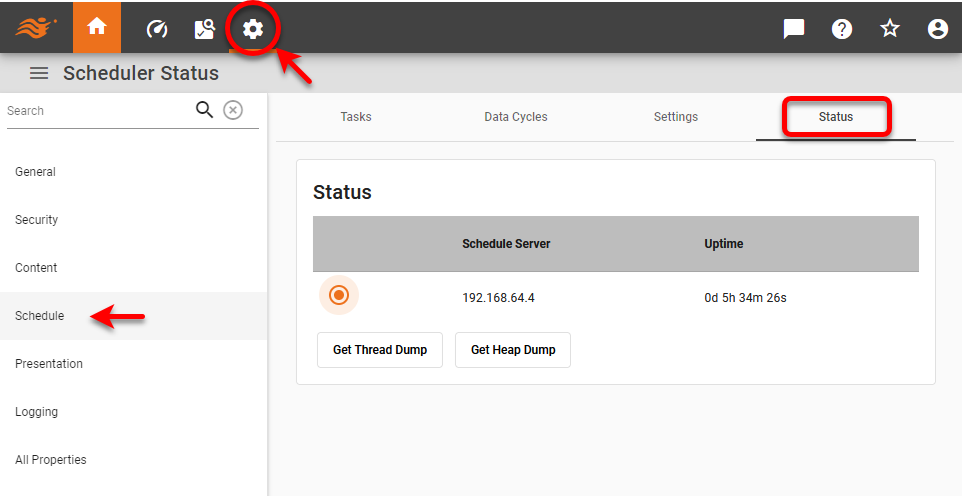
Press the ‘Settings’ button
 at the top of Enterprise Manager.
 -
Select the Schedule page in the left panel, and select the Status tab at the top.
-
Optional: Select the desired Scheduler node, and press ‘Get Thread Dump’ to download a text file containing a thread dump of the Scheduler process. Press ‘Get Heap Dump’ to download an HPROF file containing a heap dump of the Scheduler process.