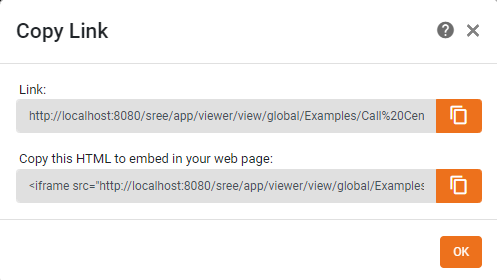
Share to a Social Network
| These features are available to both designers and end-users. |
To share a Dashboard to a social network, follow the steps below.
-
Open the Dashboard for viewing. (See Use a Dashboard.)
-
Press the ‘Social Sharing’ button
 on the Dashboard toolbar.
-
Choose the desired sharing mechanism. See the sections below.
| For more advanced email features, see Email a Dashboard. |
Follow the steps below:
-
Select the ‘Email’ option
 . This opens the ‘Email’ dialog box.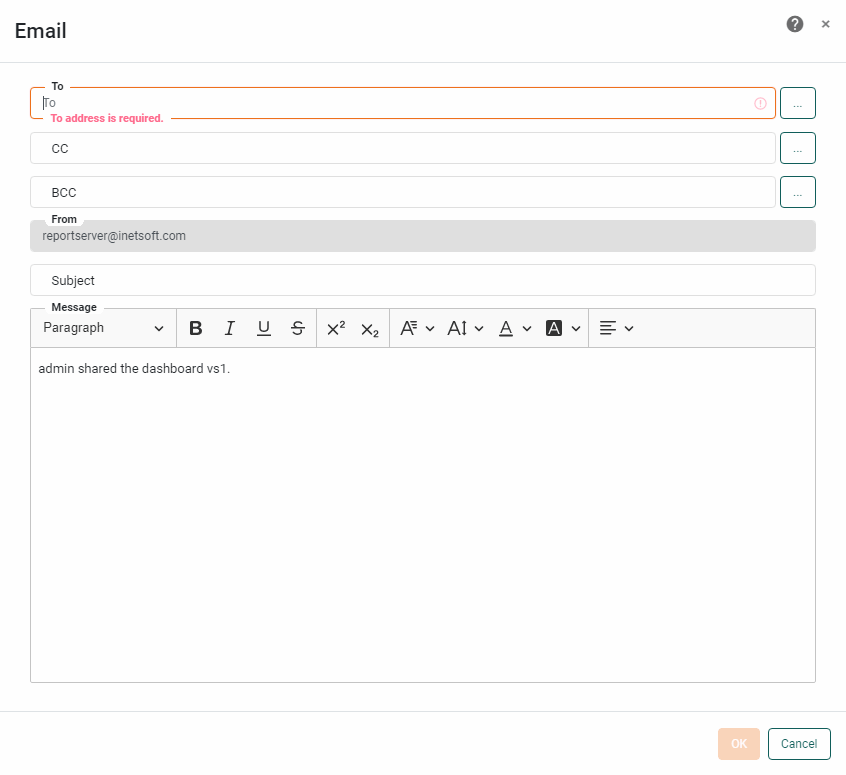
-
In the ‘To’ field, enter a semicolon-separated list of emails to which the Dashboard link should be sent.
-
In the ‘Subject’ field, enter a message for the email subject line.
-
In the ‘Message’ field, enter the body of the email message.
-
Press OK.
Follow the steps below:
-
Select the ‘Facebook’ option
 . This opens a new browser window.
 -
Log into Facebook if prompted.
-
Add a note to the post and press ‘Post to Facebook’.
Sharing on Facebook does not require the InetSoft application to be accessible from the internet. However, if the application is not accessible Open Graph tags will not be used and only the domain name of the application will be displayed in the post. Sharing is not available when using “localhost” as the host name of the server.
Google Hangouts Chat
Follow the steps below:
-
Select the ‘Google Hangouts Chat’ option
 . (If the option is not available, please contact an administrator to configure the option by supplying the webhook URL.)
 -
In the ‘Google Hangouts Chat’ dialog box, edit the message to be displayed in the chat.
-
Press OK to close the dialog box.
Follow the steps below:
-
Select the ‘LinkedIn’ option
 . This opens a new browser window.
 -
Log into LinkedIn if prompted.
-
Follow the steps on the LinkedIn page to post the Dashboard.
Sharing on LinkedIn requires the InetSoft application to be accessible from the internet.
Slack
Follow the steps below:
-
Select the ‘Slack’ option
 . (If the option is not available, please contact an administrator to configure the option by supplying the webhook URL.)
 -
In the ‘Slack’ dialog box, edit the message to be displayed in the chat.
-
Press OK to close the dialog box.