CategoricalColorFrame
The CategoricalColorFrame object contains a color frame that returns a distinct color for each unique value in the bound field. To create a CategoricalColorFrame object, call the CategoricalColorFrame constructor.
var frame = new CategoricalColorFrame('State');You can pass the name of a field (e.g., ‘State’) to the constructor, or specify this later using the inherited VisualFrame.setField(field) property. You can also assign a ColorFrame using the bindingInfo.colorFrame property in onRefresh script. See Example 2 below.
The following special methods are provided:
Example 1
dataset = [["State", "Quantity"], ["NJ",20], ["NY",40]]; (1)
graph = new EGraph();
var elem = new IntervalElement("State", "Quantity");
var frame = new CategoricalColorFrame(); (2)
frame.setField("State"); (3)
elem.setColorFrame(frame); (4)
graph.addElement(elem);| 1 | See dataset to use a data block instead of an array literal. |
| 2 | Create the ColorFrame object. |
| 3 | Use setField to specify the field for the CategoricalColorFrame. |
| 4 | Use GraphElement.setColorFrame(frame) to add the ColorFrame to the IntervalElement. |
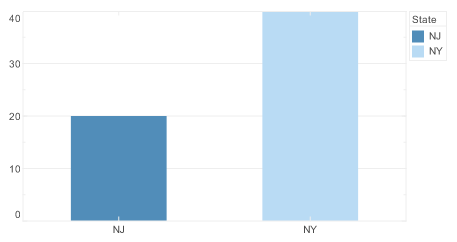
Script that modifies the graph or dataset properties should be placed on the Chart component itself. See Add Component Script for more information. This script has access to the Chart data and Chart API methods. Scripted Charts are not good candidates for user-modification, so you should deselect ‘Enable Ad Hoc Editing’ in the Chart Properties dialog box.
|
|
To change the property on a Chart that was previously created with the Chart Editor, use “getter” methods such as EGraph.getElement(index) ① to obtain a handle to the desired GraphElement object. For example: |
Example 2
This example illustrates how to use bindingInfo properties to control the ColorFrame.
-
Bind a Bar Chart to the sample ‘All Sales’ Data Worksheet, with ‘Company’ (top 5) on the X-axis, and Sum(Total) on the Y-axis.
The ‘All Sales’ Data Worksheet can be found in the folder. You may need to download the examples.zip file from GitHub into your environment. (This requires access to Enterprise Manager.) See Import and Export Assets for instructions on how to import. -
Add the following script in the onRefresh handler. (See Add Dashboard Script.)
onRefresh ScriptChart1.bindingInfo.setColorField("Employee",Chart.STRING); Chart1.bindingInfo.colorFrame = new CategoricalColorFrame;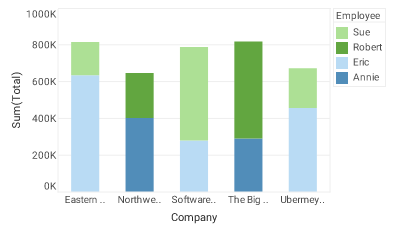
Dashboard script that modifies bindingInfoshould generally be placed in the onRefresh handler. See Add Dashboard Script.