LegendSpec.setTextSpec(spec)
Specifies the legend body text attributes, such as color, font, format, etc. The corresponding “getter” function is getTextSpec(measure).
Parameter
- frame
-
A TextSpec object
Example
Chart Component Script
dataset = [["State", "Quantity"], ["NJ",200], ["NY",300]]; (1)
graph = new EGraph();
var elem = new IntervalElement("State", "Quantity");
var frame = new CategoricalColorFrame();
frame.setField("State");
var lspec = new LegendSpec(); (2)
var tspec = new TextSpec(); (3)
tspec.setColor(java.awt.Color(0xff0000));
lspec.setTextSpec(tspec); (4)
frame.setLegendSpec(lspec);
elem.setColorFrame(frame);
graph.addElement(elem);| 1 | See dataset to use a data block instead of an array literal. |
| 2 | Create the LegendSpec object. |
| 3 | Create the TextSpec object. |
| 4 | Use setTextSpec() to assign the TextSpec to the legend. |
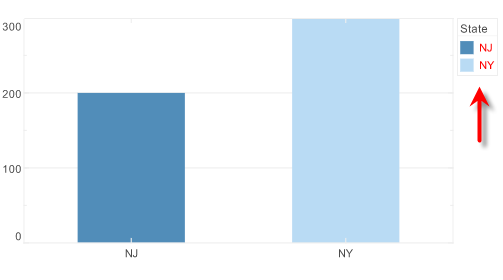
Script that modifies the graph or dataset properties should be placed on the Chart component itself. See Add Component Script for more information. This script has access to the Chart data and Chart API methods. Scripted Charts are not good candidates for user-modification, so you should deselect ‘Enable Ad Hoc Editing’ in the Chart Properties dialog box.
|
|
To change the property on a Chart that was previously created with the Chart Editor, use “getter” methods such as EGraph.getElement(index) ①, GraphElement.getColorFrame() ②, and VisualFrame.getLegendSpec() ③ to obtain a handle to the desired GraphElement, ColorFrame, and LegendSpec. For example: |