CALC.percentrank(array, x, [significance])
Returns the rank of a value x within the data provided in array. The rank is given as a percentage indicating the percentage of values in array that fall below value x. This CALC function returns the same result as the Excel function of the similar name.
Parameters
- array
-
Array of real values
- x
-
Value to test
- significance
-
Optional number of significant digits in the returned percentage value
Example
Where does the value 2 rank within the set {13,12,11,8,4,3,2,1,1,1}, to three decimal places.
CALC.percentrank([13,12,11,8,4,3,2,1,1,1],2,3);
// returns 0.333 (approximately 33.3% of values are less than 2)
To reference data when scripting a Data Worksheet Expression Column or Dashboard Calculated Field, use the field syntax. Example:
CALC.percentrank([6,7,9,15,21], field['XValue'], 3)To reference data in Dashboard global script, component script, or property script, use keywords such as value, selectedObjects, data, table, or parameter. Example:
// Columns of Dashboard table TableView1:
CALC.percentrank(TableView1.table['Values'], parameter.XValue, 3)
To reference data from the Data Worksheet, use the data block name.
// Columns of ‘Sales’ data block in Data Worksheet:
CALC.percentrank(Sales['Values'], parameter.XValue, 3);
How to access data in Data Worksheet Expression Columns…To create an expression column in a Data Worksheet, press the ‘Create Expression’ button
Type the desired expression into the script area. To add a field into the expression, click on the field name in the ‘Fields’ listing. To reference a column of this or another data block, use the data block name. Example syntax:
To reference the data contained in other cells of the data block, see the topics below: Example 1. Cell Referencing
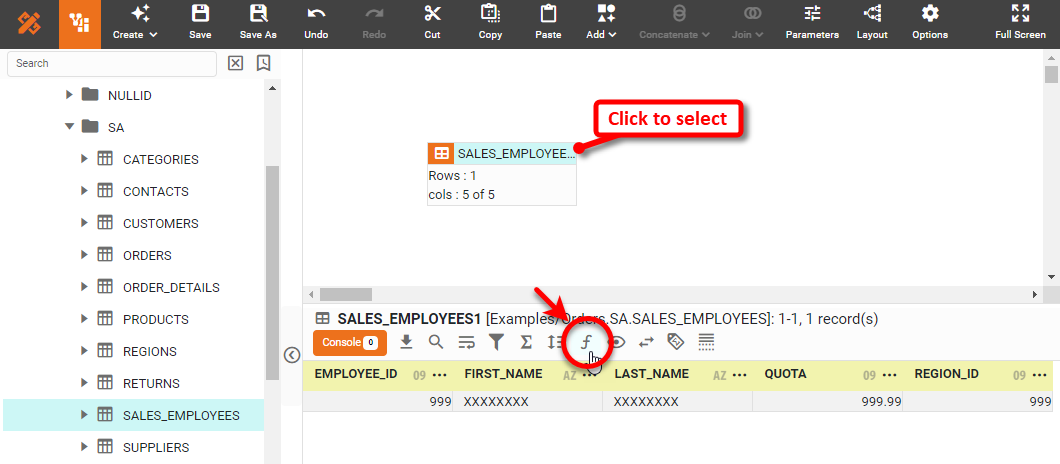
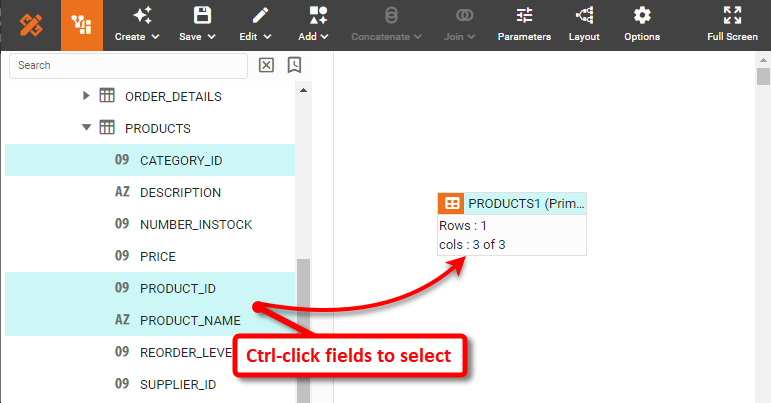
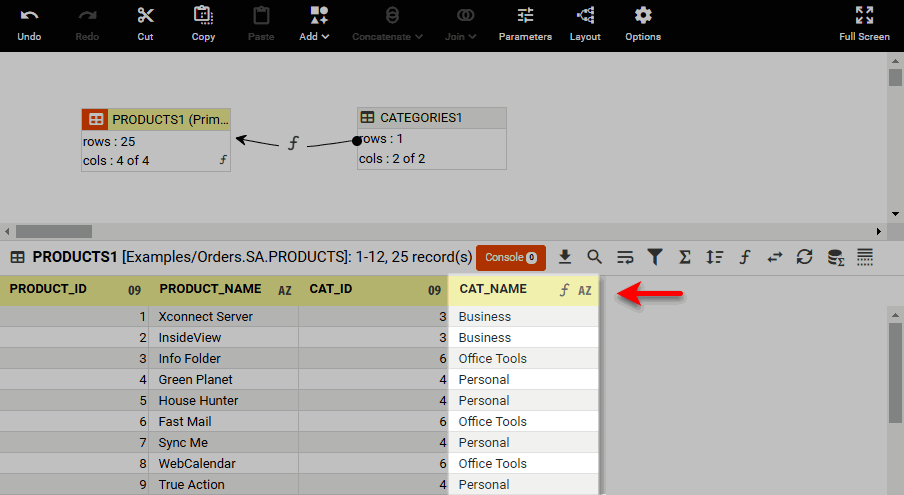
This example illustrates how you can reference the cells of another data block from within an Expression Column. You will use the tables in the folder of the ‘Orders’ data source to create a data block that has columns for product ID, product name, category ID, and category name.
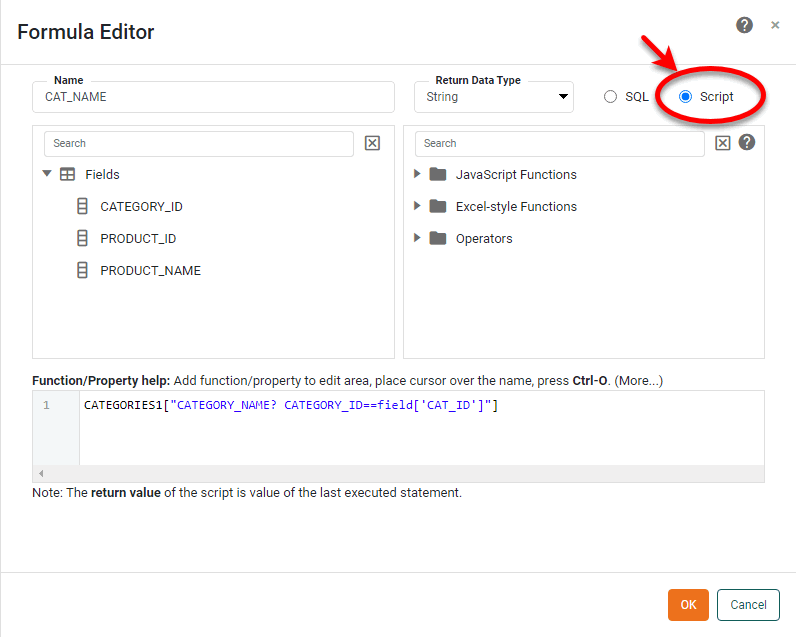
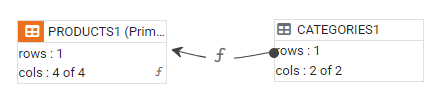
Let’s say that you want to add a column to the ‘PRODUCTS1’ data block that will contain the category name corresponding to each entry in the ‘CAT_ID’ column. The best way to do this is to join the data blocks together (see Join Data), but to practice using cell references, in this case you will create this new column as an expression column. Follow the steps below:
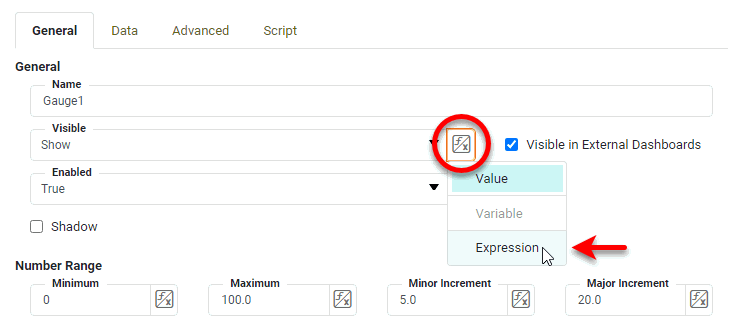
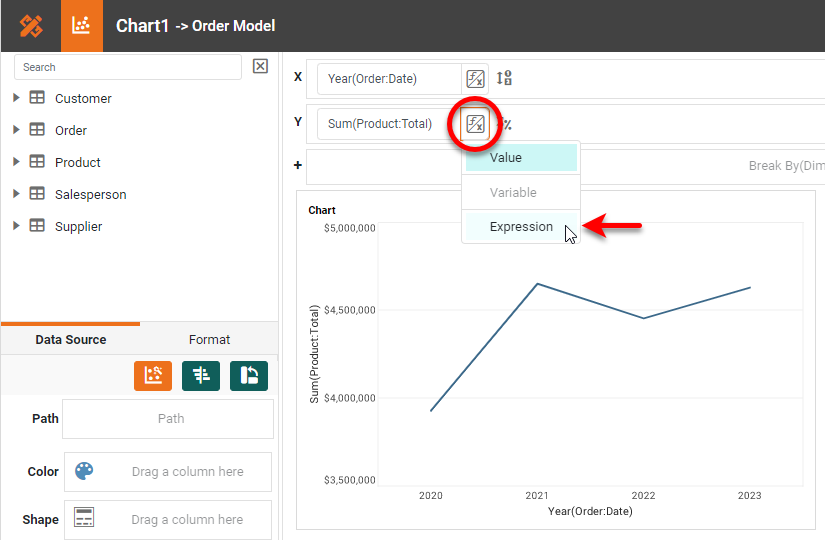
How to access data in Dashboard Property Expressions…To set a Dashboard property value using an expression, press the ‘Value Type’ button
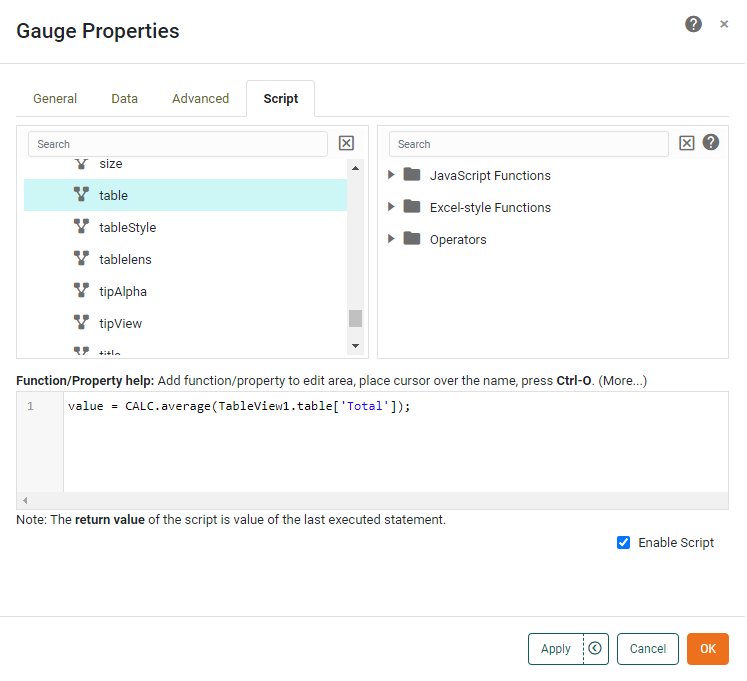
To insert a reference a component’s data, use the value, selectedObjects, data, or table property of the component. You can also reference data in the underlying Data Worksheet. Example syntax:
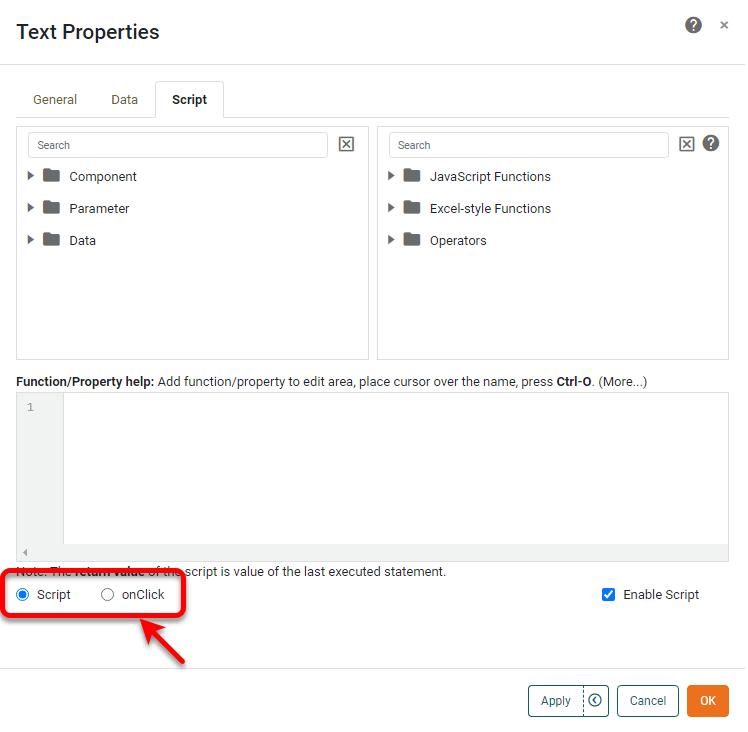
See Dashboard Object Reference for information about accessing dashboard properties in script. See Access Component Data and Access Datasource Data for more information about accessing Dashboard and Data Worksheet data. How to access data in Dashboard Scripts…To add script to a Dashboard component, right-click the desired component, and select ‘Properties’ from the context menu to open the ‘Properties’ panel. Note: You can also access menu options from the ‘More’ button (
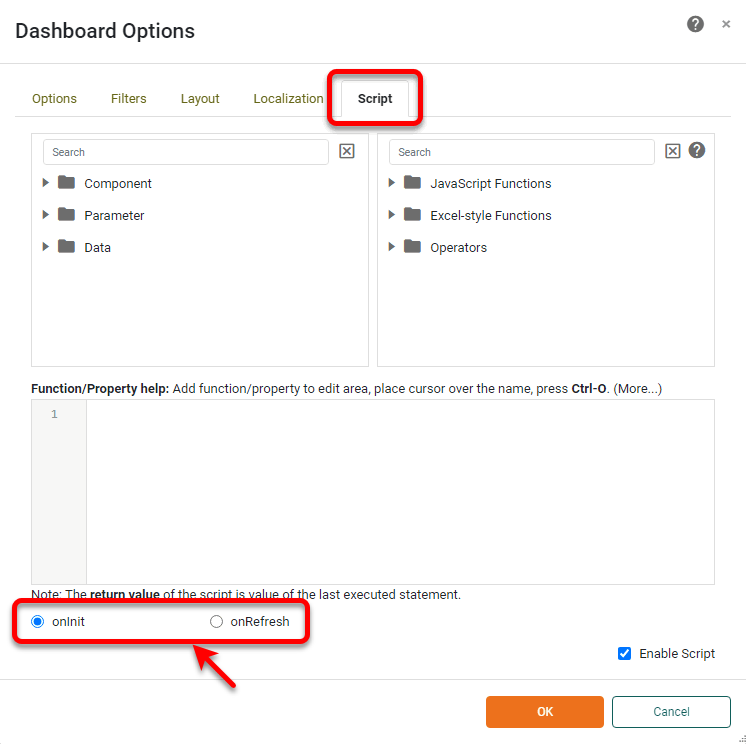
To add global script to a Dashboard, press ‘Options’ button
To insert a reference a component’s data, use the value, selectedObjects, data, or table property of the component. You can also reference data in the underlying Data Worksheet. Example syntax:
See Dashboard Object Reference for information about accessing dashboard properties in script. See Access Component Data and Access Datasource Data for more information about accessing Dashboard and Data Worksheet data. |