Create a New Variable
The following sections explain how to define a Variable and use it within a Condition. See Filter Data for information on how to specify a filter condition.
Define a Variable
To create a new Variable, follow these steps:
-
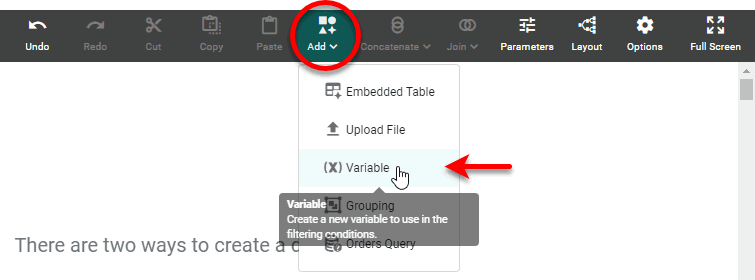
Press the ‘Add’ button
 in the toolbar and select ‘Variable’
  .
.
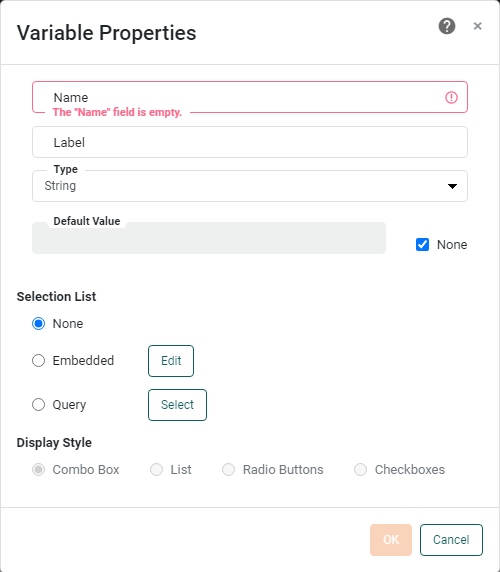
This opens the ‘Variable Properties’ dialog box.
-
Enter a ‘Name’ for the new Variable asset. This is the name that appears in the title bar of the Variable asset.
Names must be unique without respect to case (e.g., "num1" is the same name as "Num1"). -
Enter a ‘Label’ for the Variable. This is the label that appears in the parameter dialog box that prompts the user.
-
Select the data type of the Variable from the ‘Type’ menu. This is the data type of the values that the Variable will provide to the filtering condition.
-
In the ‘Selection List’ panel, specify the source of the Variable data:
-
Select ‘None’ to prompt the user with an empty text field (no choices).
-
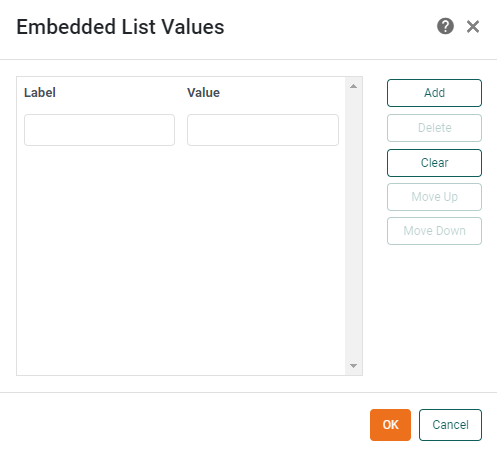
Select ‘Embedded’ to enter a fixed list of choices. Press the Edit button to open the ‘Embedded List Values’ dialog box.
-
Press Add to create a new label/value pair. A label/value pair defines a particular choice that will be shown to the user in the input dialog box.
-
In the ‘Label’ field, enter the text that should be displayed to the user for this particular choice.
-
In the corresponding ‘Value’ field, enter the text that should be used in the filtering condition for this particular choice. (If the ‘Type’ option in the ‘Variable Properties’ dialog box specifies a numeric type, you can only enter numerical values.)
-
Repeat to add all the choices that should be presented to the user.
-
To change the position of a item in the list, select the item, and press the Move Up or Move Down.
-
Press OK to exit the ‘Embedded List Values’ dialog box.
-
-
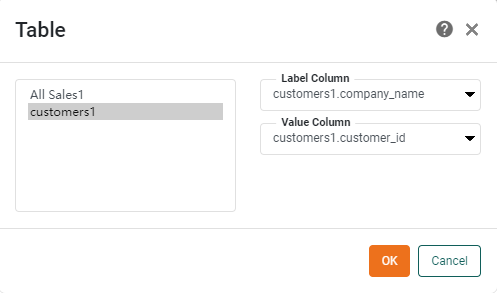
Select ‘Query’ to populate the list of choices with the data in an existing table column. Press the Select button to open the ‘Table’ dialog box.
-
From the list box on the left side, select the table that contains the data you want to use.
-
From the ‘Value Column’ menu, select the column that contains the data to be used in the filtering condition. Each row of the ‘Value Column’ represents a possible value of the Variable.
-
In the ‘Label Column’ menu, select the column that contains the labels to be displayed to the user. Each row of the ‘Label Column’ should contain the label for the corresponding row of the ‘Value Column’.
-
Press OK to exit the ‘Table’ dialog box.
-
-
-
In the ‘Display Style’ panel, select the type of list to display to the user.
The ‘Combo Box’ and ‘Radio Buttons’ options allow the user to make a single selection. The ‘List’ and ‘Checkboxes’ options allow the user to make multiple selections. (Multiple selections can be used in conjunction with the ‘one of’ condition operator.)
-
Press OK to exit the ‘Variable Properties’ panel.
Note that the Variable is a reusable asset. If you want to use it within another Data Worksheet, right-click on the Variable and select ‘Set as Primary’. Note: You can also access menu options from the ‘More’ button ( ) in the mini-toolbar. See the example below.
Assume that you have several Data Worksheets that return customer order and contact information. You would like to filter the data in these Data Worksheets so that only customers for a particular state are returned. You can do this by creating a Variable that prompts the user to specify a state, and you can reuse this Variable in any Data Worksheet that requires such input.
Follow these steps to create a Variable:
-
Create a new Data Worksheet. For information on how to create a new Data Worksheet, see Create a Data Worksheet.
-
Press the ‘Add’ button
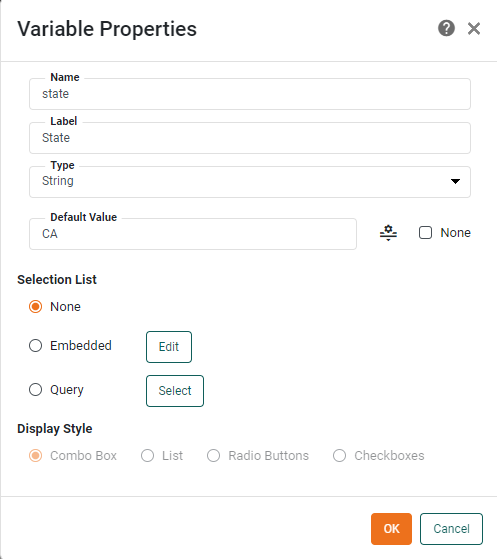
in the toolbar and select ‘Variable’ .This opens the ‘Variable Properties’ dialog box.
-
Specify “state” as the name of the Variable.
-
Specify “State” as the Label.
-
Select ‘String’ from the drop-down list for Type.
-
Uncheck the ‘None’ check box next to ‘Default Value’, and enter “CA” as the default value.
-
Ensure that ‘None’ is selected for the Selection List.
-
Press OK.
-
Right-click on the new Variable in the Data Worksheet and select ‘Set as Primary’. Note: You can also access menu options from the ‘More’ button (
) in the mini-toolbar.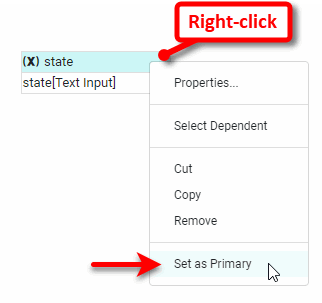
-
Press the ‘Save’ button
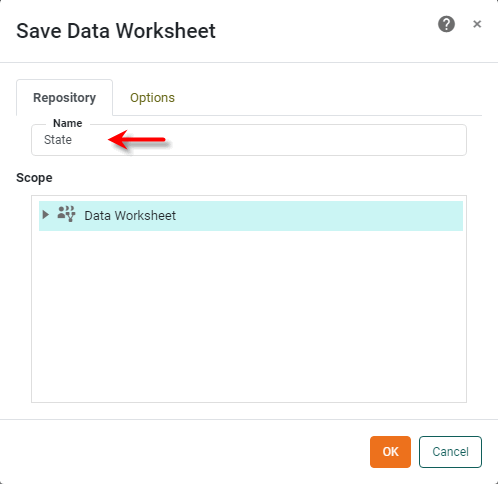
 in the top toolbar. This opens the ‘Save as Data Worksheet’ dialog.
 -
Specify “State” as the asset name.
-
Press OK to add the ‘State’ Variable to the left panel. Notice that the name of the asset in the left panel is shown with a ‘Variable’ icon
indicating that the asset is a Variable.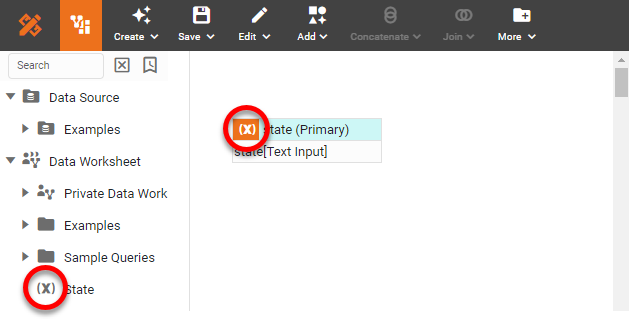
This example is continued in Use a Variable below, where the ‘state’ Variable is used in another Data Worksheet.
Use a Variable
The example below illustrates how to use a Variable within a Condition. It continues the example in Example: Define a Variable above.
Assume you have a table listing order data for all states, but you are interested in working with the data for only one particular state at a time. To do this, you will add a filtering condition on the ‘State’ field of the table based on the ‘State’ Variable. You will use the existing ‘State’ Variable from the asset repository. (See the above example for instructions on how to create this Variable).
-
Create a new Data Worksheet. For information on how to create a new Data Worksheet, see Create a Data Worksheet.
-
From the left panel, drag the ‘Sales Explore’ Data Worksheet into the new Data Worksheet. This creates the data block ‘Sales1’.
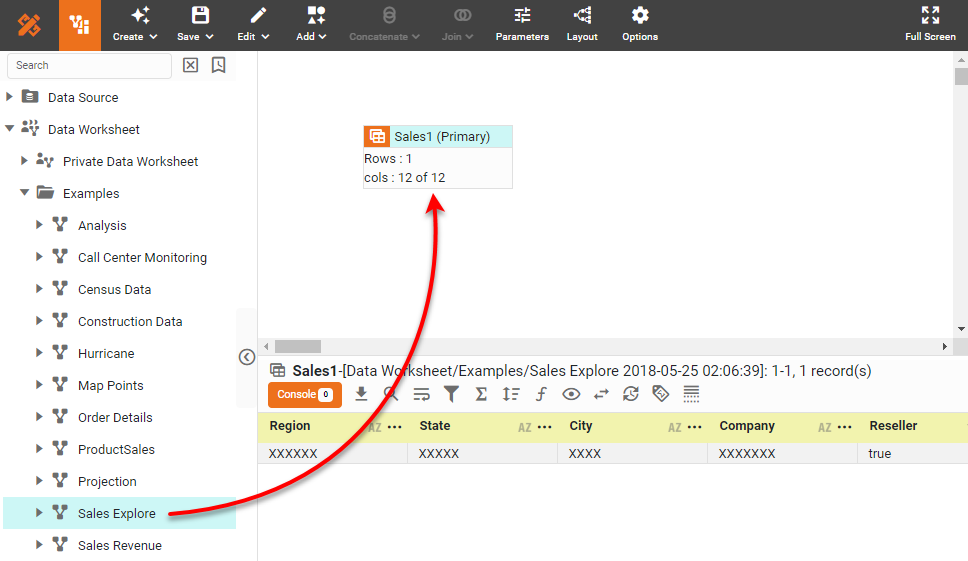
The 'Sales Explore' Data Worksheet can be found in . You may need to download the examples.zip file from GitHub into your environment. (This requires access to Enterprise Manager.) See Import and Export Assets for instructions on how to import. -
From the left panel, drag the ‘State’ Variable into the right panel. This imports the variable into the Data Worksheet as ‘state.’
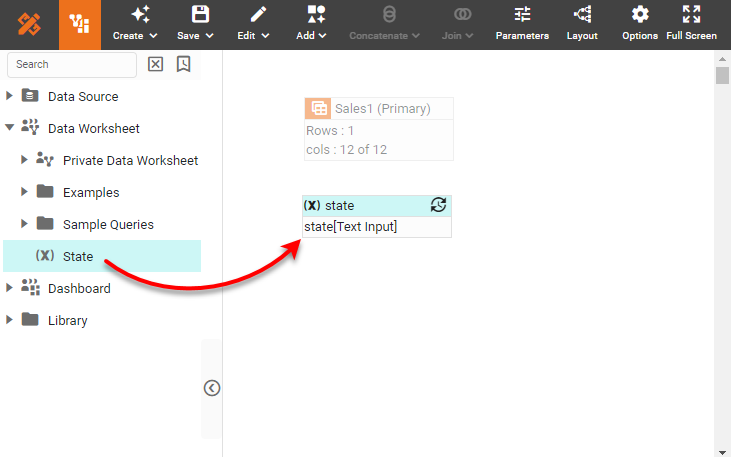
-
Select the ‘Sales1’ data block, and press the ‘Define Condition’ button
 in the bottom panel to open the ‘Condition’ dialog box.
 -
Press the More button to add a new condition.
-
Create the condition
[State] [is] [equal to]. -
Press the ‘Change Value Type’ button
 and select ‘Variable’.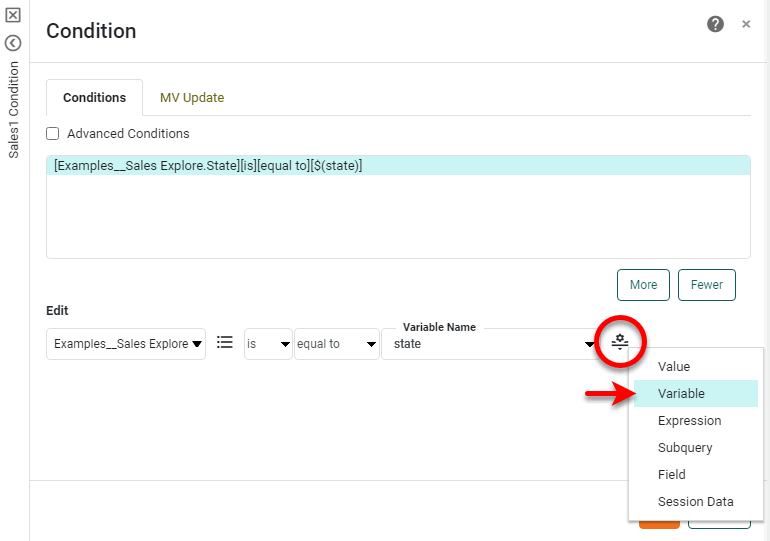
-
From the ‘Variable Name’ menu, select ‘state’.

-
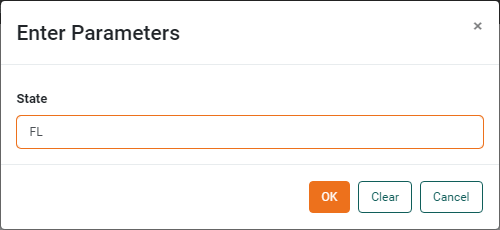
Press OK. You will be prompted for the value of the ‘state’ Variable.
-
Enter “FL” and press OK.
-
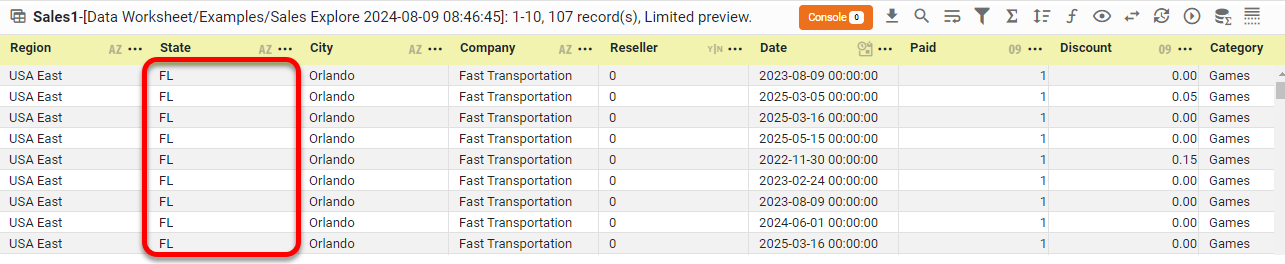
Preview the data block (see Preview Data), and note that only the sales for the state of Florida are now shown.