setInputSelectedObject(componentName,value)
| parameter for a list of methods to create Dashboard parameters. |
Sets the value of a Form component within an embedded Dashboard. See Modularize a Dashboard for information about embedding one Dashboard within another dashboard. You can use this function in place of a shared filter (see Synchronize Dashboard Filters) when you want a Form component in the parent Dashboard to set the value of a Form component in the child (embedded) Dashboard, but not the reverse.
This function should generally be placed in the Script tab of the ‘Dashboard Properties’ dialog box for the embedded Dashboard. The syntax is
DashboardName.setInputSelectedObject(componentName,value)where DashboardName is the name assigned (as shown below) to the embedded Dashboard in the ‘Dashboard Properties’ dialog box, and componentName is the name assigned to the Form component within the embedded Dashboard.
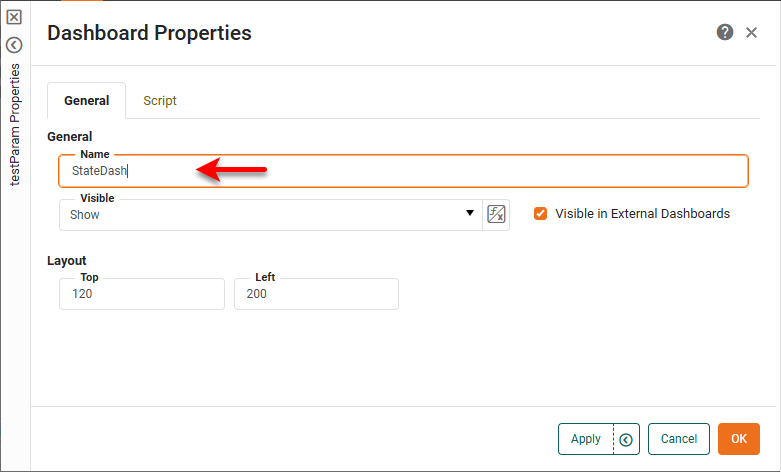
To open the ‘Dashboard Properties’ dialog box, right-click on the embedded Dashboard (within the host Dashboard), and select ‘Properties’ from the menu. Note: You can also access menu options from the ‘More’ button ( ) in the mini-toolbar. ) in the mini-toolbar.
|
If you place the script that accesses setInputSelectedObject() in the Script tab of the ‘Dashboard Properties’ dialog box (shown above), you do not need to qualify it with the Dashboard name.
Parameters
- componentName
-
Name of a Form component in the embedded Dashboard.
- value
-
Value to set in the Form component. This should be one of the valid values for that Form component (i.e., one of the values specified in the List Values section of the component ‘Properties’ dialog box).
Example
Set Form component ‘metricRadioButton’ in embedded Dashboard ‘Dashboard3’ to the value selected in Form component ‘parentRadioButton’ in the host Dashboard. See selectedObject for more information on obtaining Form selection:
Dashboard3.setInputSelectedObject('metricRadioButton', parentRadioButton.selectedObject);