Edit a Data Worksheet
To edit a Data Worksheet in the User Portal, follow the steps below.
|
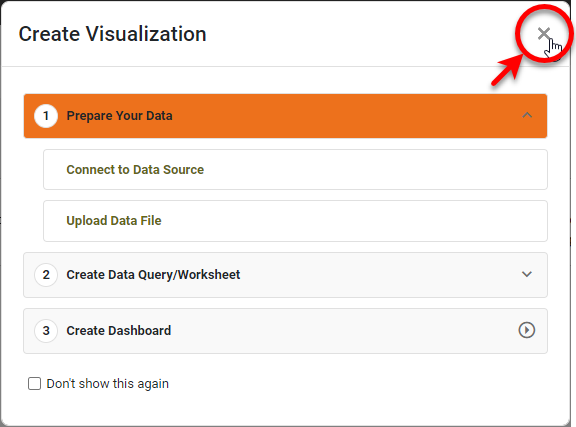
If you see the ‘Create Visualization’ dialog box, press the ‘Close’ button
|

-
Press the top ‘Data’ button
 in the Portal.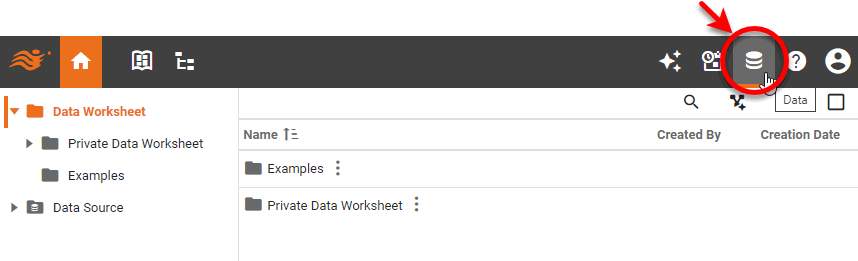
-
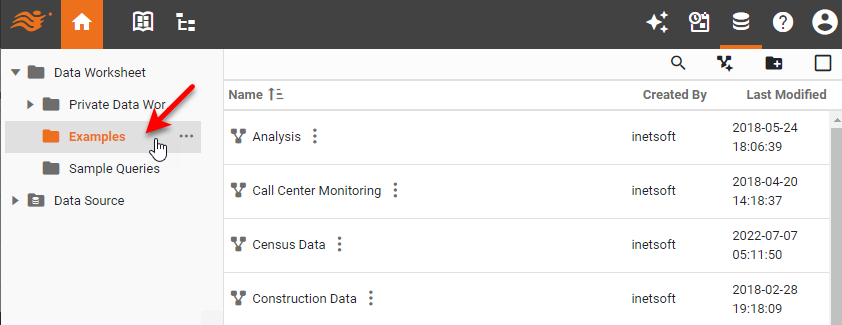
Click to expand the folder containing the Data Worksheet that you want to edit.
-
Click the name of the Data Worksheet that you want to edit.
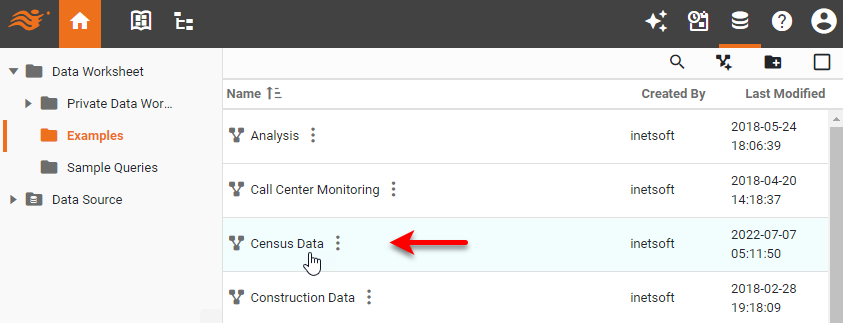
This opens the Data Worksheet for editing in Visual Composer. You can now do data pipeline operations on this Data Worksheet, as described in the following sections (Filter Data, Join Data, etc.).
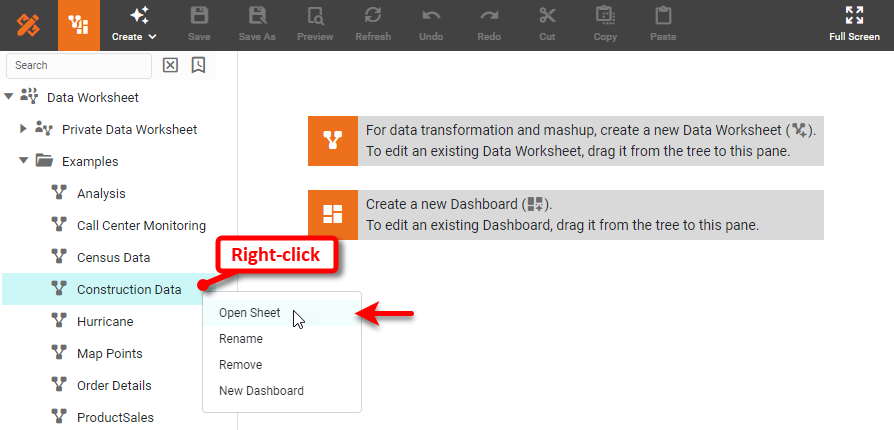
If Visual Composer is already open, you can open a Data Worksheet for editing by locating the Data Worksheet in the left panel. Double-click the Data Worksheet, or right-click and select ‘Open Sheet’ from the menu. Alternatively, you can drag the Data Worksheet into the canvas on the right side.