Upload a CSS File
You can specify a single global CSS file that applies to all Dashboards, as well as CSS files to apply to individual users, groups, or roles. To upload an existing CSS file to the server, follow the steps below. (For information on how to create a CSS file, see Create a CSS File.)
-
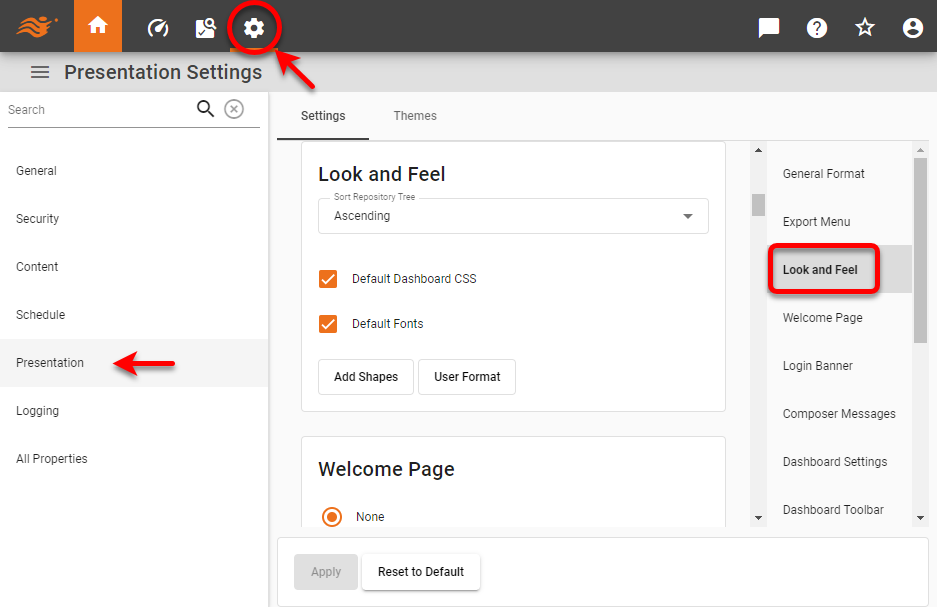
Press the ‘Settings’ button
 at the top of Enterprise Manager.
 -
Select the Presentation page in the left panel.
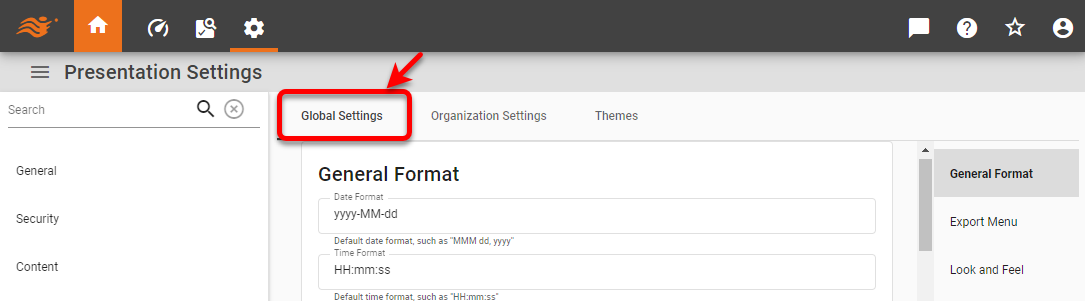
If you have multi-tenancy enabled (see Enable Multi-Tenancy), you can choose to make the settings described below either globally or for a particular organization. To make global settings, select the Global Settings tab, and then proceed as described in the sections below.
To make settings for a particular organization, select the Organization Settings tab, and use the Select Organization menu to choose the desired organization.
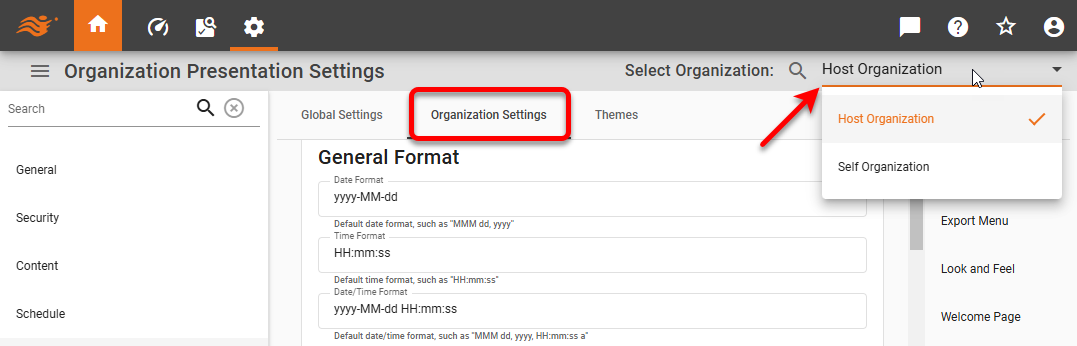
Then proceed with steps below:
-
Select the Look and Feel page in the right panel.
-
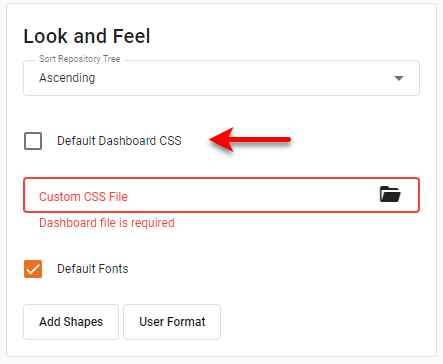
Uncheck ‘Default Dashboard CSS’, and click in the ‘Custom Dashboard CSS File ’ field. This opens the standard file upload dialog box.
-
Locate the desired CSS file, and press Open.
-
Press Apply. This uploads the specified CSS file to the server.