Access Data in Expression
There are a variety of ways to access the data of a data block from within an expression. See Create a New Data Field for information on how to add an expression to a data block.
Access Data in the Current Row
Formulas run in the scope of the current row. Each cell value on the current row can be accessed by indexing into the field array using the appropriate column name or column index. The syntax is as follows:
field['column name']
// example:
field['quantity']
field[column_idx]
// example:
field[3]For example, if ‘quantity’ and ‘price’ are two columns in the current data block, a formula column in the same data block can use the expression
field['quantity'] * field['price']to produce the product “quantity*price” for every row of the ‘quantity’ and ‘price’ columns.
Access Data on a Previous Row
You can reference the values of preceding rows by their relative offset from the current row. This feature is useful when creating differential formulas. The syntax is as follows:
field[relative_position]['column name']
// examples:
field[-1]['Total Sales']  // previous row, in 'Total Sales'
field[-3][3]              // three rows above, in column 3
Access a Column of Any Data Block
You can reference a column with name ‘columnheader’ in a data block having name ‘Tablename’ as follows:
Tablename['columnheader']Access Data by Row Index
To reference an arbitrary cell in any data block, you can specify the row location with a numeric index:
worksheet['Table Name']['columnheader'][row_ix]If the data block has no spaces in its name, you can use the simpler syntax below:
Tablename['columnheader'][row_ix]For example, the reference
Customers['CompanyName'][5]specifies the value in the 5th row (using 0-based indexing) of the ‘CompanyName’ column in the ‘Customers’ data block.
Access Data by Value Lookup
Since most data blocks are dynamic, referencing a cell by row index (see above) should only be used when a data block contains a single row, or when rows are ranked. It is generally more useful to reference a cell by lookup using the data block’s primary key, as shown here:
Tablename["columnheader? primary_key == key_value"]The “?” should be read as “where,” so the above expression can be read as follows: “Look in the data block named ‘Tablename’, and return the value in the column named ‘columnheader’ where the primary key is equal to ‘key_value’.”
For example, if a data block named ‘Customers’ has ‘customer_id’ as its primary key, you can reference the cell in the ‘CompanyName’ column having key ‘customer_id’ by using the following expression:
Customers["CompanyName? customer_id == 123"]Instead of using a fixed key value such as “123” for comparison, you can also use the field value of the current row in the current data block. (See Access Data in the Current Row, for the basic field syntax.) For example, consider a data block named ‘Customers’, which contains columns named ‘CompanyName’ and ‘customer_id’ (the primary key). You can access values in the ‘CompanyName’ column as follows:
Customers["CompanyName? customer_id == field.local_id"]This formula says: “Look in the ‘Customers’ data block, and return the value in the column ‘CompanyName’ where the ‘customer_id’ key is equal to the value of the current cell in the ‘local_id’ column.”
This example illustrates how you can reference the cells of another data block from within a formula column. You will use the tables in the folder of the ‘Orders’ data source to create a data block that has columns for product ID, product name, category ID, and category name.
| You may need to download the examples.zip file from GitHub into your environment. (This requires access to Enterprise Manager.) See Import and Export Assets for instructions on how to import. |
-
In the left panel, expand .
-
Drag the following fields from the table into an empty area in the right panel. (Ctrl-click the field names to select them all, and then drag them together.)
PRODUCT_ID
PRODUCT_NAME
CATEGORY_ID
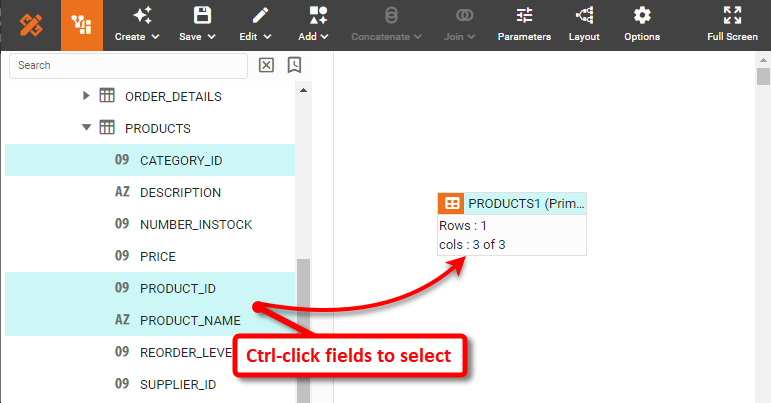
This creates a new data block named ‘PRODUCTS1’.
-
Rename the ‘CATEGORY_ID’ column as ‘CAT_ID’. This will help to distinguish it from the data block you will add next. (See Modify a Column for instructions on how to rename a column.)
-
Drag the table to the right panel. This creates a new data block named ‘CATEGORIES1’.
Let’s say that you want to add a column to the ‘PRODUCTS1’ data block that will contain the category name corresponding to each entry in the ‘CAT_ID’ column. The best way to do this is to join the data blocks together (see Join Data), but to practice using cell references, in this case you will create this new column as a formula column.
-
Click the ‘PRODUCTS1’ data block to select it.
-
Press the ‘Formula’ button
 button in bottom panel. This opens the Formula Editor.
 -
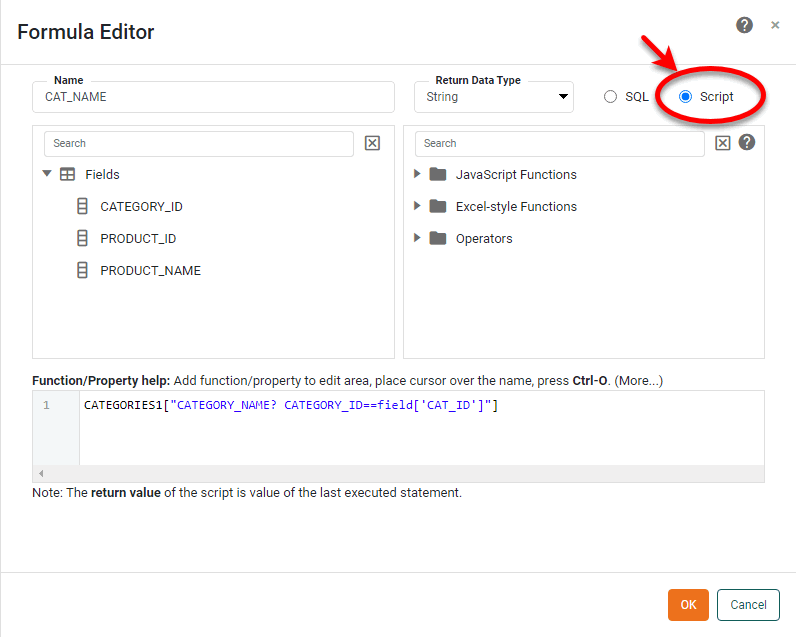
Enter ‘CAT_NAME’ in the ‘Name’ field.
-
In the Formula Editor, enter the following formula:
CATEGORIES1["CATEGORY_NAME? CATEGORY_ID==field['CAT_ID']"]This formula says: “Look in the ‘CATEGORIES1’ data block, and return the value in the column ‘CATEGORY_NAME’ where the ‘CATEGORY_ID’ key is equal to the value of the current cell in the ‘CAT_ID’ column.”
-
Select the ‘Script’ button at the top-right of the Formula Editor.
-
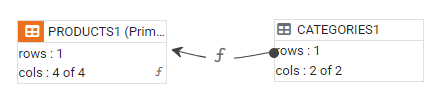
Press OK to close the Formula Editor. The two data blocks are now connected by a graphical link to indicate that the ‘PRODUCTS1’ data block references the ‘CATEGORIES1’ data block.
-
Preview the ‘PRODUCTS1’ data block. (Click the data block to select it. Then press the ‘Change View’ button
 in the bottom panel and select ‘Live Data View’
  .)
.)
The formula column in the ‘PRODUCTS1’ data bock now displays the category name corresponding to each entry in the ‘CAT_ID’ column.