Edit a Dashboard
To open an existing Dashboard for editing, you can open the Dashboard for viewing in the Portal (see Use a Dashboard) and press the ‘Edit’ button  in the Dashboard toolbar.
| It is generally recommended that you edit dashboards in a development or test environment rather than in your production environment. If an edit causes undesirable Dashboard behavior, you will be able to identify and troubleshoot the issue before it reaches production. Note that the “Modification History” audit report (see Audit in Manage the Server) identifies users who make any edits to a Dashboard, but does not record the specifics of the modifications. Therefore, it is also advisable to mainatain backups. (See Manage Content) |
Alternatively, follow the steps below:
-
Open Visual Composer. (See Create a New Dashboard.)
-
In the left Assets panel of Visual Composer, do one of the following:
Press the ‘Recent’ button  at the top of the left panel to display Dashboards and Data Worksheets you have used recently. Press the button again to return to the full asset listing.
-
Double-click the Dashboard you want to edit.
-
Drag the Dashboard you want to edit into the right panel.
-
Right-click the Dashboard you want to edit and select ‘Open Sheet’ from the context menu.
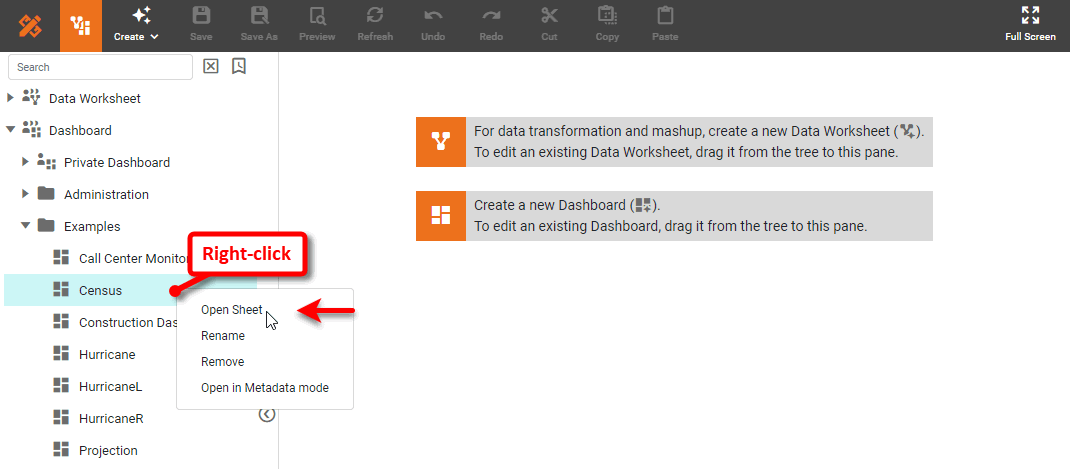
To open the Dashboard without data, choose ‘Open in Metadata mode’. (You can also access Metadata mode from the ‘Options’ dialog box. See Dashboard Options for more information.)
Dashboards under ‘Private Dashboard’ are visible only to their creator.
If you press the Cancel button in the Dashboard loading dialog box, the Dashboard is automatically displayed in meta-data mode. See Dashboard Options for more information about meta-data mode.