Configure Single Sign-On
| This feature is available only in Enterprise Edition. |
Single Sign-On (SSO) is the process of transparently passing user credentials from one application to another so that the user is only required to present login credentials a single time. This helps to create a seamless user experience.
| SSO only provides the authentication service. For authorization, see Set Repository Permissions and Set Security Actions. |
You can implement single sign-on (SSO) by injecting a principal object into the HTTP request object as part of the security filter chain. This allows StyleBI to automatically sign in the user without attempting to authenticate credentials. The StyleBI SRPrincipal object is used to hold the security information. You can create the SRPrincipal object yourself or let StyleBI create it for you. (See Access the User Session for additional information.)
The following methods are available for implementing SSO.
SSO Using OpenID
To implement SSO using OpenID Connect, follow the steps below:
-
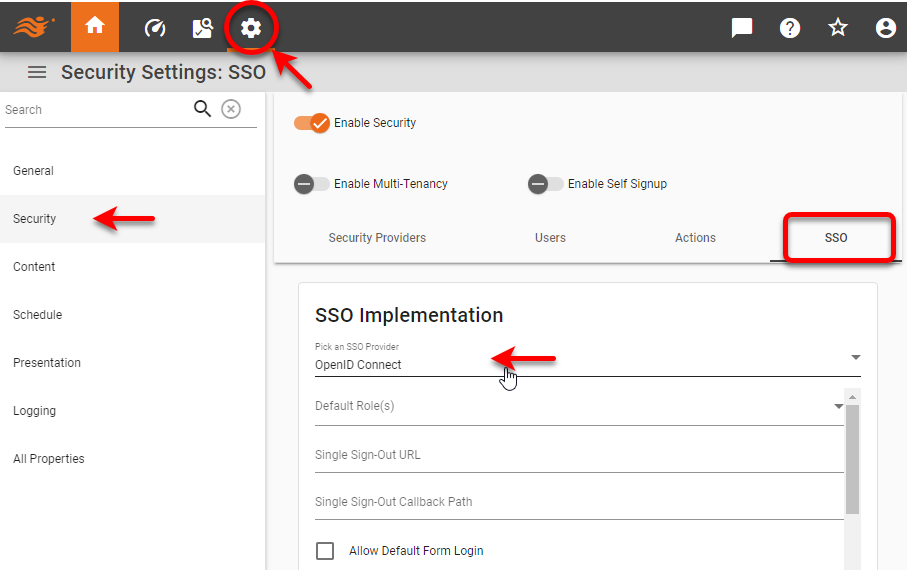
Open the Security page in Enterprise Manager, and select the SSO tab. From ‘Pick an SSO Provider’, select ‘OpenID Connect’.
-
Use the ‘Default Role(s)’ menu to select default role or roles for new users signing in.
-
Set the ‘Single Sign-Out URL’ as desired. For Auth0, this may include a
returnToquery parameter that redirects the user after logout. If this parameter is included then you must list that URL in the Auth0 application’s Allowed Logout URLs. -
Set the ‘Single Sign-Out Callback Path’ to
https://yourserver:port/context/sso/login. -
Optional: Enable ‘Allow Default Form Login’ to use the default login page when navigating directly to /login.html.
-
Enter the following properties:
-
Restart the InetSoft server.
SSO Using SAML
To implement SSO using SAML, follow the steps below:
-
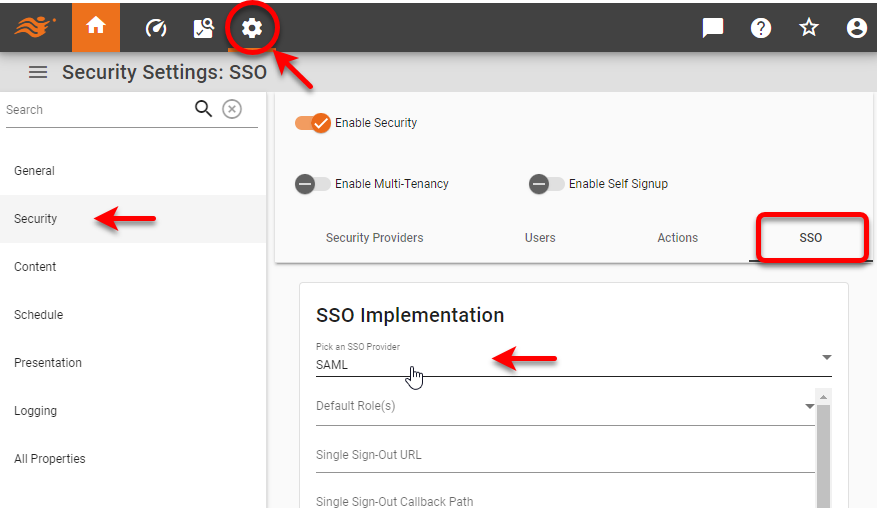
Open the Security page in Enterprise Manager, and select the SSO tab. From ‘Pick an SSO Provider’, select ‘SAML’.
-
Use the ‘Default Role(s)’ menu to select default role or roles for new users signing in.
-
Optional: Enable ‘Allow Default Form Login’ to use the default login page when navigating directly to /login.html.
-
Enter the following properties:
-
Restart the InetSoft server.
SSO Using Custom Filter
If you are not using SAML, OpenID, or Auth0, you can provide a custom filter that creates an SRPrincipal object with the information provided by the SSO mechanism. To implement a basic SSO filter, follow the steps below:
-
Decide whether you will compile a Java filter class or use an inline Groovy class. To compile a Java class follow the steps below:
-
Create an SSO filter class based on this SampleFilter skeleton code. Add your own business logic in the
doFilter()method where indicated.See SampleFilter code…
/* * Copyright (c) 2019, InetSoft Technology Corp, All Rights Reserved. * * The software and information contained herein are copyrighted and * proprietary to InetSoft Technology Corp. This software is furnished * pursuant to a written license agreement and may be used, copied, * transmitted, and stored only in accordance with the terms of such * license and with the inclusion of the above copyright notice. Please * refer to the file "COPYRIGHT" for further copyright and licensing * information. This software and information or any other copies * thereof may not be provided or otherwise made available to any other * person. */ package inetsoft.sree; import java.io.IOException; import java.security.Principal; import jakarta.servlet.Filter; import jakarta.servlet.FilterChain; import jakarta.servlet.FilterConfig; import jakarta.servlet.ServletException; import jakarta.servlet.ServletRequest; import jakarta.servlet.ServletResponse; import jakarta.servlet.http.HttpServletRequest; import jakarta.servlet.http.HttpSession; import jakarta.servlet.http.HttpServletRequestWrapper; import inetsoft.sree.ClientInfo; import inetsoft.sree.RepletRepository; import inetsoft.sree.security.SRPrincipal; public class SampleFilter implements Filter { @Override public void init(FilterConfig config) throws ServletException { } @Override public void doFilter(ServletRequest request, ServletResponse response, FilterChain chain) throws IOException, ServletException { HttpServletRequest httpRequest = (HttpServletRequest) request; HttpSession session = httpRequest.getSession(true); /* Code below can be replaced by your own business logic to determine the correct InetSoft User and create a new instance of the SRPrincipal Object. In this case, the parameter value is passed as the name "USERID". The simple logic used to create the SRPrincipal Object is for documentation purposes only and should not be used in a production environment. If the request does not contain the "USERID" parameter (lines 62-65), continue on with the filter chain, which will: a. Check if the SRPrincipal is found in the "session" or b. Prompt the user to login into the InetSoft long-in page. */ String userId = httpRequest.getParameter("USERID"); if(userId == null ) { chain.doFilter(httpRequest, response); return; } SRPrincipal principal = new SRPrincipal(userId); /* Once the Principal object is created, we need to: a. Set the principal in the session (line 74). b. Place it in the request wrapper (lines 76-81). */ session.setAttribute(RepletRepository.PRINCIPAL_COOKIE, principal); HttpServletRequestWrapper wrapper = new HttpServletRequestWrapper(httpRequest) { @Override public Principal getUserPrincipal() { return principal; } }; chain.doFilter(wrapper, response); } @Override public void destroy() { } } -
Compile the
SampleFilterclass into a JAR file and either mount the JAR file, or create a custom Docker image into which you have copied the JAR file. -
Place the compiled
SampleFilter.classfile into the /usr/local/inetsoft/classes/inetsoft/sree/ directory in your installation (if it is not there already). You can do this by creating a derived Docker image or by mounting the file as a volume from the docker-compose.yaml file.A sample docker-compose.yaml file can be found in the Github community-examples repository.
-
-
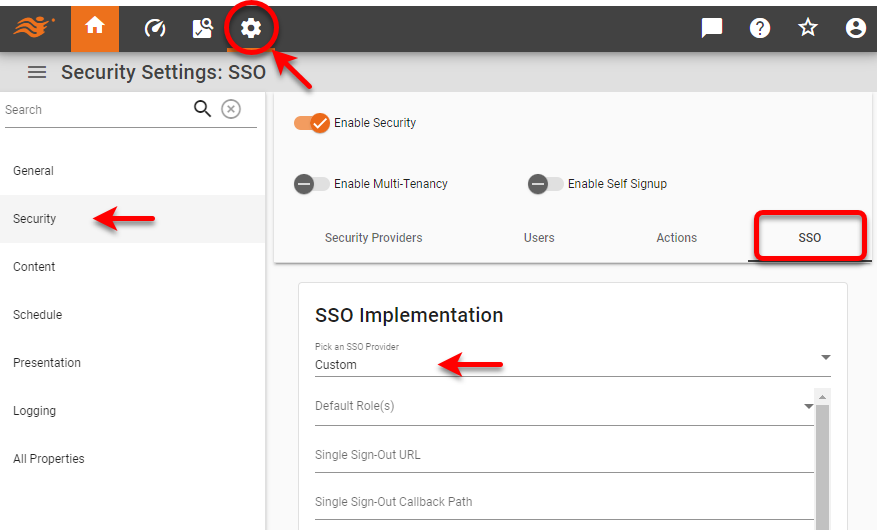
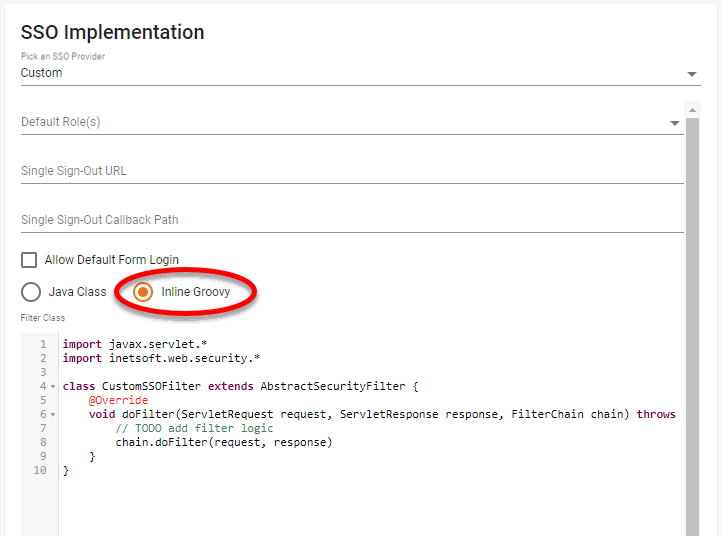
Open the Security page in Enterprise Manager, and select the SSO tab. From ‘Pick an SSO Provider’, select ‘Custom’.
-
Use the ‘Default Role(s)’ menu to select default role or roles for new users signing in.
-
Set the ‘Single Sign-Out URL’ as desired.
-
Set the ‘Single Sign-Out Callback Path’ to
https://yourserver:port/context/sso/login. -
Optional: Enable ‘Allow Default Form Login’ to use the default login page when navigating directly to /login.html.
-
Select ‘Java Class’ and enter the name of your filter class, e.g.,
inetsoft.sree.SampleFilter.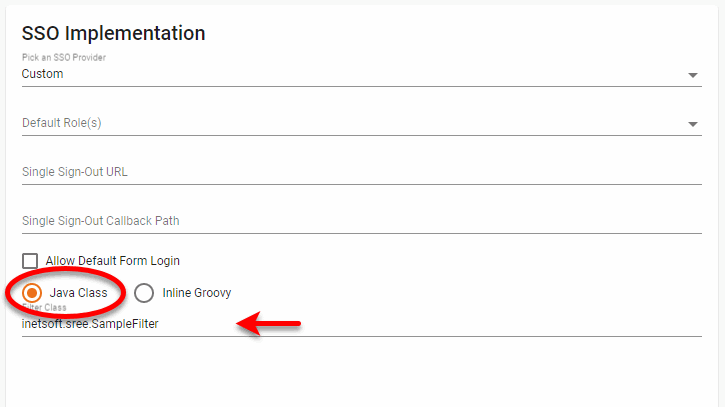
Alternatively, select ‘Inline Groovy’ and enter the class using the skeleton provided in the edit box.
-
Press Apply and restart the InetSoft server.
| To access the security API and its helper functions for authentication and authorization, extend the inetsoft.web.security.AbstractSecurityFilter class described in the API Documentation. |