Embed External Content
|
Add Text or HTML, to insert HTML markup containing an IFrame tag. |
To embed external content within an automatically generated IFrame, follow the steps below:
-
If necessary, create a new Dashboard. (See Create a New Dashboard.)
-
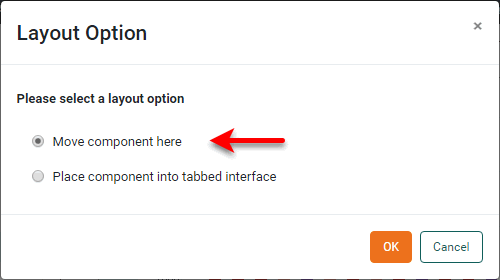
From the Toolbox panel, drag a Text component into the Dashboard. (If you see the following ‘Layout Option’ dialog box, select ‘Move component here’ and press ‘OK’.)
-
Right-click the Text component and select ‘Properties’ to open the ‘Text Properties’ panel.
-
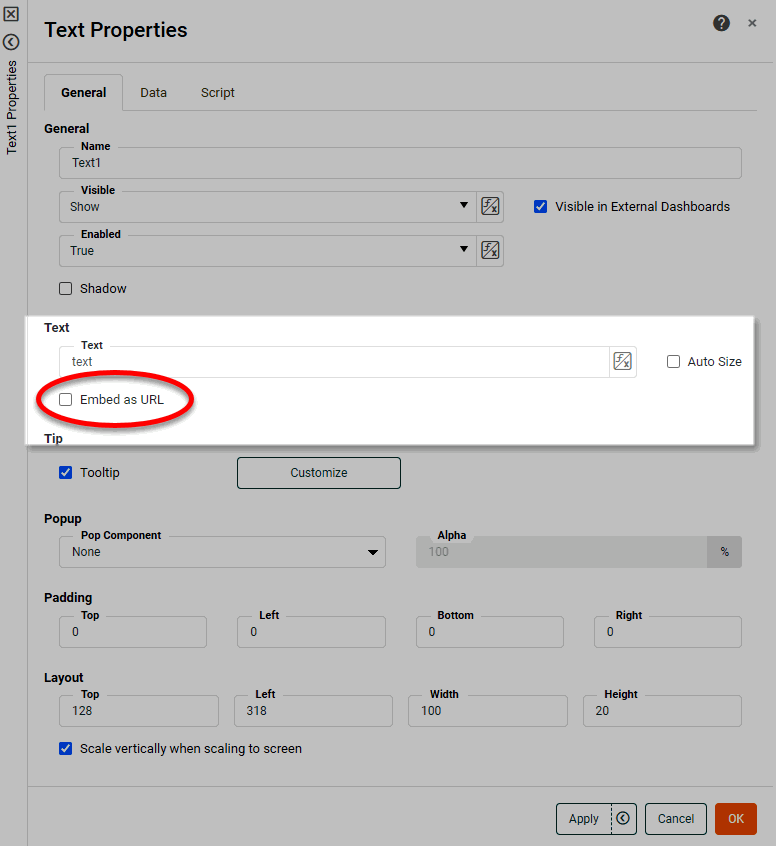
Select the ‘Embed as URL’ option.
-
In the ‘Text’ field, enter the URL that you want to display within the embedded IFrame, for example,
http://www.inetsoft.com. If you want to pass parameters, simply add them to the URL as label-value pairs.For example, to pass a parameter to a Dashboard named “DashboardChild” in the automatically generated IFrame, use a URL such as:
http://host:8080/app/viewer/view/1%5E128%5E%5EDashboardChild?param=Duke
See Load Assets via URL for more information about how to construct a URL to a Dashboard. The “DashboardChild” Dashboard can then use parameter
paramwithin a condition or within a script.To make an asset (such as an image) accessible by URL, an administrator can upload the asset to the web-assets directory as described in Manage Stored Assets. -
Press OK.
-
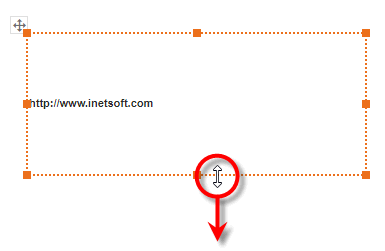
Drag the resize handles (or borders) of the Text component to make the Text component the size of the desired embedded content.
-
Press the ‘Preview’ button
 in the toolbar.
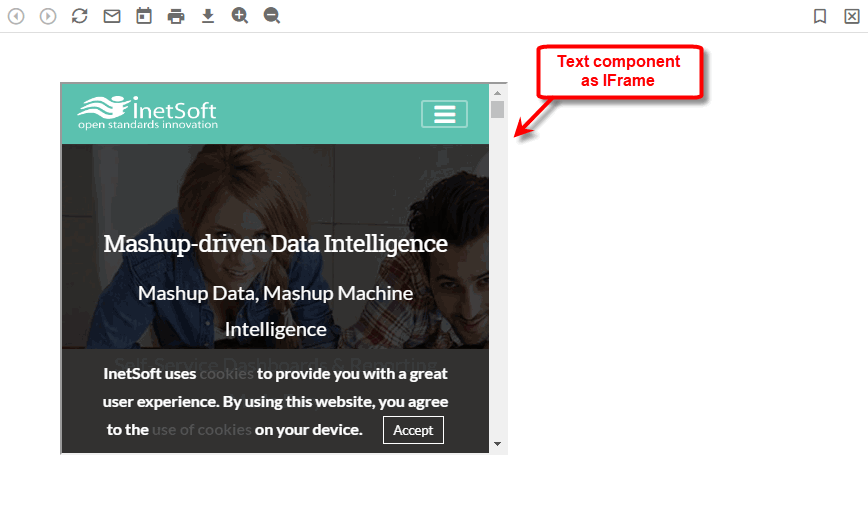
Observe that the text you entered for the Text component (e.g., http://www.inetsoft.com) is used as the src attribute of an IFrame within the rendered Dashboard. The IFrame displays the desired embedded content at the same position and size of the Text component.