Example CSS File
In this example, you will create a new CSS file. The CSS instructions will format components in the Dashboard by using the global format (*), component and sub-component type format, component class format, and component ID format.
Create the CSS File
To create the example CSS file, follow the steps below:
-
Create a plain text file with the following contents. (You can also download the completed file: myStyle.css.)
/* Global format for all Dashboard text */ (1)
* {
   font-family: "Verdana";
}

/* Formatting for all Chart-type components */ (2)
Chart {
   background: Azure;
}

/* Formatting for all TableTitle sub-components */ (2)
TableTitle {
   color: green;
}

/* Formatting for all ChartAxisTitle sub-components */ (2)
ChartAxisTitle {
   background: yellow;
}

/* Formatting for all ChartAxisTitle X-axis sub-components */ (2)
ChartAxisTitle[axis=x] {
   background:DarkKhaki;
}

/* Formatting for all components having CSS Class "Header2" */ (3)
.Header2 {
   font-size: 20pt;
   font-family: "Arial Narrow";
   font-weight: bold;
   background-color: #FFEEBB;
   color: rgb(100,50,50);
   text-align: center;
   vertical-align: middle;
   border-color: rgb(150,50,50);
   border-style: double dotted;
}

/* Formatting for all components having CSS Class "AxisText" */ (3)
.AxisText {
   font-size: 14pt;
   font-weight: bold;
}

/* Formatting for Table-type components having CSS ID "SalesTable" */ (3)
Table#SalesTable {
   background-color: #FFEEBB;
}

/* Formatting for odd rows of tables having CSS Class "YellowRows" */ (3)
.YellowRows TableStyle[region=Body][pattern=OddRow] {
   background-color: yellow;
}
1 See Global Format below. 2 See Format by Component Type below. 3 See Format by Class and ID below. -
Save the text file in UTF-8 format (without BOM) with the name myStyle.css.
-
Open the Look-and-Feel page in Enterprise Manager. (See Look and Feel.)
-
Uncheck the ‘Default Dashboard CSS’ option.
-
Click in the ‘Custom Dashboard CSS File’ field. This opens the standard file upload dialog box.
-
Locate the myStyle.css file that you saved, and press Open. The selected file is now displayed next to the ‘Choose File’ button.
There can be only a single CSS file per organization at any time. -
Press Apply. This uploads the specified CSS file to the server.
For an example of applying these CSS definitions to a Dashboard see Add Visual Format in Visualize Your Data.
Global Format
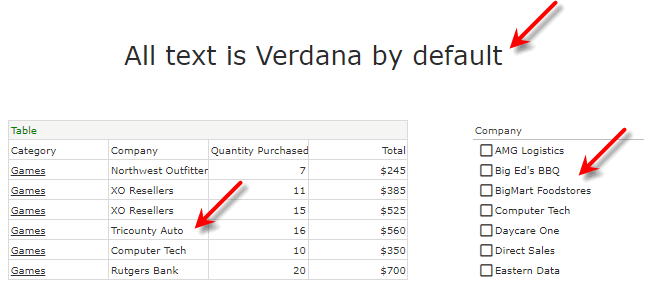
The global (*) definition used in Create the CSS File above affects all components that do not have an explicit assignment for a given property (in this case font-family). For this example, any component that displays text (e.g., Text, Table, Selection List, etc.) will use the font Verdana unless otherwise specified by an explicit CSS definition for that component or sub-component.
/* Global font for all Dashboard text */
* {
   font-family: "Verdana";
}
See CSS Global Default for further information about the global format.
Format by Component Type
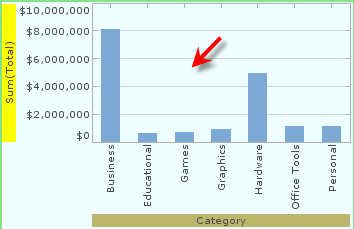
The Chart definition in Create the CSS File affects only components of type Chart (in all Dashboards).
/* Formatting for all Chart-type components */
Chart {
   background:Azure;
}
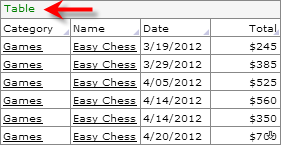
The TableTitle definition in Create the CSS File affects the title bar of all Table-type components (in all Dashboards).
/* Formatting for all TableTitle sub-components */
TableTitle {
   color: green;
}
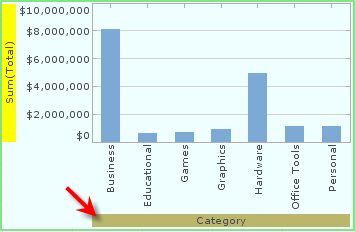
The ChartAxisTitle definition in Create the CSS File affects the title text of all chart axes (in all Dashboards).
/* Formatting for all ChartAxisTitle sub-components */
ChartAxisTitle {
   background: yellow;
}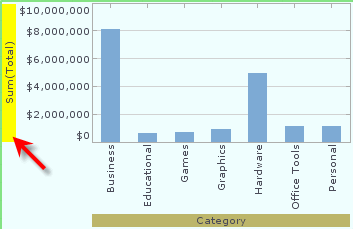
It can be overwritten by more specific axis formatting, such as the X-axis formatting below.
The ChartAxisTitle[axis=x] definition in Create the CSS File affects the title text of all chart X-axes (in all Dashboards).
/* Formatting for all ChartAxisTitle X-axis sub-components */
ChartAxisTitle[axis=x] {
   background:DarkKhaki;
}
See CSS Type for further information about component type styling.
Format by Class and ID
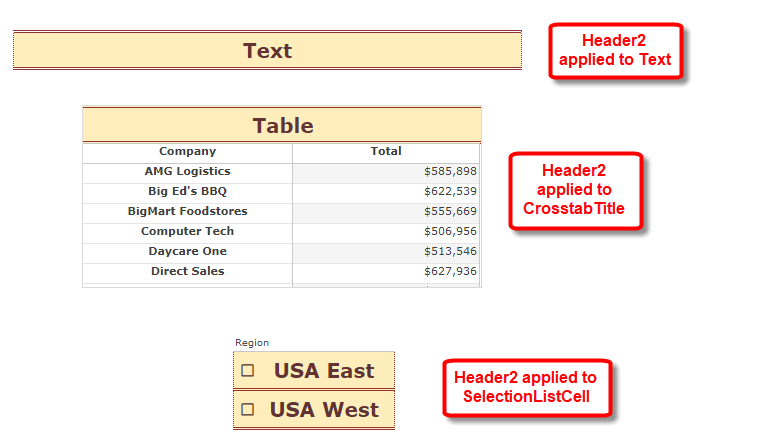
The Header2 class definition in Create the CSS File affects only components that have CSS Class “Header2” assigned to them.
/* Formatting for all components having CSS Class "Header2" */
.Header2 {
   font-size: 20pt;
   font-family: "Arial Narrow";
   font-weight: bold;
   background-color: #FFEEBB;
   color: rgb(100,50,50);
   text-align: center;
   vertical-align: middle;
   border-color: rgb(150,50,50);
   border-style: double dotted;
}
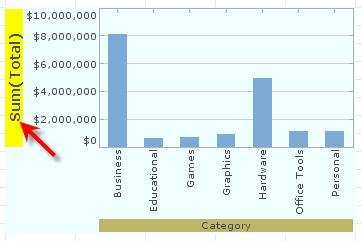
The AxisText class definition in Create the CSS File affects all components that have CSS Class “AxisText” assigned to them.
/* Formatting for all components having CSS Class "AxisText" */
.AxisText {
   font-size: 14pt;
   font-weight: bold;
}
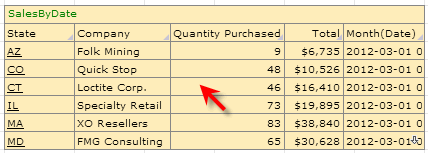
The Table#SalesTable definition in Create the CSS File affects only components of type Table that have CSS ID “SalesTable” assigned to them.
/* Formatting for Table-type components having CSS ID "SalesTable" */
Table#SalesTable {
   background-color: #FFEEBB;
}
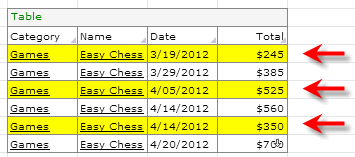
The .YellowRows TableStyle[region=Body][pattern=OddRow] definition in Create the CSS File affects only components of type Table that have CSS Class “YellowRows” assigned to them. This styles the odd rows within the body of the table.
/* Formatting for odd rows of tables having CSS Class "YellowRows" */
.YellowRows TableStyle[region=Body][pattern=OddRow] {
   background-color: yellow;
}
See CSS TableStyle for information about TableStyles.
For information on setting a Dashboard component’s CSS Class and ID, see Add Visual Format in Visualize Your Data.