Localize a Dashboard
If the Dashboards you create are viewed in multiple locales, it may be desirable to configure Dashboard components to display text in a language specific to the user locale. The following Dashboard components can be localized in this way:
-
Table title and column header text
-
Freehand Table title and text cell text
-
Crosstab title, column header text, and grand total text
-
Chart axis titles and legend titles
-
Filter component titles
-
Text component text
-
Form component titles
-
Submit button label
You can configure a Dashboard component for localization by associating one or more Text ID properties with the component. The specified Text IDs for each component are then used to create a mapping between the text string(s) in the component and the replacement text string(s) to be shown to the user.
Assign Text ID
To specify a Text ID for a component, follow the steps below:
-
Press the ‘Options’ button
 in the Visual Composer toolbar to open the ‘Dashboard Options’ dialog box.
 -
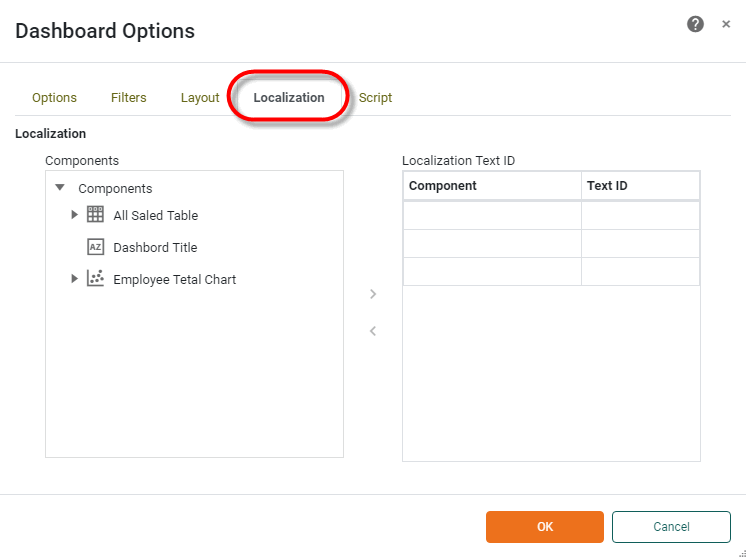
Select the Localization tab.
-
In the left ‘Component’ panel, select the property in the element tree that you wish to localize, and press Add. This adds the property to the right ‘Localization Text ID’ panel.
-
In the ‘Localization Text ID’ panel, enter a label for the element in the ‘Text ID’ field.
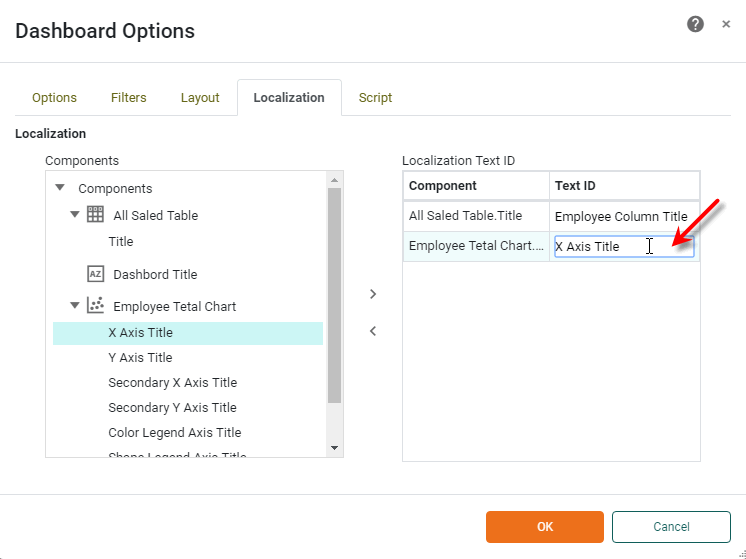
The Text ID that you enter here is the label used to represent the text of the corresponding component in the localization mapping file discussed in SreeBundle Mapping File below.
-
Press OK to exit the ‘Dashboard Options’ dialog box.
SreeBundle Mapping File
The mapping between the specified Text IDs and the replacement text for each locale is specified in a resource bundle specific to that locale. The resource bundle must be placed in the /usr/local/inetsoft/classes/inetsoft/util directory. The file should be named using the ISO-standard two-letter codes for language and country; for example, a property file supporting Canadian French speakers would be called SreeBundle_fr_CA.properties. See Localization in Manage the Server for details on configuring resource bundle contents.
When the end-user selects a locale from the User Portal login menu (or is assigned the locale specified for them by an administrator), the mapping in the corresponding resource bundle is used to display the replacement text for all mapped elements. If a resource bundle corresponding to the user’s locale selection is not found on the classpath, no localization will be performed.
In addition to localizing Dashboard elements, an administrator can also configure localization for User Portal interface components (tabs, tree elements, etc.). See Localization section in Manage the Server