Schedule a Dashboard
The following sections explain how to schedule a Dashboard for automatic generation on a predefined cycle.
Quick-Schedule a Dashboard
To quickly and easily schedule a Dashboard for automatic generation and delivery, follow the steps below. For additional features, see Create an Advanced Scheduled Task.
-
Open the Dashboard for viewing. (See Use a Dashboard.)
-
Press the ‘Schedule’ button
 on the Dashboard toolbar. This opens the ‘Schedule Dashboard’ dialog box.
 -
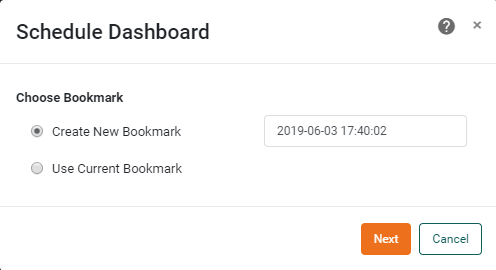
Select ‘Create New Bookmark’ and provide a name for the new bookmark, or select ‘Use Current Bookmark’. (See Bookmark a Dashboard for more information about bookmarks.)
-
Press Next.
-
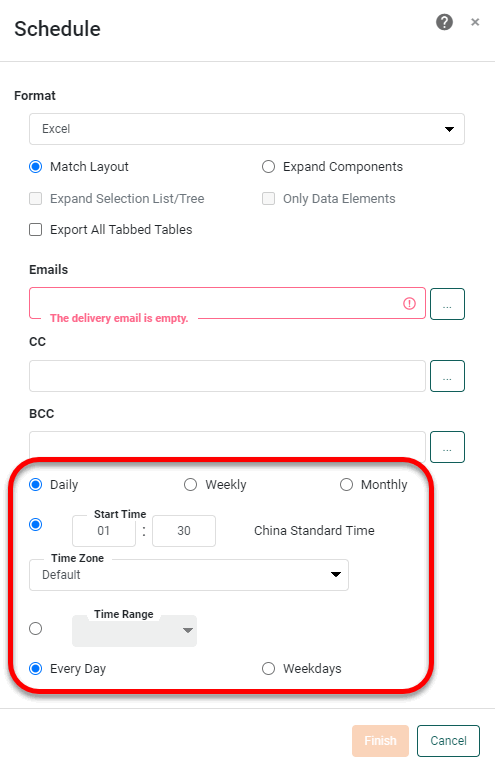
In the ‘Format’ menu, select the format in which the Dashboard should be delivered.
- CSV
-
For ‘CSV’ format, select ‘Export All Tables’ to include all Dashboard tables in the export. To include only specific tables, uncheck ‘Export All Tables’ and select the desired tables to export from the ‘Assemblies’ list. In the ‘Delimiter’ field, enter the character to be used to separate entries in the CSV file. (The default delimiter character is a comma.) For tab-delimitation, select the ‘Tab Delimited’ option. Enter a value in the ‘Quote’ field to use this character to quote exported values. Select ‘Keep Header’ to include the column headers in the export. Filename length may be limited by the machine operating system.
- Excel
-
For ‘Excel’ format, select ‘Export All Tabbed Tables’ to export tables within different tabs of a Tabbed Interface into separate Excel tabs. (See Arrange Components for more information about Tabbed Interfaces.) If you select a bookmark, the bookmark name will be used as the name of the first tab. If you select ‘Current View’, the name of the tab will be “Current View”. In Excel exports only, text that contains HTML markup will be exported as text with markup, not as rendered images. Filename length may be limited by the machine operating system.
-
In the ‘Emails’ field, enter a comma-separated list of email addresses to which the Dashboard should be delivered, or press the ⋯ button to select from a list of user emails. (Only users from your own groups are listed.)
-
Select a ‘Daily’, ‘Weekly’, or ‘Monthly’, option and specify the additional details (e.g., time) when the Dashboard should be generated. The ‘Time Range’ option allows you to specify a general range when the task should be started. This option may improve performance in cases when tasks from many users are scheduled to execute at around the same time.
-
Select the desired time zone from the ‘Time Zone’ menu.
-
Select ‘Include Link’ to include a URL link to the Dashboard in the email. The email recipient can click the link to open the Dashboard in a new browser tab if they possess the appropriate permissions for that Dashboard.
-
Press Finish to close the dialog box.
This creates a new scheduled task that will automatically generate and email the Dashboard on the schedule that you specified. The automatically generated Dashboard will use the same parameter values that you entered when you originally opened the Dashboard.
Set an Alert
| Chart.highlighted, Table.highlighted, Image.highlighted, Text.highlighted to determine in Dashboard script whether an highlight has been applied or not. |
An alert is a notification that a specified data event has occurred, for example, that total sales have fallen below some critical level. You can set an alert based on highlight conditions in a Dashboard, or based on Dashboard Gauge ranges.
To configure an alert for a Dashboard, follow the steps below:
-
Press the ‘Schedule’ button
in the Portal. -
Press the New Task button below the Schedule table.
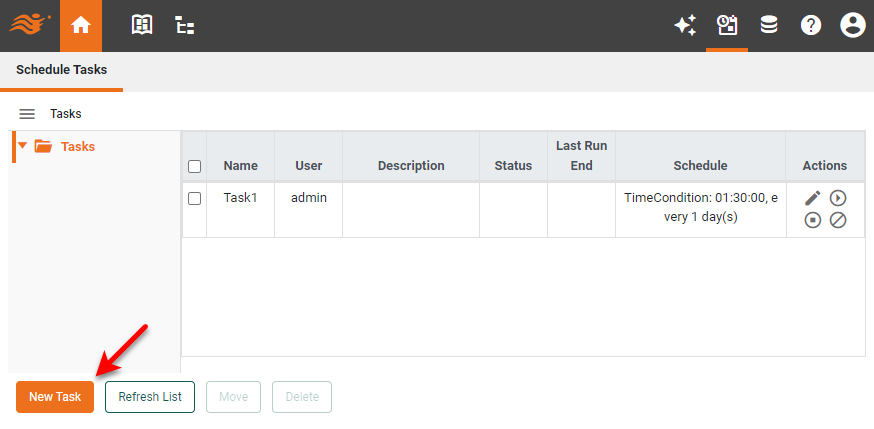
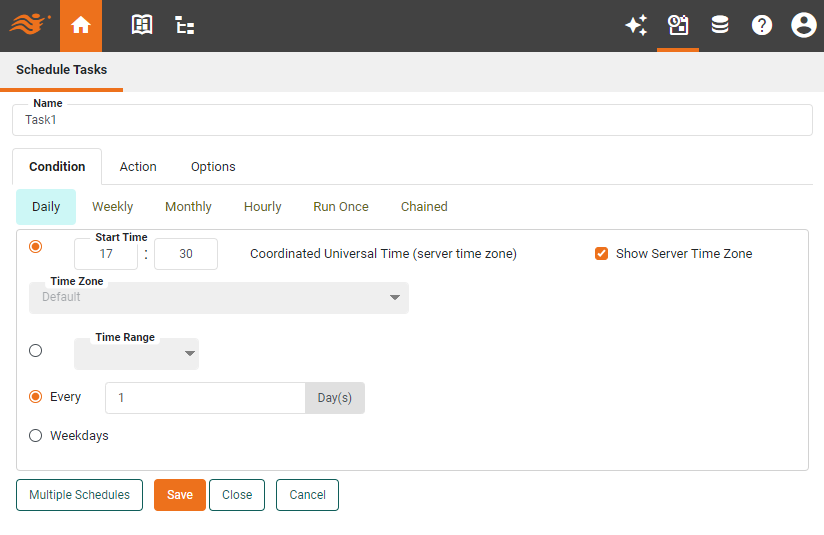
This creates a new task with the name ‘Task1’, and opens the ‘Schedule Task’ page.
-
Change the task name as desired in the ‘Name’ field.
-
On the Condition tab, set the frequency with which the alert conditions should be tested. (See Schedule Conditions for more details on the available day and time conditions.) For example, if you want to test a Dashboard highlight condition every day, specify a ‘Daily’ condition.
-
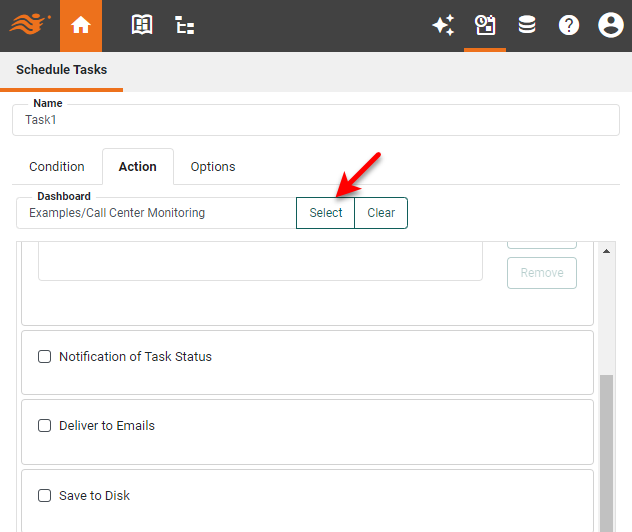
On the Action tab, press Select to specify the Dashboard that contains the alert condition you want to test.
-
Select the actions that you want to perform if the alert is triggered. Generally, you will at least select the ‘Deliver To Emails’ option. (See Schedule Actions for more about the available actions.) Enter a ‘Subject’ and ‘Message’ appropriate for the nature of the alert.
-
Optional: Specify values for any required parameters in the ‘Creation Parameters’ table. See Creation Parameters for more information about creation parameters.
-
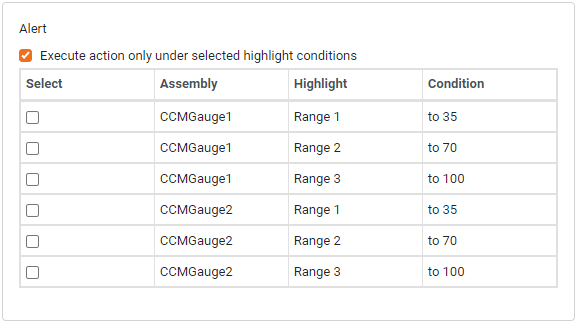
In the ‘Alert’ panel at the bottom of the Action tab, check the ‘Execute action only under selected highlight conditions’ option. This displays a list of the available highlight and range conditions for the selected Dashboard.
The table lists highlight conditions for all Chart, Table, Image, and Text components, as well as range conditions for Dashboard Output components. -
In the table, select the highlight or range conditions that you want to trigger the alert. When any of the selected conditions test true, the actions you specified above (e.g., ‘Deliver To Emails’) will be performed.
-
Press Save to save the scheduled task.
-
Press OK to close the dialog box.
Create an Advanced Scheduled Task
If you need additional control over the schedule settings, use the Portal’s ‘Schedule’ button . Follow the steps below:
-
Press the ‘Schedule’ button
in the Portal. -
Press the New Task button below the Schedule table.
This creates a new task with the name ‘Task1’, and opens the ‘Schedule Task’ dialog box.
-
Use the Condition tab to set the time interval for task execution. See Schedule Conditions below.
-
Use the Action tab to set the action performed by the task. See Schedule Actions below.
-
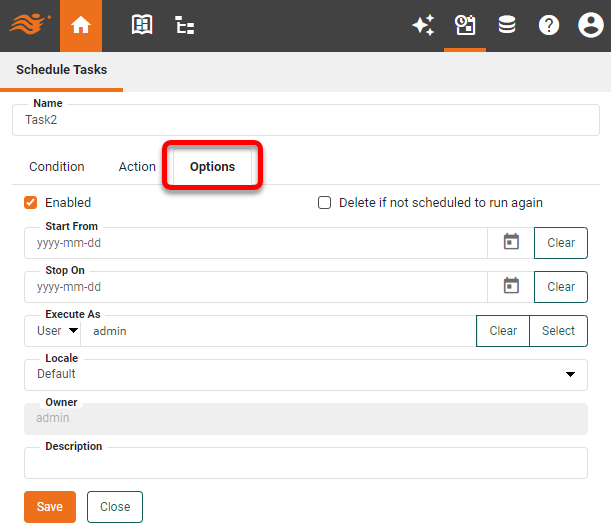
Use the Options tab to configure task options. See Schedule Options below.
-
Press OK to save the task.
Manage Scheduled Tasks
You can view and monitor all of your scheduled tasks under the ‘Schedule’ button of the Portal. This table displays a list of the schedule tasks, showing start time, end time, status of the last run, and start time for the next run.
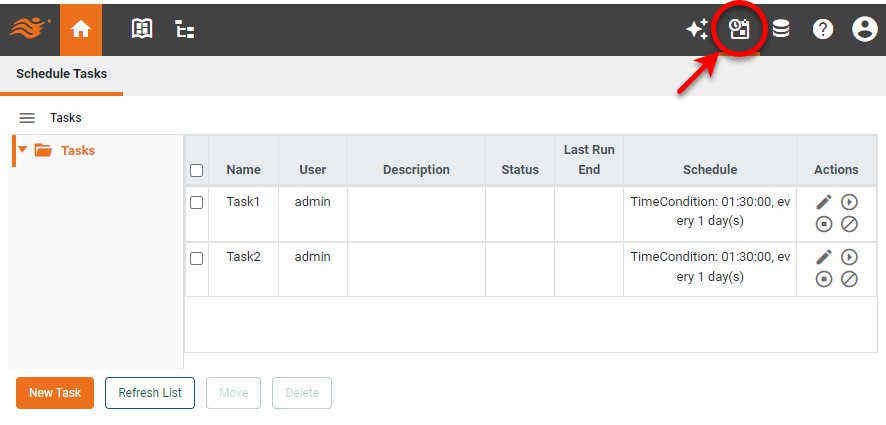
The table provides the following operations:
-
Press the ‘Edit’ button
 to modify the task specifications. This opens the Editor as described in Create an Advanced Scheduled Task above. Proceed to make any desired changes to Schedule Conditions, Schedule Actions, or Schedule Options.
 -
Press the ‘Run Now’ button
 to execute the task immediately.
 -
Press the ‘Stop Now’ button
 to stop the task immediately.
 -
Press the ‘Delete’ button
 to delete the task. To temporarily disable a task, deselect the ‘Enabled’ checkbox on the Options tab. See Schedule Options for more information.
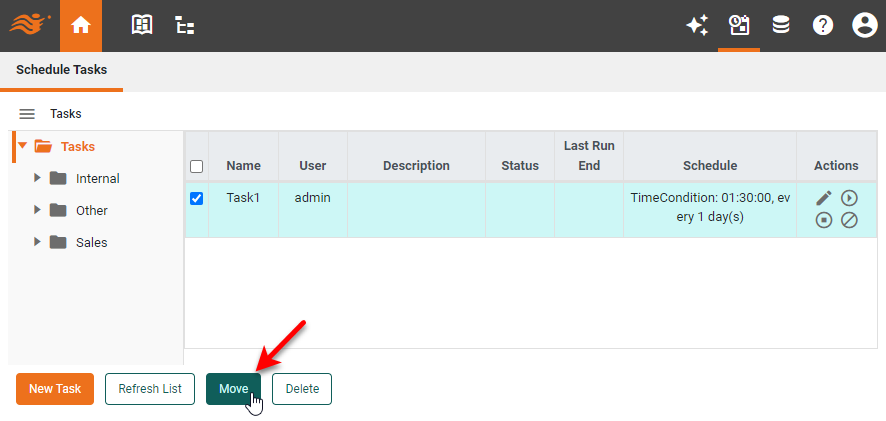
To move the task into a different folder, follow these steps:
| New folders can only be created by an administrator. |
-
Select the task in the table, and press the Move button below the table.
-
Choose the desired folder into which to place the task, and press OK.
Schedule Conditions
A schedule condition determines when the scheduled task executes.
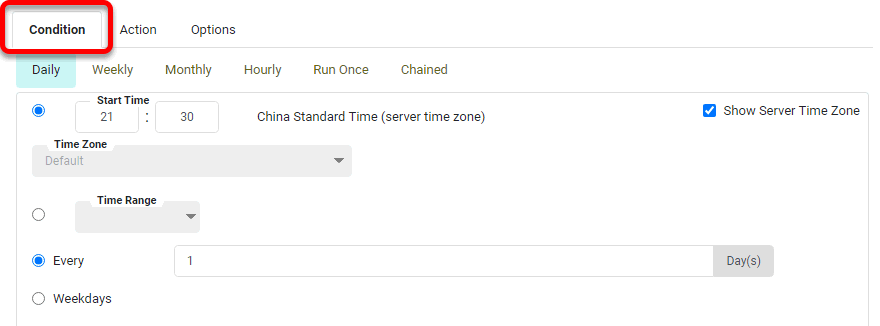
There are several types of conditions: Daily, Weekly, Monthly, Hourly, Run Once, Chained, and User Defined.
| Select the ‘Show Server Time Zone’ option to set times according to the server time rather than the client (user) time, or select the desired time zone from the ‘Time Zone’ menu. |
- Daily
-
This task will execute every N days (every 1 day, every 5 days, etc.) at the specified time. The time is specified using the format
HH:mm, for example,23:39. Select the ‘Weekdays’ option to execute the task at the specified time on weekdays only. The ‘Time Range’ option allows you to specify a general range when the task should be started. This option may improve performance in cases when tasks from many users are scheduled to execute at around the same time. - Weekly
-
This task will execute every N weeks (every 1 week, 4 weeks, etc.) at the specified time and days of the week. The ‘Time Range’ option allows you to specify a general range when the task should be started. This option may improve performance in cases when tasks from many users are scheduled to execute at around the same time.
- Hourly
-
This task will execute every N hours (every 2 hours, every 5 hours, etc.), beginning at the specified time. The time is specified using the format
HH:mm, for example,23:39. - Monthly
-
This task will execute every Nth day of the specified months (e.g., April 15) or every Nth day of the week of the specified month (e.g., 1st Sunday of May). The ‘Time Range’ option allows you to specify a general range when the task should be started. This option may improve performance in cases when tasks from many users are scheduled to execute at around the same time.
- Run Once
-
This task will execute once on a certain day at a specified time (e.g, Nov. 25, 2006 at 11:30).
- Chained Condition
-
This task will execute only if another specified task or cycle has successfully completed first.
- User Defined Condition
-
‘User Defined’ conditions (if any) that have been created by a developer within your organization can be selected from the menu.
To specify multiple conditions, press the Multiple Schedules button at the bottom right of the editing panel. This will display the schedule condition list to which you can add, delete, or edit conditions.
Schedule Actions
A schedule action specifies the set of operations to be performed when the scheduled task runs.
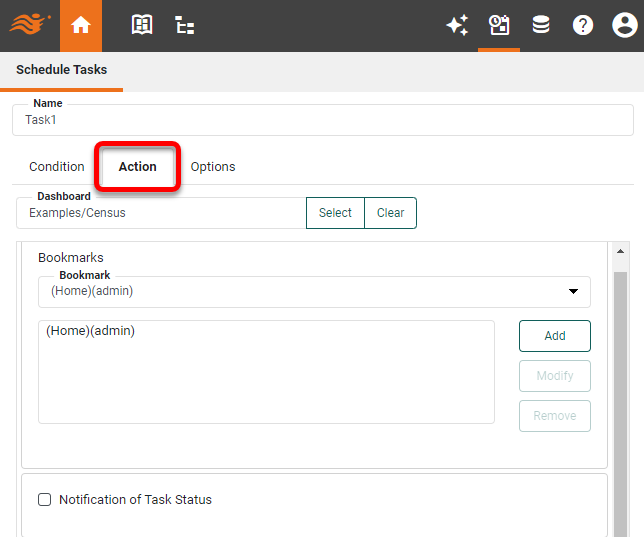
The available actions are described below. To specify multiple actions, press the Multiple Actions button at the bottom right. This will display the schedule action list to which you can add, delete, or edit actions. To execute a scheduled task only when certain data conditions are satisfied, see Set an Alert on this page. If the Dashboard requires parameter values, assign these parameters in the 'Creation Parameters' table at the bottom of the page. See Creation Parameters below.
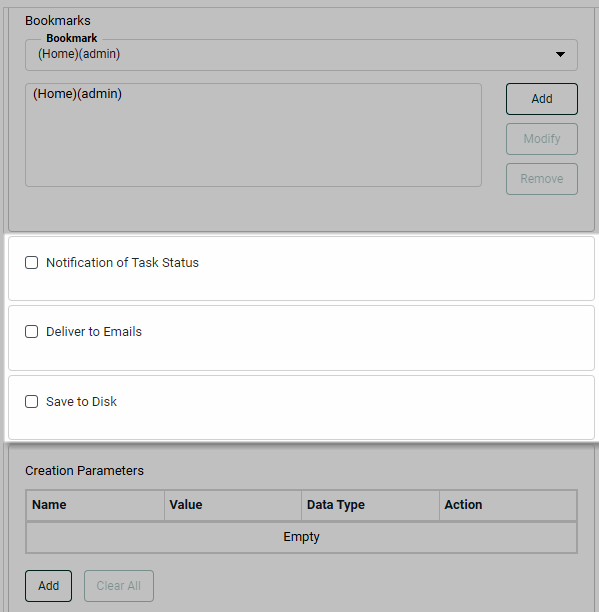
The following options are available:
Enable Notification of Task Status
This option sends notifications to the email addresses that you specify as a comma-separated list in the ‘Notify’ field. The email notification informs the recipient of whether the Dashboard was successfully generated or not. Select ‘Notify only if failed’ to limit the notification only to the event of a task failure.
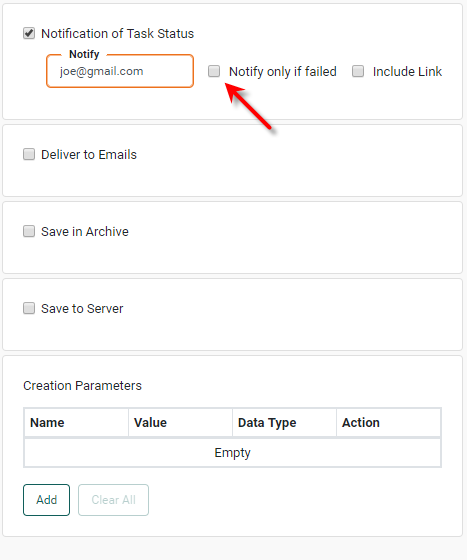
To send an SMS message to a phone, enter the provisioned email address supplied by the recipient’s service provider. (For example, to send a text message to Verizon number 1234567890, enter the email address 1234567890@vtext.com.)
Enable Deliver to Emails
Enable Save to Disk
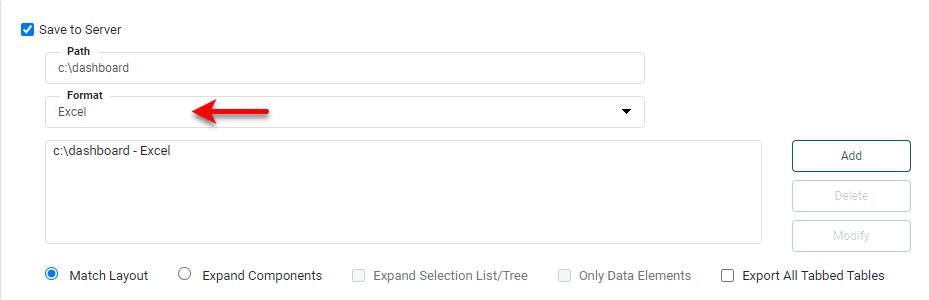
This option saves a copy of the Dashboard to the server file system or to an FTP server. Follow the steps below:
-
To save to the server file system, enter a valid absolute path including filename in the ‘Path’ field. If you see a ‘Location’ menu, select a desired server location, and then enter a path relative to the selected location. (The filename extension, e.g.,
.pdf, is added automatically.) -
To save to an FTP server, check the ‘FTP/SFTP’ box and enter a valid ‘Path’, ‘Username’ and ‘Password’.To append rather than overwrite a file using SFTP, add
?append=trueto the end of the URL. For example:sftp://hostname:8080/myExcelFile?append=trueFor SFTP connections, the known hosts file, .ssh/known_hosts, is automatically read from the user’s home directory. Before running the scheduled task, an administrator should populate the known_hosts file by first connecting (SSH) to the target server from each InetSoft server node. -
Use the ‘Format’ menu to choose the format in which to generate the Dashboard: ‘PDF’, ‘PowerPoint’, ‘Excel’, or ‘CSV’.
- CSV
-
For ‘CSV’ format, select ‘Export All Tables’ to include all Dashboard tables in the export. To include only specific tables, uncheck ‘Export All Tables’ and select the desired tables to export from the ‘Assemblies’ list. In the ‘Delimiter’ field, enter the character to be used to separate entries in the CSV file. (The default delimiter character is a comma.) For tab-delimitation, select the ‘Tab Delimited’ option. Enter a value in the ‘Quote’ field to use this character to quote exported values. Select ‘Keep Header’ to include the column headers in the export. Filename length may be limited by the machine operating system.
- Excel
-
For ‘Excel’ format, select ‘Export All Tabbed Tables’ to export tables within different tabs of a Tabbed Interface into separate Excel tabs. (See Arrange Components for more information about Tabbed Interfaces.) If you select a bookmark, the bookmark name will be used as the name of the first tab. If you select ‘Current View’, the name of the tab will be “Current View”. In Excel exports only, text that contains HTML markup will be exported as text with markup, not as rendered images. Filename length may be limited by the machine operating system.
-
Press Add to add the target file for the ‘Save to Disk’ action.
-
Optional: Press Delete to remove a target, or press Modify to update the target properties.
-
Optional: Set other options:
-
The ‘Match Layout’ option obtains the closest possible match between the appearance of the saved copy and the original Dashboard.
-
The ‘Expand Components’ option expands scrolling tables and charts in the generated Dashboard so that all data is displayed.
-
The ‘Only Data Elements’ option limits the export to only the data-bearing components.
-
-
Optional: To include parameters into the file name for automatic insertion of Dashboard name and time and date of generation, use the java.text.MessageFormat syntax, where
{0}represents the Dashboard alias (or name, if no alias is specified), and{1,date}represents the time and date of Dashboard generation. You can specify a format for the date parameter using the patterns described in Add Data Format. Some examples of automatically generated names are shown below.Filename Generated As… myDash_{1,date}.pdf
myDash_Nov 14, 2007.pdf
{0}_{1,date}.pdf
Production_Nov 14, 2007.pdf
myDash_{1,date,MMM-dd}.pdf
myDash_Nov-14.pdf
myDash_{1,date,EEE-h-mm a}.pdf
myDash_Wed-11-49 AM.pdf
myDash_{1,date,yy-MM-dd-HH-z}.pdf
myDash_07-11-14-11-EST.pdf
Because of filename restrictions, you cannot use the {1,time}syntax for the name.To include Dashboard creation parameter values in the filename, simply place each parameter name within curly braces. The parameter names you enter must exactly match the parameter names in the ‘Creation Parameters’ panel of the Actions tab. (See Creation Parameters below.) For example, if a parameter called
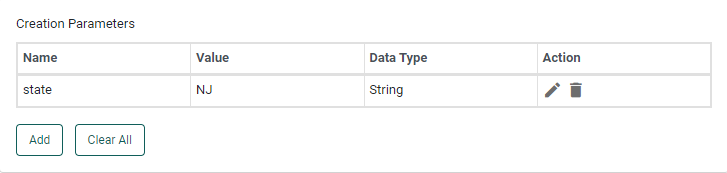
stateParamis assigned a value of “NJ” in the ‘Creation Parameters’ panel, then the filenamemyRep_{1,date,MMM-dd}_{stateParam}.pdfwill yield a generated filename ofmyRep_Nov-14_NJ.pdf. -
Press Save at the bottom of the screen.
Creation Parameters
To include parameters in the scheduled action, follow the steps below:
-
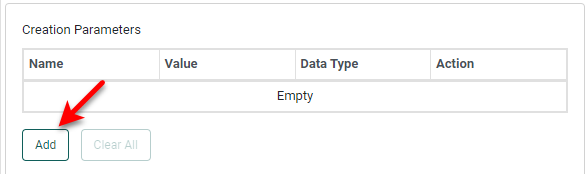
Press the Add button below the ‘Creation Parameters’ table. This opens the ‘Add Parameter’ dialog box.
-
In the ‘Parameter Name’ field, select an existing parameter or manually enter the name of a parameter.
-
In the ‘Type’ field, select the data type of the parameter. Select ‘Array’ if the parameter requires an array of values.
-
In the ‘Value’ field, press the ‘Value Type’ button
 and select ‘Value’ to enter a fixed value to be passed into the parameter. (Enter a comma-separated list for an array parameter.)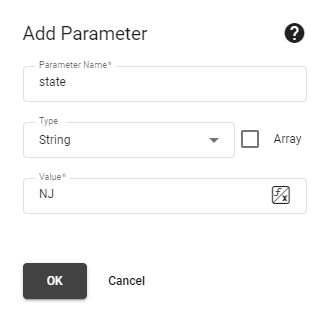
To set the value using scripted logic, select ‘Expression’ or press the ‘Edit Formula’ button
 if available. This opens the Formula Editor. Create a script that returns the desired parameter value. You can use the predefined relative dates in the ‘Dynamic Dates’ folder.
See some examples of dynamic dates…
If the current time is 2023-08-16,13:50:29, dynamic dates will yeild the following results:
_BEGINNING_OF_THIS_YEAR is 2023-01-01,00:00:00
_BEGINNING_OF_THIS_QUARTER is 2023-07-01,00:00:00
_BEGINNING_OF_THIS_MONTH is 2023-08-01,00:00:00
_BEGINNING_OF_THIS_WEEK is 2023-08-13,00:00:00
_END_OF_THIS_YEAR is 2023-12-31,23:59:59
_END_OF_THIS_QUARTER is 2023-09-30,23:59:59
_END_OF_THIS_MONTH is 2023-08-31,23:59:59
_END_OF_THIS_WEEK is 2023-08-19,23:59:59
_NOW is 2023-08-16,13:50:29
_THIS_QUARTER is 2023-07-16,13:50:29
_TODAY is 2023-08-16,00:00:00
_LAST_YEAR is 2022-08-16,13:50:29
_LAST_QUARTER is 2023-04-16,13:50:29
_LAST_MONTH is 2023-07-16,13:50:29
_LAST_WEEK is 2023-08-09,13:50:29
_LAST_DAY is 2023-08-15,13:50:29
_LAST_HOUR is 2023-08-16,12:50:29
_LAST_MINUTE is 2023-08-16,13:49:29
_NEXT_YEAR is 2024-08-16,13:50:29
_NEXT_QUARTER is 2023-10-16,13:50:29
_NEXT_MONTH is 2023-09-16,13:50:29
_NEXT_WEEK is 2023-08-23,13:50:29
_NEXT_DAY is 2023-08-17,13:50:29
_NEXT_HOUR is 2023-08-16,14:50:29
_NEXT_MINUTE is 2023-08-16,13:51:29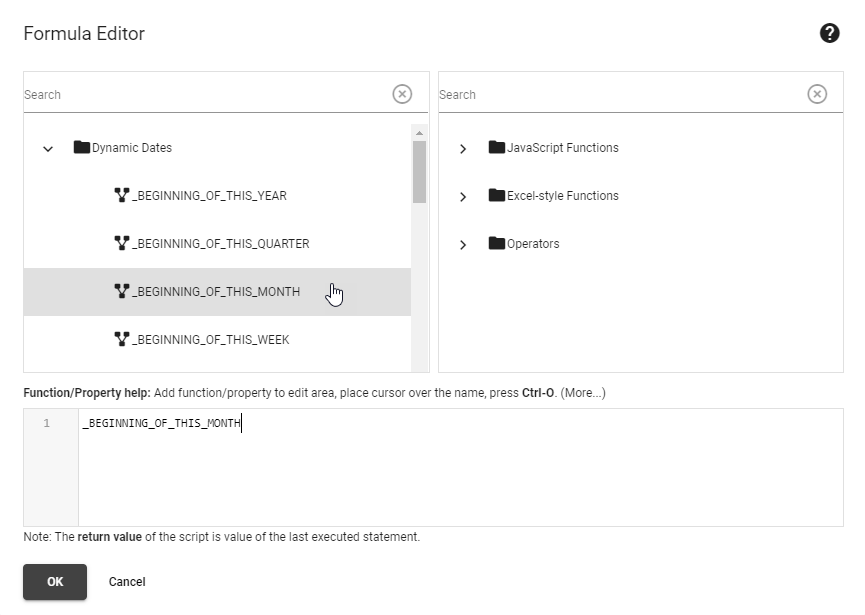
-
Press OK to close the dialog box. The parameter that you added is now listed in the table.
-
Optional: To modify the parameter settings, press the ‘Edit’ button
next to the parameter. To remove the parameter, press the ‘Delete’ button next to the parameter.